Recording Distribution Order Shipments
Use Distribution Order Shipments (12.17.22) to record that you have sent items to another site in your company. These items are taken out of your inventory and moved to an in-transit site and location.
Multiple shipments can be made against a distribution order, with one or more shipments against each line item. You can ship more than the quantity ordered or confirmed.
You can also use Distribution Order Processing to ship items on a distribution order. This program lets you create the order and ship it as one process.
To create, maintain, and report on DO shippers and containers, use the programs in the DO Shipping Menu (12.19).
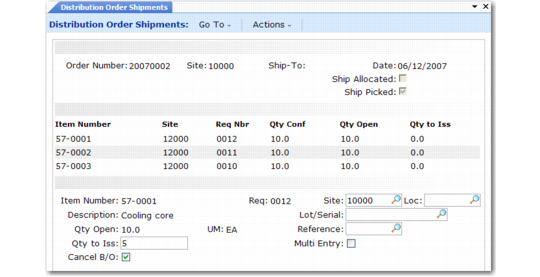
Distribution Order Shipments (12.17.22) illustrates Distribution Order Shipments.
Distribution Order Shipments (12.17.22)
To process a shipment, first specify the order number, which lists the line items and the quantity open.
Default Quantities to Ship
Use the Ship Allocated and Ship Picked fields to set up default quantities to ship.
• If you use picklists to control the shipping process, set Ship Picked to Yes. The quantity to ship is set to the quantity picked for each line item, and you can click Next to process the shipment.
• If you do not print a picklist but you do use allocations to reserve inventory for shipment, set Ship Allocated to Yes. This sets the quantity to ship to the quantity allocated.
When you set Ship Allocated or Ship Picked to Yes, the system automatically determines a quantity to ship and displays it on the screen, unless the items are lot/serial controlled. For these items, you must manually enter shipping information.
Shipment Processing
Enter or modify the quantity to ship, site, location, lot/serial, and reference. Set Multi Entry to Yes to enter detailed information.
When you are finished, click Next. Optionally, another screen displays a summary of what you just entered. If it is correct, click Next to process the inventory update. Otherwise, enter No or click Back to go back and make additional changes.
A final screen displays the DO header for update. You can verify the shipping instructions and enter the carrier and bill of lading (BOL).
Inventory Transactions
Two transactions are created, even when the shipping and goods-in-transit sites are the same:
• Inventory issue at the shipping site (ISS-DO)
• Inventory receipt at the goods-in-transit site (RCT-GIT)
Review in-transit inventory as needed using:
• Orders in Transit Browse (12.15.13) or Report (12.15.14)
• Inventory in Transit Inquiry (12.15.17) or Report (12.15.18)
General Ledger Transactions
Shipping items on a distribution order creates the following GL transactions.
Inventory issue:
• Debits either the Cross-Company Inventory Control account for the entity associated with the shipping site or the Transfer Variance account for the site
• Credits the Inventory account defined in Inventory Account Maintenance for the applicable product line, shipping site, and location
Inventory receipt:
• Debits the Inventory account defined in Inventory Account Maintenance for the applicable product line, in-transit site, and location
• Credits either the Cross-Company Inventory Control account for the entity associated with the in-transit site or the Transfer Variance account for the site
Shipping Documents
In some business environments, formal shipping documents must accompany any movement of goods, even when goods are merely transferred and not sold. You can create a shipping document (shipper) to record the inventory movement associated with a distribution order when both of the following are true:
• The specified ship-from and ship-to sites belong to the same shipping group defined in Shipping Group Maintenance (2.18.1).
• The inventory movement codes associated with the applicable shipping group allow transaction type ISS-DO.
When these criteria are met, a series of frames displays for entering shipper data.
See User Guide: QAD Sales.