Creating Shippers Manually
Use DO Pre-Shipper/Shipper Maint (12.19.3) to do the following:
• Modify DO picklists/pre-shippers.
• Create pre-shippers to document the contents and structure of an actual shipment.
• Establish a master container hierarchy. The hierarchy can be modified after initial creation.
In DO Pre-Shipper/Shipper Maint, the Ship-From ID, Pre‑Shipper/Shipper, and ID fields uniquely identify shipping documents. If a pre-shipper exists for the entered values, that pre-shipper is retrieved. If a pre-shipper or shipper does not exist for the entered values, a new document is created.
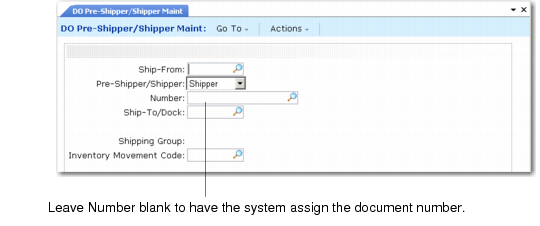
1 Choose DO Pre-Shipper/Shipper Maint (12.19.3).
2 Enter the site code from which this shipment originates in Ship-From ID. This site must have a valid associated address record. If inventory movement codes are required, a shipping group must be available for the Ship-From and Ship-To address combination; see
DO Pre-Shipper/ Shipper Maint (12.19.3).
3 Choose either Pre-Shipper or Shipper in Pre-Shipper/Shipper:
• Enter Pre-Shipper to create a pre-shipper document that can later be turned into a shipper. A shipper number is not assigned until the pre-shipper is turned into a shipper document.
• Enter Shipper to create a shipper document with a shipper number.
4 Enter a new number in ID (external sequence) or leave it blank to have the system assign a default pre-shipper or shipper number (internal sequence), depending on your selection in step 3.
5 Enter a ship-to site address code in Ship-To ID. If inventory movement codes are required, a shipping group must be available for the Ship-From ID and Ship-To ID address combination, and displays in the next field, for reference. See the shipping chapter of User Guide: QAD Sales.
6 Enter a valid inventory movement code. Inventory movement codes determine NRM sequences, carriers, and document formats. This field defaults to the value assigned in the shipping group if one applies. Otherwise, inventory movement code remains blank.
DO Pre-Shipper/
Shipper Maint (12.19.3)
When you click Next, the system:
• Retrieves and displays the shipping group, based on the Ship-From ID and Ship-To ID address combination.
• Validates the inventory movement code against the shipping group.
• If shipper ID is blank or does not exist, the system:
• Verifies your access to the inventory movement code, based on site/inventory movement security.
• Creates a new shipper.
• Retrieves and displays a valid NRM sequence number, based on the shipping group and inventory movement code (if shipper ID is blank), or validates the number you entered.
• Retrieves all other shipping group and inventory movement defaults from the control programs, including carriers and document formatting parameters.
• If you specified an existing shipper, the system:
• Retrieves the shipper.
• Verifies your access to the inventory movement code, based on site/inventory movement security.
• Issues a warning if you enter a Ship-To address or inventory movement code that differs from those stored in the actual shipper record.
• Displays the Ship-To address and inventory movement code, obtained from the existing shipper record.
Finally, the system displays the Carrier Detail frame.
DO Pre-Shipper/Shipper, Carrier Detail
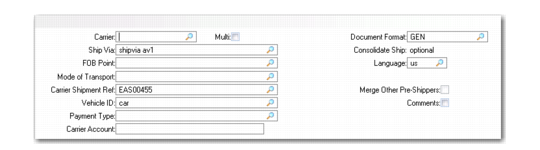
7 Enter the carrier data for this shipment.
Carrier, Ship Via, FOB Point, Mode of Transport, Carrier Shipment Reference, Vehicle ID, Payment Type, and Carrier Account appear on various printed documents.
8 Set the Multi field to Yes if this shipment requires more than one carrier. The system prompts you for additional carriers.
9 Enter a valid document format of a type applicable to shippers, or leave this field blank. If the document format is edited for a shipper marked as having been printed, the system issues a warning message, but lets you continue.
10 Consolidate Ship indicates whether this shipment can be consolidated by transactions of a given type. Enter No to prohibit consolidation. Enter Optional to allow but not require consolidation. Enter Yes to require consolidation.
11 The Language field contains the default language for retrieving header, line item, and trailer comments with the shipper.
12 Choose Yes in Comments if you want to attach any information about this document. The Language field defaults to the language of the shipper. This enables you to copy comments associated with the document format to the line item of the shipper.
DO Pre-Shipper/Shipper Maint, Contents Frame
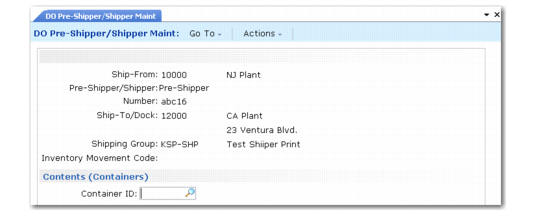
After you specify a valid container ID, press Cancel.The system displays the Contents (Items) frame. This is the same Contents (Items) frame that displays in DO Container Maintenance (12.19.7). Use the field descriptions that follow
DO Container Maintenance, Contents (Items) Frame to enter data in the frame.
Adding Logistics Accounting Details
After you enter data for shipper contents, the system displays the Logistics Accounting Detail frame, if you activated logistics accounting in Logistics Accounting Control (2.15.34). Enter a code in the frame identifying a logistics charge. The code defaults from the distribution order. Logistics charges are the transportation costs incurred for items that are moved in and out of company locations by third-party logistics suppliers. The charges can include freight, duty, customs, clearance, insurance, and so on.
Adding and Editing Trailer Information
After maintaining line items, the Trailer Information frame displays.
DO Pre-Shipper/Shipper Maint, Trailer Information
1 The Status field specifies whether the shipper is active or canceled. Leave this field blank for active shippers. To cancel a shipper, enter X. A canceled shipper is ignored by the system and unavailable for processing, other than deleting or archiving. You cannot cancel a confirmed shipper.
2 The Cancel Date field contains the date the shipper was canceled. The system sets this field to the current date when an open shipper is canceled. When a canceled shipper is reopened, the system sets the date to blank.
3 The Comments field indicates whether trailer comments can be associated with this shipment. Enter Yes to enter trailer comments. The system prompts you for your comments. Enter No if you do not want to add comments.
Deleting Shipments
To delete a shipment created with DO Pre-Shipper/Shipper Maint, NRM must permit the assigned sequence number to be deleted. If the sequence number cannot be deleted, you can cancel the shipper using the Status field on the trailer frame. If the shipper was converted from a pre-shipper, the system also checks whether the NRM pre-shipper number can be deleted. If not, the shipper cannot be deleted.