Analysis Codes
Use GL analysis codes to group GL items of a given type (accounts, sub‑accounts, cost centers, projects, or entities). An analysis code can also link other analysis codes together into a larger structure. Use this feature when your report must summarize data in a unique way, such as a controlling hierarchy. See
Using Controlling Hierarchies.
Analysis codes have various effects on reports. When used in a row, the GL items within an analysis code can appear as lines on the report—provided you choose to explode the analysis code. Otherwise, the system uses the analysis code mainly as data retrieval criteria. For example, if you do not explode the analysis code in a row, it generates one summary figure for all the items within it.
The system checks analysis codes during synchronization and updates them if necessary. If an analysis code specifies accounts between 2000 and 2999 and you add account 2301 to the chart of accounts, the system adds that account to the analysis code.
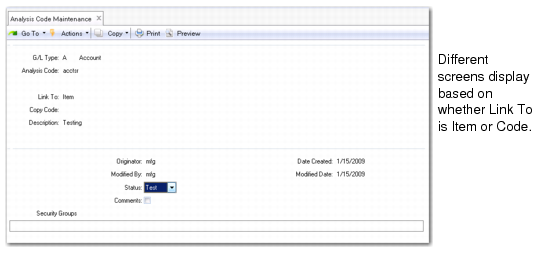
Analysis Code Maintenance (25.17.1)
G/L Type
Enter either accounts, sub-accounts, cost centers, projects, or entities.
Analysis Code
Enter an eight-character alphanumeric code.
Link To
Enter Item to select one or more GL account numbers or Code to link to other analysis codes.
Copy Code
Specify a field to copy its structure.
A new analysis code is created using the code provided, and the complete analysis structure is copied.
This field is only available when creating a new record.
Status
Enter Test or Live. Initially enter Test, then change to Live once you have successfully generated a report with this analysis code. This is for reference only and has no effect on report processing.
Comments
Enter Yes to add notes.
Security Groups
Leave blank to grant access to all users. Add security groups to limit access. If you add security groups, make sure to add your own user ID. Use commas to separate multiple user IDs.
There are two ways to use Analysis Code Maintenance: linking GL items or linking together other analysis codes.
Link Analysis Codes to GL Items
Specify Item in the Link To field to create an analysis code linking together GL items.
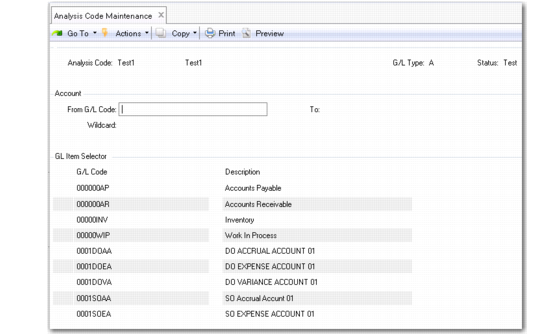
Analysis Code Maintenance, Item Selection
From/To G/L Code
Enter a GL code or range of codes, such as accounts or cost centers, depending on the type of GL analysis code you defined.
Wildcard
Enter a string of characters and a wildcard character (period or asterisk). A period (.) matches any character for that position. For example, .400 matches 3400, 4400, 5400, 6400. An asterisk (*) matches any string of characters (including none) for that position. For example, 35* matches 3510, 350, 35950.
Further refine your selection by adding or removing individual items, shown in the G/L Item Selector frame. An asterisk indicates that an item is selected.
Link Analysis Codes Together
Specify Code in the Link To field to link analysis codes. This lets you summarize data in a variety of ways.
Example: Management wants to see the results for regions 1 and 2. You have analysis codes built for the cost centers in each region. Rather than linking to the cost centers in regions 1 and 2, simply link the analysis codes you have already set up for those regions.
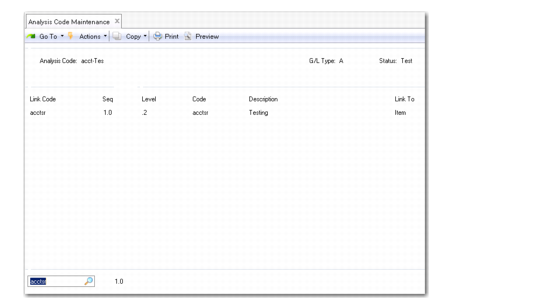
Analysis Code Maintenance, Code Selection
Link Code
Enter the analysis codes you want to link to. Add a new analysis code to the one you are defining, or select a code already attached and change its sequence order or delete it. The display frame on the upper left shows the analysis codes you have linked to and their sequence order. The right frame displays the structure of each analysis code and shows whether it links to GL items or to other analysis codes. If the link is to a code, the analysis codes linked within it display.
Seq
Enter the sequence order for the analysis code selected in Link Code. Use a decimal figure to insert a code between two existing ones. Sequence numbers are reset to integers after inserting or deleting a code. The top left frame shows the existing sequence of the analysis codes you have linked together. The right frame shows the same structure in more detail, including the GL items for each analysis code.
Viewing Analysis Codes
Three programs display information on analysis codes.
Tools for Checking Analysis Codes
Menu No. | Name | Function |
25.17.2 | Analysis Code Inquiry | Shows the exploded view of one analysis code. |
25.17.13.1 | Analysis Code Listing | Shows the exploded view of one or more analysis codes. |
25.17.3 | Where Used Inquiry | Shows which analysis codes reference a specific GL item. |
Renaming Analysis Codes
An analysis code’s name cannot be the same as a GL item code regardless of GL type. A GL item can be added that conflicts with an existing analysis code. Because the GL item cannot be eliminated or renamed, use Rename Analysis Code (25.17.12.13) to change the name of the existing analysis code.