Creating Data Rows
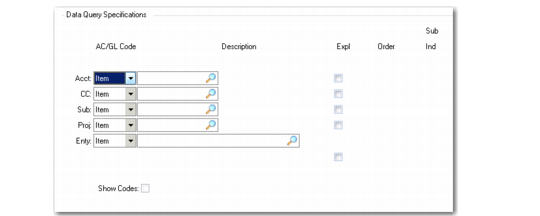
If you enter D for Type on the second screen of Row Group Maintenance, the Data Query Specifications frame displays.
Row Group Maintenance, Data Query Specifications
AC/GL
Indicate whether the query specification type is an analysis code or a GL item. Specify either a single GL item or a group of items defined by an analysis code.
Code
Enter the GL item code or analysis code.
Expl
Set to Yes to explode a corresponding analysis code. If No, the report summarizes all analysis code components as one number. An exploded analysis code shows each of its components in a separate line. An explode field can be affected by the combined settings of other explode fields and the Order field. For example, if an analysis code is not exploded in a row, the explode fields for analysis codes with Order values lower than its own are forced to the default No.
Order
Set a priority level, if more than one type of GL item is specified for this row.
Data Rows and Multiple GL Types
Within data rows, you can sort data with a combination of GL types. For example, specify sales revenue accounts for cost center 100 or for project 555 or both.
The results depend on the sorting order you specified in the Order field of the Data Query Specifications frame and whether you have any exploded analysis codes. The lower the order number, the higher the level.
Example: The order of a sales account analysis code and a cost center is:
Cost Center 100 Order 1
Sales Acct. Analysis Code Order 2
The cost center is on a higher level than the sales account analysis code. The system retrieves the figures for the accounts based on cost center. If the order is switched, the system then retrieves figures for the cost center based on each sales account.
Either way, the total figure for the row is the same. You only see a difference if you choose to explode the items in the sales account analysis code.
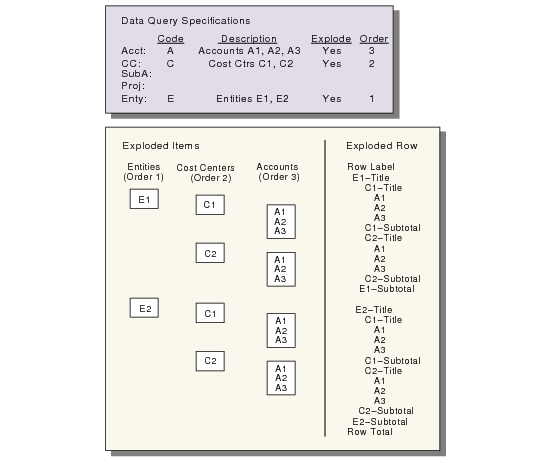
Row Explosion shows an example of exploded items and an exploded row. On the left are the data query specifications and the possible combinations of the specified items. On the right, the resulting lines on the report
are
a row explosion.
Row Explosion
To see the row explosion for your report, go to Report Content Listing (25.17.13.6). The indentations in the finished report come from the Sub Indent field, which you specify for each GL type in the specifications.
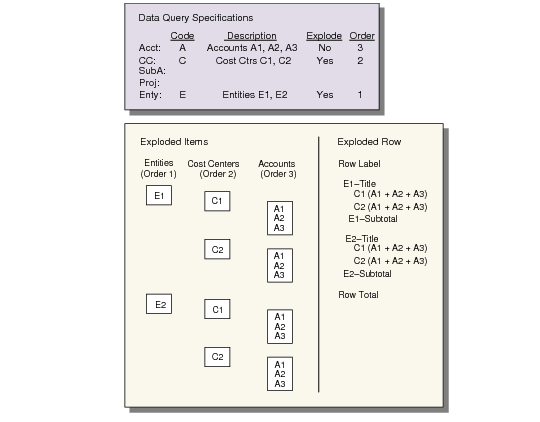
If you deactivate the explosion for one of the lower levels, the system summarizes it in the next higher level.
Unexploded Rows illustrates how the report looks with the explosion set to No for the account analysis code.
Unexploded Rows
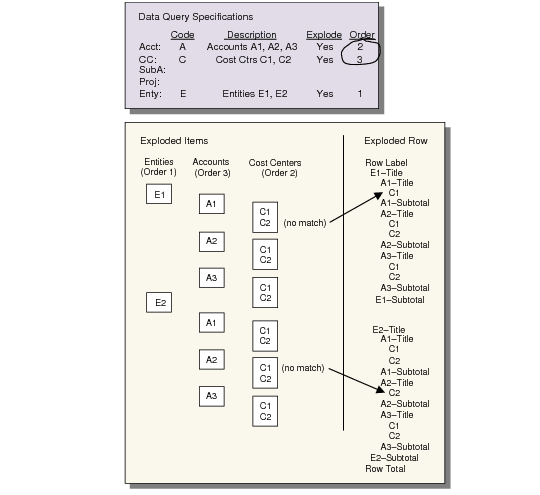
If the sort order is different, you get a different result, as shown in
Unexploded Rows. In this case, the order changed between account and cost center, so the cost centers now summarize into each account.
This figure also shows what happens when a particular combination of GL items does not exist in the GL settings (no match). The resulting report leaves out items that do not have a proper match.
Different Sorting Order