Setting Up Advanced Repetitive for Subcontract Operations
For subcontract operations in Advanced Repetitive, set up schedules and subcontract shipping control options.
Setting Up Schedules
Use Schedule Maintenance (18.22.2.1) to set up repetitive schedule requirements for a subcontracted item. The repetitive schedule defines how much of an item can be manufactured per day and provides visibility to the quantity per day that requires subcontracted services.
Defining Subcontract Shipping Control Options
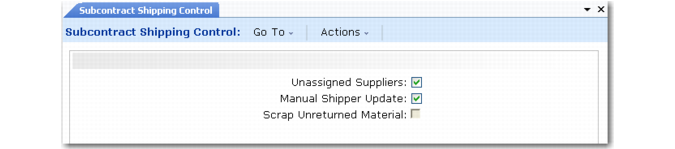
You set subcontract shipping options in Subcontract Shipping Control (18.22.5.24). The options let you ship items to alternate subcontractors, manually track subcontract shipper numbers sent to and received back from a subcontractor, and scrap items that the subcontractor does not return.
Subcontract Shipping Control (18.22.5.24)
Unassigned Suppliers
Indicate if you want to restrict subcontractors to those specifically assigned to a routing operation when you create the subcontract shipper.
No (the default): You can specify only subcontractors associated with the routing and operation when creating the subcontract shipper.
Yes: You can specify subcontractors not associated with the routing and operation when creating the subcontract shipper.
Note: You specify scheduled orders for a specific routing and operation in Subcontract MRP % Maint (5.5.1.21). You specify discrete purchase orders for a specific routing and operation through Subcontract Routing/Op PO Maint (5.11).
When you create a subcontract shipper, you can specify a cumulative ID. The system populates subcontract shipper fields with the subcontractor data associated with the ID. To be able to associate a subcontract shipper with a different subcontractor, set this field to Yes.
Example: Your company uses three different subcontractors to paint item A, bicycle frames: subcontract suppliers A, B, and C. Work order 20 specifies that item A is painted red. In Subcontract Routing/Op PO Maint, you specify the subcontract PAINT operation and routing for subcontract supplier A and B only. If you set this field to Yes, you can specify subcontractor supplier C on the subcontract shipper with item A, work order 20, the subcontract PAINT operation, and other data associated with the order. If you set this field to No, you can only specify subcontract supplier A or B on the subcontract shipper.
Manual Shipper Update
Indicate if you want to manually track subcontract activity by connecting subcontract shipper numbers to subcontract purchase order lines when you receive or return items.
No (the default): The system automatically updates subcontract shipper records with receipt or return quantities.
The system updates the open subcontract shipper with the oldest ship date. As open subcontract shippers are consumed (closed), the system updates the next open subcontract shipper with the oldest ship date and so on.
Yes: The system lets you specify the subcontract shipper and updates the subcontract shippers with the quantities received or returned, beginning with the shippers you selected.
When Yes, the system displays the Subcontract Shippers frame in Purchase Order Receipts (5.13.1), Purchase Order Returns (5.13.7), and PO Shipper Maintenance (5.5.5.5 and 5.13.14). Use the frame to:
• View and associate multiple subcontract shippers with the receipt or return.
• View WIP lot/serial numbers of items being received or returned.
• Indicate whether the subcontract shipper is fully received even when the quantity received does not match the original quantity shipped.
• Scrap unreturned material.
• Enter comments about the receipt.
Scrap Unreturned Material
Indicate if you want to be able to scrap the quantity short from the subcontractor when you receive or return subcontract items. You cannot set this field to Yes unless Manual Shipper Update is Yes.
No (the default): You cannot specify a scrap quantity when you receive or return items. The system does not register a scrap transaction for the quantity short. If No and you have subcontract items to scrap, you should manually enter the scrap quantity through Advanced Repetitive Scrap Transaction (18.22.18) or Subcontract Scrap Transaction (18.22.5.13).
Yes: You can enter the quantity scrapped when you receive or return items using Purchase Order Receipts (5.13.1) and Purchase Order Returns (5.13.7).
The system updates the subcontract shipper you select and registers a scrap transaction for the quantity you specify in the Subcontract Shippers frame.
To scrap unreturned subcontracted items, the quantity received must be less than the quantity indicated on the subcontract shipper, minus the quantity already received.