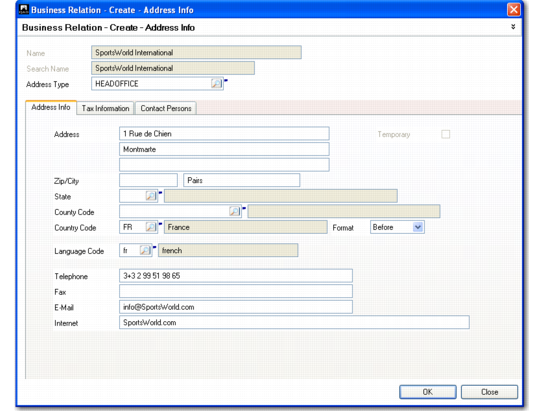
Address Information Tab
A business relation must have a single address of the headoffice type. To add an address, right-click in the Address Information tab and choose Insert a New Row. The Business Relation Address Information screen displays.
Business Relation Address, Address Information
Field Descriptions
Name
Specify the full name (maximum 36 characters) of this particular address. Name defaults from the value specified for the business relation. It cannot be modified for the headoffice type.
Search Name
Specify an alternate name (maximum 28 characters) for finding this address. Search Name defaults from the value specified for the business relation. It cannot be modified for the headoffice type.
The name is useful since some address types in the business relation may operate under their own name. For example, a ship-to address for this business relation may have a unique name.
Address Type
Choose an address type from the drop-down list. This field is mandatory.
A set of address types is supplied with the system. You can create new address types using
Address Type Create. See
System Address Types for a list of system-supplied address types.
For each business relation, you must create an address with the headoffice address type. Other types of business relation addresses can be created as needed. However, you cannot create any other types until you have created the headoffice address.
It is common for affiliated addresses to operate under different names. For example, a customer ship-to address may have a name that is distinct from the customer address.
The only address types that can be created directly in the business relation are headoffice, dock, reminder, and remittance; you cannot create or delete ship-to and end-user addresses. You must use the Customer Ship-To and End User functions. This prevents ship-to and end-user addresses from being created that are not linked to customer ship-to and end-user records.
Temporary
If the type of this address is ship-to or dock, indicate if the address is temporary. This field is for reference and can be useful for sorting and filtering records.
Ship-to records created in operational functions such as Sales Order Maintenance (7.1.1) are automatically marked as temporary. You can change the setting here if necessary.
Address
Enter up to three lines of address details. Each line can be up to 36 characters. You must enter data in Address Line 1 at a minimum.
Zip
Enter the postal code or US zip code (maximum 10 characters) associated with this address.
Postal codes print on all address reports and documents, based on the setting in the Format field. Some reports can be selected for ranges of postal codes, letting you print reports for specific regions as identified by the postal code. The postal code is also part of the tax zone for the address.
City
Enter the city (maximum 20 characters) for this address. This field is mandatory. City can be used to select a tax zone.
State
Select a valid state or province code for this address. Description displays next to the code. The state is used to select a tax zone.
County Code
Select a valid county code that identifies the county for this address. Description displays next to the code. The county is used to select a tax zone.
Country Code
Select a valid country code that identifies the country where this address is located. Description displays next to the code. This field is mandatory and is used to determine tax defaults.
The default value for the Country field is the country associated with the business relation of the current entity.
Format
This field determines where postal codes display on printed addresses. It defaults from the value for the same field defined for the country. Valid values are:
After: Postal code prints after the city and state.
Before: Postal code prints before the city and state.
Language Code
Enter a valid code identifying the language used by this address. The customer ship-to language defaults to sales documents, such as quotes, sales orders, invoices, and service return material authorizations.
You can select orders for printing by range of language codes. This lets you use preprinted forms in different languages. Some financial documents can also be printed in the language of the customer.
Language defaults from the language specified in the General tab, but each address can have a different language if necessary.
Telephone
Enter the telephone number (maximum 40 characters) for calling this business relation address.
Fax
Enter the fax or telex number (maximum 40 characters) to use when sending documents to this address.
E-Mail
Specify the e-mail address associated with this business relation.
Internet
Specify the Web site of this business relation.