Creating Invoice Status Codes
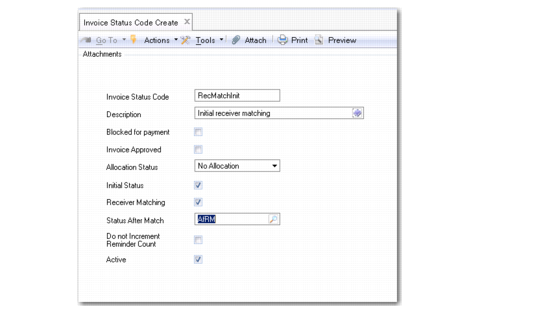
Invoice Status Code Create
Field Descriptions
Invoice Status Code
Enter a code (maximum 20 characters) that identifies a combination of values for managing supplier invoices or a filter criteria for customer invoices. This field is mandatory; the code cannot be blank.
Description
Enter a brief description (maximum 40 characters) of the invoice status. This field is mandatory; the description cannot be blank.
You can optionally enter descriptions in more than one language. For more information on the Translation Option, see
Introduction to QAD Enterprise Applications User Guide.
Lock Payment
Select this field to prevent supplier invoices with this invoice status from being included in payment selections.
Invoice Approved
Select this field if supplier invoices with this status can be approved for payment. This field must be selected in order to complete the Supplier Invoice Approve activity.
Allocation Status
Choose the allocation status for supplier invoices with this invoice status. This status controls how the system manages posting of GL transactions related to the invoice. Posting of a supplier invoice always has two steps:
• Posting to the temporary Unmatched Supplier Invoices account
• Posting from the Unmatched Supplier Invoices account to the correct cost account
How these steps occur is determined by the status code. Possible status values are:
No Allocation: The invoice is posted to the Unmatched Supplier Invoices account; posting to the cost account must occur later as a separate step.
Allocation: Two postings are created, the first to the Unmatched Supplier Invoices account and then immediately to the cost account in the official layer.
Transient Allocation: Two postings are created, the first to the Unmatched Supplier Invoices account and then immediately to the cost account in the transient layer.
Any: This option lets you choose either Allocation or Transient Allocation, as long as you have the appropriate daybook specified. A status code with this value would be used only for financial invoices; not receiver matching. In the Matching Posting tab of the supplier invoice, the official daybook defaults, but you can select a transient one if you want. This setting can simplify setup in some situations by avoiding having to have two different codes.
Initial Status
Select this field when you are creating an invoice status code to be used for initial invoices. Invoice status codes for initial invoices must be locked for payment, not approved and have a status of No Allocation. You can optionally select Receiver Matching as another attribute for initial invoices that are to be used in a matching process. This field is only available when you have selected No Allocation as the previous attribute.
Receiver Matching
Select this field when you are creating an invoice status code to be used for receiver matching. Selecting this field and No Allocation also makes the Status after Match field available. The status before match must have No Allocation and Receiver Matching set to Yes; the status used in the Status after Match field has Allocation selected and Receiver Matching also set to Yes. See
Using Invoice Status Codes.
Note: You cannot modify this field if the status code has been referenced in the Status after Match field of another code. You also cannot delete a status code that is referenced by another status code.
Status after Match
When No Allocation and Receiver Matching are selected, specify the invoice status code to be applied to the invoice after it has been matched.
The Status after Match field links a status code that is applied to the invoice before matching—with no allocation—and after matching—with allocation, so that the one is automatically replaced by the other, reducing errors and streamlining the process.
The code you specify in this field must have Allocation selected and Receiver Matching set to Yes.
Do not Increment Reminder Count
Select this field to create an invoice status code that prevents reminder levels on customer reminder letters from incrementing. You can use these status codes to create invoices that remain at the same reminder level for each print run.
Active
Indicate if this is an active record.