Creating End Users
Use the Customer End User (27.20.3) activities to create, view, modify, or delete end-user records. End users are used in the Service/Support Management module to identify the address that owns items requiring service. End users are specified on calls, return material authorizations, and contracts.
End-user addresses must be of type enduser. You can create end user records for inactive customers.
After creating end users here, specify additional SSM data in End User Data Maintenance (11.9.1). An e-mail is automatically sent to the members of the EndUserNotify role responsible for creating this data when a new end user is created.
The system can automatically create end-user records based on settings in Service Management Control (11.24) when an invoice is posted for an item being recorded in the SSM installed base. For details, see
QAD Service/Support Management User Guide.
End users can also be created during the execution of the following SSM programs:
• Contract Quote Maintenance (11.5.1.1)
• Contract Maintenance (11.5.13.1)
• Call Quote Maintenance (11.1.1.7)
• Call Maintenance (11.1.1.1)
• RMA Maintenance (11.7.1.1)
This is possible only when the user executing this SSM program also has permission to execute the End User Create activity (27.20.3.1).
You can use End User Create in multiple ways:
• Create an entirely new end user and specify the address, tax, and contact details in this function. To do this, clear all the link-to-address fields, and enter a code in the End User Code field (or leave blank for a system-generated number). The new address is created as an enduser address type for the customer’s business relation.
Multiple end users for the same customer can share the same address.
• Indicate that the customer is also an end user.
• Specify an existing ship-to address of a customer as an end user. In this case, the end-user code is the same as the ship-to code and the address details cannot be modified here.
• Specify a new end-user code and associate it with an existing address with the enduser type defined for the customer or the customer’s business relation (where two customers share the same business relation).
Example: Alverton has two associated end users, E1001 and E1002. The two end users share the same end user address. You create a third end user E1003 for customer Alverton. You can now associate the same address with E1003 by specifying Alverton as the customer code, selecting Link to End User, clicking the End User Address button, and choosing the E1001 (or E1002) address from the lookup. If you update any of the address details, you have the option to apply the changes to all end users who reference the address.
Important: When maintaining end user addresses in End User Modify, if you modify any of the key address fields (address lines 1 to 3, the City field, or the Zip field) to be the same as an existing address, the system displays an error message stating that you must use the Link to Address option to assign an end user to an existing address.
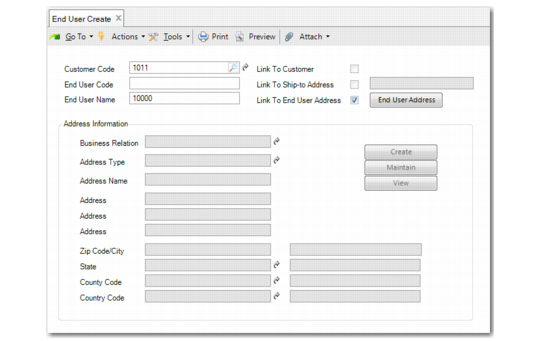
Customer End User Create
Field Descriptions
Customer Code
Enter the code that identifies the customer this end-user record is associated with.
You can link an end user to an inactive customer, even though the lookup for the Customer Code field only displays active customers. You can manually enter the customer code for an inactive customer in the Customer Code field and the system will accept this value.
End User Code
If you are not linking to another customer or to a ship-to address, specify a new code. This code is automatically created with an address type of end user. If you leave the End User field blank, the system automatically generates a number for the record based on the sequence defined in End User Autonumber Create. See
Autonumbering Sequences.
If you select Link to Customer or Link to Ship-To Address, the End User Code field is filled with the value you specify for the customer or ship-to. These addresses are added as end users for the customer specified in Customer Code.
End User Name
Enter a maximum of 36 characters for the end user name. The default is the business relation name for the customer to which the end user is linked. This field is optional.
Link to Customer
Select this field if you want to define the customer entered in the first field as an end user. In this case, the end-user code is set to the customer code and cannot be modified. All address details are filled in based on the headoffice address of the customer and cannot be changed. The Maintain and Create buttons are disabled. You can use the View button to see the details.
Link to Ship-To Address
Select this field if you want to enter a ship-to associated with the customer and define the ship-to as an end user. When selected, a lookup for existing ship-tos is enabled beside the Link to Ship-To Address field. You can enter or select the ship-to. All address details come from the selected ship-to address. The Maintain and Create buttons are disabled. You can use the View button to see the details.
Link to End User Address
Select this field if you want to create a new end-user code that shares an existing end-user address for the specified customer code. Click the End User Address button to display all end-user addresses for the customer. After you select the address you require from the lookup, the Maintain and View buttons are enabled and you can update the address details.
All fields in the Address Information frame are read-only. Use the buttons as follows:
Click View to view address details. When you define the customer as an end user or select an existing ship-to as an end user, the address is display only.
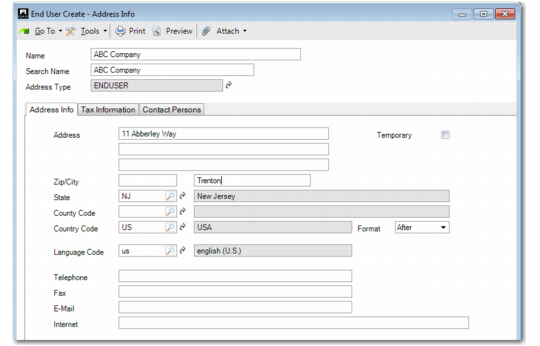
Click Maintain to modify an existing enduser type address. The Customer End User Modify Address Information screen is the same as the business relation screen, and also contains tabs for contact information and tax information. This button is active when you select an address using the Link to End User Address option.
Click Create to display the Customer End User Create Address Information screen, which lets you create a new address for the ship-to end user. This button is active when none of the link-to check boxes is selected.
When you create a new end-user address using End User Create (27.20.3.1), the customer’s business relation is updated with the new end-user address.
Customer End User, Address Information
The fields in the Customer End User, Create Address Information screen have the same layout and restrictions as those in the Business Relation Address Information tab. See
Address Information Tab.
End-user contact information is used extensively in the Service/Support Management module when recording calls. You should ensure that the end user has a primary contact if SSM is being used.