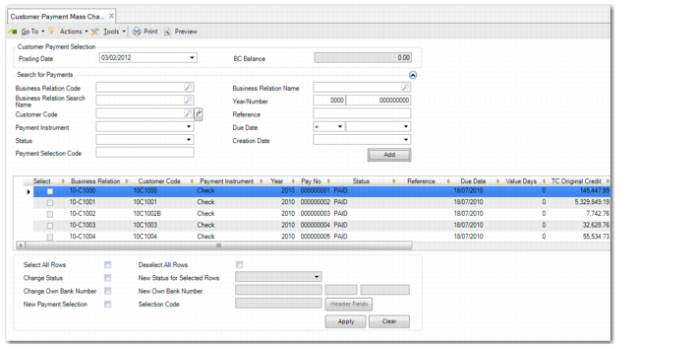
Customer Payment Mass Change
Use Customer Payment Mass Change (27.6.4.5) to register the status transitions of one or more payments, and if required, to change the bank details or payment selection for selected payments.
To change the status of single payments, use Customer Payment Modify; for changing the status of multiple payments at one time, use Customer Payment Mass Change. The mass change activity also lets you select external payments in different formats for status transition.
Using Customer Payment Mass Change helps streamline the process of completing a payment processing flow. For example, when the bank lets you know that a set of checks has cleared, you can update the status of all of them at one time. You can also clear a batch of checks by loading a bank file using Document Import (35.1) and using Process Incoming Bank Files (31.1.6). See
Banking and Cash Management.
Use one or a combination of payment detail fields to search for existing customer payments.
Changing Own Bank Number for Payments
When completing customer payments, you can decide for cash flow or other reasons to change the bank account or account number into which the payment is made. The Change Own Bank Number option lets you specify a different bank account and account number for selected payments.
You can specify a different account number for the same bank, or a different account number and bank account. The new account number, account, and payment instrument combination must be already defined in Bank Payment Format Link and must be defined for the same entity as the original combination.
You must also have defined a payment status that uses the new bank account, payment account, and payment instrument.
Example: You create a check payment using bank account 1040 and GL payment account 1048. In order to change the bank account to 1041:
• There must be an existing customer payment status of Allocated with the payment instrument Check and bank account 1041.
• Bank account 1041 must be linked to an AR check payment format in Bank Payment Format Link.
If the Allocated payment status using the new bank account uses a different GL payment account—for example, 1049—the system generates a posting to compensate for the difference.
Example: The Allocated payment status for bank account 1041 uses GL account 1049. When you change the bank account from 1040 to 1041, the system generates a GL posting that credits 1048 and debits 1049 for the payment amount. This posting uses the daybook defined for the new payment status.
When you select a new account number and bank account for a payment, this combination is then automatically added to the Banking tab of the customer record as a new default own bank account combination. Alternatively, if you change to another own bank number that is already recorded in the Banking tab of the customer record, this own bank number becomes the new default for payments from that customer. When the payment is already allocated to an invoice, the banking details are also automatically updated in the banking grid of the invoice Financial Info tab.
Note: You can only change the bank details for payments with a status of Accepted or Allocated.
Assigning Payments to a New Payment Selection
You can use Customer Payment Mass Change to group payments created using Customer Payment Create and Customer Payment Selection Create together in a single payment selection. The ability to combine payments and selections in a single selection facilitates the transfer of payments to your bank.
In the grid, select the payments to which you want to assign a new payment selection code. Select the New Payment Selection field under the grid, and specify the new payment selection code in the Selection Code field. When you click Apply, the Payment Selection Code field in the grid is updated to display the new payment selection code. When you click Save, the lines you selected in the grid are moved to the new payment selection.
Customer Payment Mass Change
Field Descriptions
Customer Payment Selection
Posting Date
Specify the date that the status change should be effective.
BC Balance
This field displays the value of the payments selected in the grid in base currency, and is read-only.
The value is updated each time a payment is selected or deselected in the grid.
Search for Payments
Business Relation Code
Specify a business relation to search for payments associated with that business relation.
Business Relation Search Name
Specify a business relation search name to retrieve payments associated with that business relation.
Customer Code
Specify a customer code to search for payments from that customer.
Payment Instrument
Select a payment instrument to display payments for that instrument only.
Status
Select a payment status to display payments with that status.
Payment Selection Code
Specify a payment selection code to display payments in that payment selection.
Business Relation Name
Specify a business relation name to search for payments associated with that business relation.
Year and Number
Specify a year and payment number to display matching payments.
Reference
Specify a payment reference to display matching payments.
Operator/Due Date
Specify an operator and due date for the payment. The operator combined with the due date determines which records are retrieved.
>= Due Date: The system retrieves all payments with a due date later than or equal to the due date specified.
= Due Date: The system retrieves all payments with the due date specified.
<= Due Date: The system retrieves all payments with a due date earlier than or equal to the due date specified.
Creation Date
Specify a payment creation date to display payments created on that date.
Click Add to retrieve all payments that meet the search criteria.
To change the status of multiple rows in the grid, use these fields:
Select All Rows
Select all payments in the grid.
Deselect All Rows
Deselect all payments in the grid.
Change Status
Select this field to enable the New Status for Selected Rows.
New Status for Selected Rows
Choose a new status for the payment from the drop-down list and click Apply to apply the status to the selected rows.
Note: You can also edit the status in the grid for individual rows as needed.
Change Own Bank Number
Select this field to enable the New Own Bank Number fields.
New Own Bank Number
Specify a new own bank number for the selected payments. The lookup displays the numbers of bank accounts that have been linked to payment formats only.
New Payment Selection
Select this field to assign a new payment selection code to one or more lines selected in the grid. Selecting this field enables the Selection Code field.
Selection Code
This field is enabled if you select the New Payment Selection field. Specify the new payment selection code to assign to the selected payment lines.
Click the appropriate button:
• Click Header Fields to change attributes associated with the payment file header of the new payment selection. This button is enabled only when the payment format specified supports this feature. See
Payment Format Maintenance.
• Click Apply to apply the new status and bank accounts to the payments.
• Click Clear to clear the contents of the grid.
• Click Save to save the payments with the new statuses and bank accounts, and to register the status transition postings.