Changing the Status of a Payment with Deductions
If you change the status of a customer payment with deductions to Initial or Bounced, the deduction detail lines are set to Closed.
Bouncing a Payment with a Pending Deduction
If a customer payment with a Pending deduction fails to clear, set the payment status to Bounced. When the payment is bounced, the system reverses the payment and deduction postings, reopens the invoice, and sets the deduction status to Credited (closed).
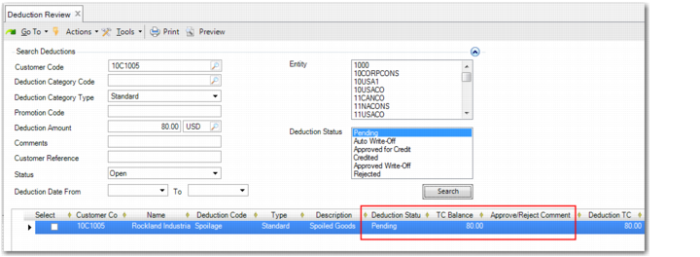
Deduction Review, Pending Deduction shows the Pending deduction when the associated payment has the status For Collection. The Approve/Reject Comment field is blank.
Deduction Review, Pending Deduction
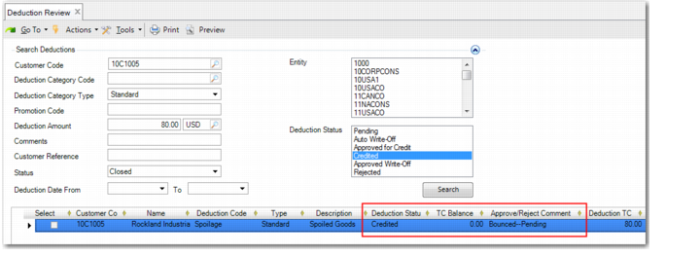
Deduction Review, Credited Deduction shows the same deduction when the associated payment has the status Bounced. The status of the deduction is now Credited and the Approve/Reject Comment field is updated with the comment “Bounced-Pending.” The system updates the Approve/Reject Comment field automatically.
Deduction Review, Credited Deduction
Example:
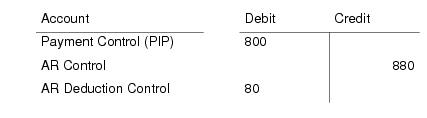
A customer invoice for $880 is due. The customer is eligible for a deduction of $80. The invoice posting is:
The payment posting is:
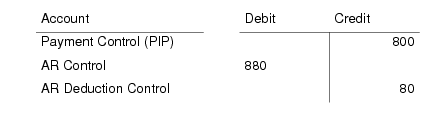
The deduction has the status Pending. The payment bounces, and the posting is:
Bouncing a Payment with a Written-Off Deduction
If a customer payment with an Approved Write-Off deduction fails to clear, set the payment status to Bounced. When the payment is bounced, the payment postings are reversed, but the deduction write-off posting is not, and remains as a credit on the customer’s account. This situation occurs because the deduction credit was previously approved and the customer is still eligible for the deduction, even though the payment bounced.
If you set the status of a payment with Approved Write-Off deduction detail lines to Bounced, the status of the deduction lines becomes Rejected after the payment is bounced. The status is set to Rejected because deductions with this status become open or due against the customer’s account and can be included in payments or adjustments later on.
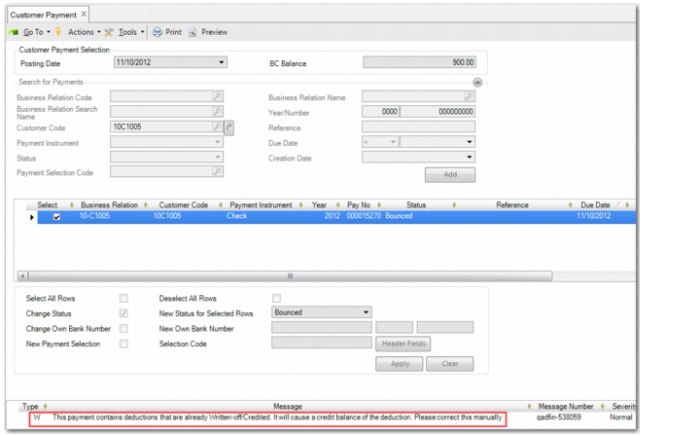
If a deduction contains lines with the status Approved Write-Off, Auto Write-Off, or Credited, the system displays a warning when the payment is bounced in Customer Payment Modify or Customer Payment Mass Change.
Customer Payment Mass Change
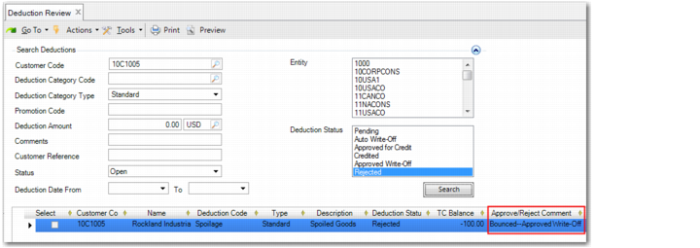
After you bounce the payment, the Approve/Reject Comment field in Deduction Review is appended with “Bounced-” for the deduction associated with the payment.
Deduction Review, Rejected Deduction Resulting from Bounced Payment
You must then process the outstanding deduction manually by adjusting it against the relevant expense account or else by deducting it from a subsequent payment from the customer.
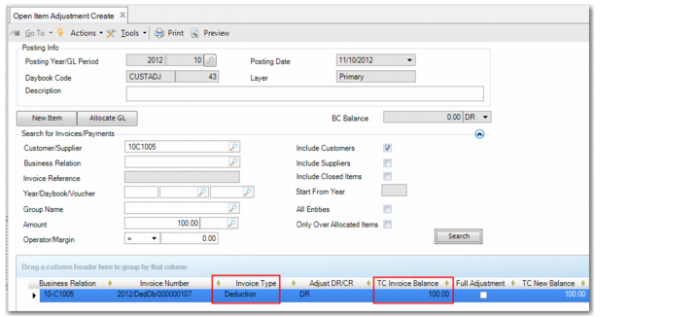
In Open Item Adjustment Create, the rejected deduction is displayed as an invoice of type Deduction, and is now an open item on the customer’s account.
Open Item Adjustment Create
Example:
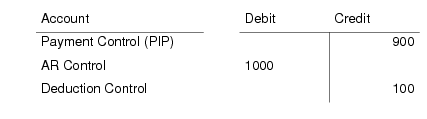
A customer invoice for $1000 is due, and a $100 deduction applies. The invoice posting is:
The payment posting is:
The write-off posting is:
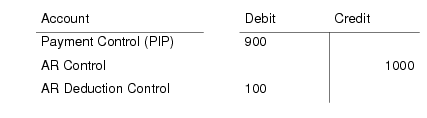
The bounced posting is:
Deductions in Reports and Views
Reports
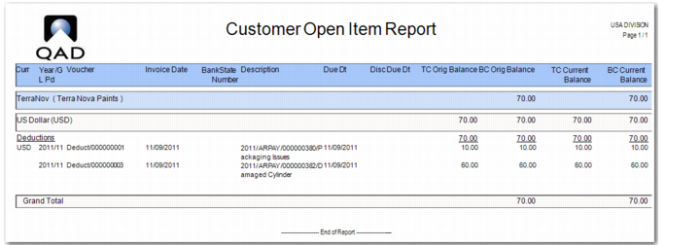
Pending deduction invoices are included in the Customer Open Item report (27.17.1), the Customer Open Item Basic report (27.17.15), the Customer Statement of Account (27.17.19), the Customer Aging reports, and the Reminder Letter report (27.17.10).
The Customer Open Item report and the Customer Open Item Basic report contain selection criteria that enable you to specify whether to include deductions in the report output.
Customer Open Item Report
Views
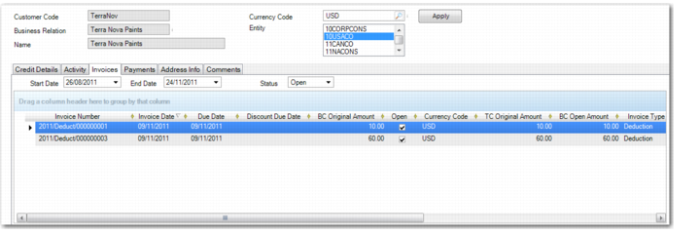
You can view deduction invoices in the Activity tab, Invoices tab, and Payments tab of the Customer Activity Dashboard (27.18.1). If you right-click on the deduction and select Deduction Details from the context menu, you can view the deduction details in read-only mode.
Customer Activity Dashboard
The Invoices tab of the Customer Activity Dashboard contains a Deduction Status column, which displays the status of invoices of type Deduction. The possible statuses are:
• Pending, where the deduction contains detail lines with the status Pending.
• Credited, where all the deduction detail lines are written off, automatically written off, or credited.
• Rejected, where the deduction invoice is rejected.
• Approved for Credit, where the statuses of all deduction detail lines are Approved for Credit.
If the invoice is not a deduction invoice, the Deduction Status column is blank.
The deduction due date is also displayed in the Customer Activity Dashboard. If a deduction is rejected, the due date of the deduction is calculated. See
Credit Terms and Due Dates.