Finance Charges on Overdue Payments
Use Finance Charge Create (27.5.1) to create charges applied to customer open item amounts that are overdue. The open item can be an invoice, adjustment, or a previously outstanding finance charge. You normally run finance charge calculations on a monthly basis, before issuing customer statements.
Note: Finance charges are calculated only for customers that have the Finance Charge field selected on the Payment tab in the Customer function. You can also define the statement cycle for the customer using the Statement Cycle field and select overdue items by statement cycle. See
Payment Tab.
The due dates and payment terms for open items are contained in the credit terms assigned to the open item. The system follows these steps when calculating finance charges:
1 The system calculates unapplied credits from all prepayments and unapplied payment instruments and any credit notes that are not matched to invoices.
2 The system then identifies all open invoices with due dates that are the same as or before the As of Date specified for the calculation. If any grace days are specified, these are added to the due dates first. Any contested invoices are not included.
Note: If an open item does not have a due date, the creation date of the open item is considered.
3 The unapplied credit amount calculated in the first step is applied to the open amount identified in the second step, starting with the oldest documents first. Any invoices marked to be excluded from credit application are not included.
4 The system then calculates the number of overdue days for each qualifying invoice.
5 Finance charges are calculated by applying the interest rate per annum to the final open amount.
These steps are explained in more detail in
Calculating Finance Charges.
Note: For more information on invoice status codes and contested invoices, see
Invoice Status Codes.
You can run the finance calculation as a simulation simply by generating selections and then not saving the results. You can export the result to Excel for further analysis. Saving the Finance Charge Calculation results generates finance charge invoices for the calculated amounts. The finance charge invoices are generated as customer invoices and are not subject to taxes.
Use the Finance Charge Calculation fields as search criteria for overdue open items. Select a range of bill-to customers and an open item currency. You must run separate calculations for each currency you select, which produces separate finance charge invoices. Foreign currency open items are converted to the finance charge currency using the accounting exchange rate.
Note: Contested items and items with zero amount due do not display in the results.
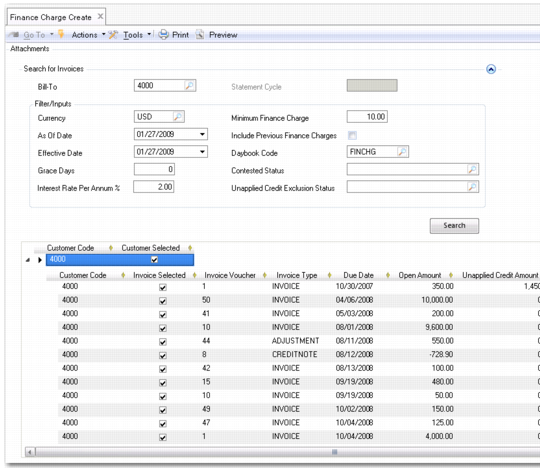
Finance Charge Create
Field Descriptions
Search for Invoices
Bill To
Specify the customer to which to apply finance charges. You can use the Shift key to select multiple customers, which are then displayed in the Bill-To field separated by commas. Selecting the customer as a Bill-To ensures that the finance charge invoice can be posted to the customer’s Bill-To address.
Note: Only customers for which finance charges have been enabled are displayed in the browse. See
Payment Tab.
Statement Cycle
Click to retrieve the statement cycle for this bill-to customer. The statement cycle is set on the Customer Payment tab and indicates how often AR statements are normally printed for this customer.
Currency
Specify the currency of the open items to be selected.
As Of Date
Specify the date the system uses for finding open items. Open items with due dates on or before this date are selected.
Effective Date
Specify a posting date for finance charge invoices generated by this calculation.
Grace Days
Enter the number of days to be added to the financial due date of an open item, after which interest charges are calculated. The default is zero.
Interest Rate % per Annum
Enter the annual interest rate to be charged on the overdue amounts.
Minimum Finance Charge
Enter a minimum finance charge threshold. Calculated charges below this amount are automatically brought up to the threshold.
Include Previous Finance Charges
Select this field to include previous finance charges that are still overdue in the current calculation.
Daybook
Specify the daybook of type Finance Charge to be used for the finance charge posting.
Contested Status
Specify the invoice status code that you use to identify contested invoices. The system then ensures that these contested invoices are not included in the open amount.
Unapplied Credit Exclusion Status
Specify an invoice status code used to identify invoices that should be included in the open amount but that should not have credit applied to them.
For example, if you have negotiated a long-term payment period for purchased goods and the invoice is subject to finance charges until it is paid, you do not want the system to automatically apply unapplied cash or credit notes.
Click Search to retrieve invoices and credit notes for this bill-to customer based on the set criteria.
Finance charges are applied to each open item selected in the grid. The system then adds a finance charge invoice to the grid for the total of charges to be applied.
Grid Field Descriptions
Customer Code
This field displays the customer code selected.
Customer Selected
Select this field to include open items for this customer in the finance charge calculation. The field is selected by default.
Click the expand icon to display the open item child rows.
Customer Code
This field indicates the customer code.
Invoice Selected
Select this field to include the invoice in finance charge calculation. The field is selected by default.
Invoice Ref
This field displays the reference ID of the open item.
Invoice Type
This field indicates whether the open item is an invoice, credit note, or finance charge invoice.
Due Date
This field displays the original due date of the open item.
Open Amount
This field displays the amount of the original open item.
Charged Amount
This field displays the total amount to which finance charges are applied. The charged amount for the finance charge invoice at the end of the grid indicates the total of all charged amounts, and is updated when you select or deselect open items in the grid.
Charged Days
This field displays the total number of days for which charges are applied.
Finance Charge
This field displays the finance charge calculated for each open item. The finance charge amount for the finance charge invoice is the total of all finance charges applied in this calculation.
Currency Code
This field displays the currency in which the finance charge is applied.