Matching Posting Tab
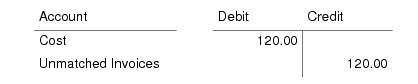
Matching Posting clears the Unmatched Invoices account and makes postings on one or more GL cost accounts, which can include sub-account, cost center, intercompany codes, SAF, and other analysis. The Matching Posting tab is similar to the journal entry function.
The postings for invoices are as follows:
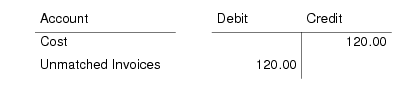
These postings are reversed for credit notes:
The posting line for the Unmatched Invoices account posting is read-only. You can modify details on the posting line for the cost account.
The default cost accounts derive from the posting template, or from the purchases account profile defined for this supplier. See
Accounting Tab.
When the invoice involves multiple currencies, all amounts in the matching posting are automatically converted and stored in base currency using the exchange rate defined on the General tab.
The matching posting is created for every invoice, but is not mandatory on initial entry. The nature and timing of the matching posting depends on the invoice status code assigned to the invoice. Invoice status codes determine if:
• No matching posting is made (No Allocation status).
• A matching posting is made, but to a transient layer, allowing modification and approval of that posting (Transient Allocation status).
• A matching posting is made to the official accounting layer (Allocation status).
• A matching posting is made to the official or the transient accounting layer, depending on the daybook specified (Any status). The Any invoice status code would be used only for financial invoices; not receiver matching.
All invoices must eventually have an invoice status code that indicates that a full allocation has been made to the official accounting layer in the matching posting. However, the number of steps taken before this point depends upon how you define and use invoice status codes.
Year/Period
Specify an accounting year and period for the matching posting.
Posting Date
Specify a posting date.
Daybook Code
Specify a daybook code. This daybook must be of type Matching and can be associated with either the official or transient layer.
Layer Type
The layer type of the daybook code displays.
Description
The posting description defaults from the General tab and can be modified.
Template Code/Save as Template
Specify a posting template code if you want to use an existing template for this posting. Select Save as Template to create a new template from this matching posting.
Grid
GL Account, Sub-Account, Cost Center, Project, SAF Structure, Description, Curr, Debit, Credit, Exchange Rate, Scale Factor
The system loads these posting details, including the Unmatched Invoices and GL transfer accounts. You can select other accounts for this posting.
If the posting includes SAFs, you can update the associated SAF codes.
Click the grid information button to display individual account details.
For postings to a PO receipts account, the default GL account is the system account defined for purchase order receipts.
For postings to an unapproved invoices account, the default GL account is the system account defined for unmatched invoices.
For AP rate variance postings, the default account and sub-account are set up in the AP Rate Var Acct field of Product Line Maintenance.
Currency View
Choose to view the transaction balance in the base or transaction currency.
Balance
This field displays the sum of the debit and credit amounts of all posting lines.
Click Save to validate the invoice and generate the invoice postings