Creating Supplier Payment Selections
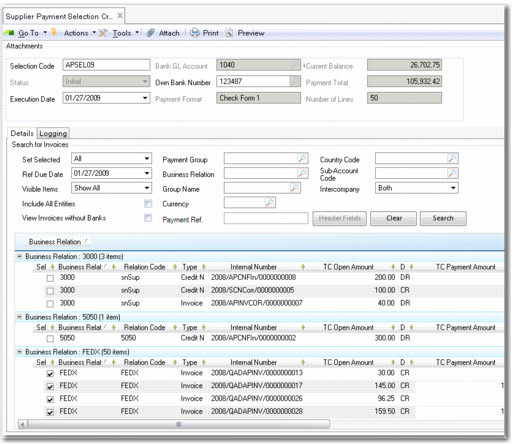
Use Supplier Payment Selection Create (28.9.4.1) to select multiple invoices by due date and create payments for groups of invoices.
The Supplier Payment Selection Create screen has four distinct areas:
• Supplier Payment Selection. Specify the details of the payment.
• Bank. Specify account and file format details for the bank account to which the payment file is to be exported.
• Filter Details. Use a combination of criteria to retrieve the invoices to be combined in the selection.
• Logging. View history of changes made.
• Grid. Display the results of the selection in the grid.
Supplier Payment Selection Create
Field Descriptions
Selection Code
Enter a unique code (maximum 20 characters) to identify the payment selection. This field is required.
Bank GL Account
Specify the code of the GL bank account in which the payments are to be executed.
Current Balance
This read-only field indicates the current balance on the bank account.
Status
This read-only field displays the payment selection status. The status controls the availability of fields in the Create screen.
Own Bank Number
This field displays the default account number for the bank GL account defined in Account Create. You can select a different account if multiple account numbers were associated with the GL account. The payment format displayed is determined by the bank account number you select.
Payment Total
This read-only field displays the total payable amount of all invoices selected in the grid.
Note: When calculating payment totals involving an exchange rate, Payment Total is calculated using the invoice exchange rate for the Supplier Payment Selection Create and Confirm. The Payment Total can therefore differ from the real cash movement. The latter depends on the exchange rate applied by the bank when the actual payment is executed.
Execution Date
Specify a date on which the bank should execute the payment selection.
Note: The execution date cannot be earlier than the date (system date) on which the payment selection is created.
Payment Format
This field displays the format for the export file. This format is retrieved from the payment format and attributes linked to the GL bank account selected. See
Payment Format Maintenance for details. Depending on the payment format, you may be able to modify some header attributes for the payment. The selected invoices must match this payment format.
When the payment selection is in an initial status, you have the option to change the payment format used in the selection by selecting a different bank account from which to pay the selection. See
Changing Bank Accounts on a Payment Selection.
Number of Lines
This field displays the value of the Invoices per Check field of the payment format associated with the GL bank account selected.
Important: After you save a payment selection, you cannot change the bank account or account number selected, since this would invalidate the payment formats and attributes assigned to the payment.
Selection Details Tab
Use the Details tab to set search criteria for the invoices you want to include in the payment selection.
Search for Invoices
Set Selected
Specify how you want the system to set the Selected field on the invoices that are displayed in the grid after you click Apply.
Important: Supplier Payment Selection Create only proposes payments where an actual payment amount is due. For open items that meet the search criteria, the total of the open items must be a credit value. If the debit total exceeds the credit total, no lines are retrieved and selected.
All. Enable the Selected field for all invoices
Due Only. Enable the Selected field only for invoices with a due date on or before the Ref Due Date specified.
Due and Discounted. Enable the Selected field only for invoices that are either due on or before the Ref Due Day or will be discounted on or before the date in the Discounts up to field.
None. Do not use enable the Selected field for any of the invoices.
Ref Due Date
Specify the date the system should use for finding invoices to be included in this payment selection. The system selects invoices due on or before this date that meet the other selection criteria.
Note: The system includes invoices with staged credit terms in the grid if the due date of at least one stage matches the selection criteria.
Discounts up to
This field is only enabled when the value in the Set Selected field is Due and Discounted. The value defaults to seven days after the date in Ref Due Date. When enabled, the search returns open items according to the due date and the discount due date. The selected open items are invoices due on or before the date in Ref Due Date and invoices with an invoice discount due date up to and including the date in the Discounts up to field.
Visible Items
Choose to display all search results or only those results that match the Set Selected filter criteria. If you display All, you can manually modify the Selected field to include additional invoices if necessary.
Payment Group/Business Relation/Currency/Sub-Account Code/Intercompany/Country Code/Group Name/Payment Ref
Specify one or a combination of search criteria for open items: invoices, credit notes, and prepayments.
Include All Entities
Select this field to retrieve invoices from other domains. The domains do not need to have the same shared set as the current domain.
You can create a payment selection within one entity that includes invoices created in other entities within the same domain.
The system creates a record for the Cross-Company daemon to process, and the payment of the invoices in the other entity are posted as cross-company transactions. See
Intercompany and Cross-Company Transactions.
View Invoices Without Banks
Select this field to display only invoices that are not already associated with a bank account. Invoices without banks do not appear on payment selections, so may inadvertently not be processed. This is especially important for supplier invoices.
The following are examples of how an invoice could be recorded without banking details:
• If no bank account information is specified in Supplier Create when you record an invoice, the invoice is created without any bank details and can be saved.
• When you record an invoice, you can delete the proposed bank number record from the Banking tab grid, which would also result in an invoice without banking details.
You can modify the invoice later to add banking details.
Payment Grid
Use one of the following to update data in the grid:
• Click Search to retrieve invoices that match the search criteria. You can modify the criteria and click to append subsequent results to the grid.
• Click Clear to clear the results grid. When you have appended a number of searches to the grid, click to clear the most recent set of results.
• Click Header Fields to change attributes associated with the payment file header. This button is enabled only when the payment format specified supports this feature. See
Payment Format Maintenance.
You can only modify the Selected and TC Payment Amount fields in the results grid. You can right-click and insert a new row, which is automatically created as a prepayment. When creating a prepayment, the External Number field is enabled to record reference details. See
Creating a Prepayment on a Payment Selection.
Logging Tab
The Logging tab displays payment selection history, including status changes and dates, user names, and generated files.