Paying an Invoice Subject to Bank Charges
If you pay for an invoice using Supplier Payment Create or Supplier Payment Selection Create, the system calculates any applicable bank charges.
Paying multiple invoices at once allows you to reduce the number of payments that you make, and may reduce the charges that you pay to the bank.
If you are paying invoices in multiple entities, the information used to calculate the bank charges—for example, payment format, bank account, and bank charge details—is taken from the entity in which the payment is made. Similarly, the bank charges that apply to these payments are posted in the entity in which you make the payments.
AP Bank Charges in Supplier Payment
When paying an invoice using Supplier Payment Create, the payment posting date is used to find the valid bank charge rate.
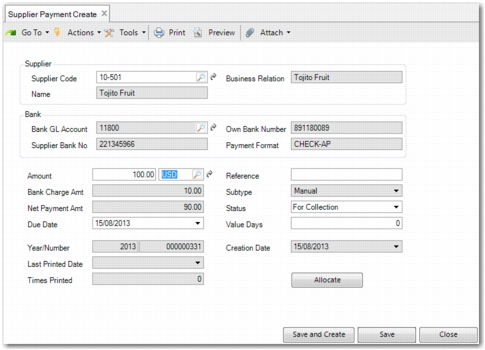
Supplier Payment Create
There are a number of fields on this screen that relate to bank charges:
Amount
The full amount that you are paying. Specify the currency of the payment also. If the currency of the payment and the currency specified in AP Bank Charges differ, then no bank charges are calculated on the invoice.
Note: When payments are created, the system checks whether the bank currency, the payment currency, and the bank charge table currency are the same. It also checks that the currency is the base currency or statutory currency of the entity where the payment is made. If these conditions are satisfied, the bank charge is applied. Otherwise, the payment is processed without the bank charge.
Bank Charge Amt
The amount that your bank is charging you to transfer the payment to the supplier’s bank account. The bank charge is calculated using the bank charges stored in AP Bank Charges, comparing your own bank to the supplier’s bank and using the amount of the payment to calculate the appropriate charge. This field is read-only. The bank charge is calculated on the net paid amount of the payment. If the payment is eligible for a discount, or subject to a charge such as withholding tax, the bank charge is calculated after the allocated amount of the payment is calculated.
Net Payment Amt
The value of the Amount field with the Bank Charge Amount deducted. This field is read-only.
The bank charge amount is posted to the bank charge account. The net payment amount is posted to either the Supplier Payment Account or, when the payment status is Paid, to your own bank account. If there is tax charged on the bank charge, then this is posted to the tax account.
If discounts, withholding tax, or other deductions apply to a payment made to a supplier, the bank charge is calculated after the allocated amount of the payment is calculated.
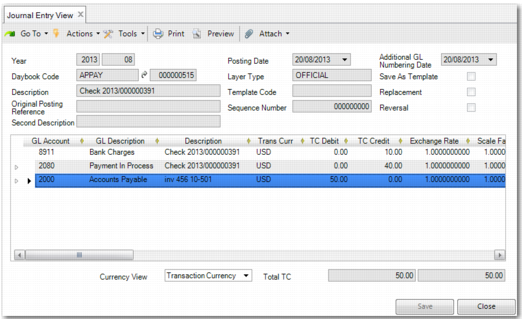
You can use Journal Entry View to display the details of the accounts that the bank charge and net payment were posted to.
Journal Entry View for Supplier Payment shows how a payment appears when the payment has a status other than Paid. The bank charge is posted to an account that is specifically for bank charges. The net payment is posted to the Payment in Process account.
Journal Entry View for Supplier Payment
When the payment status is Paid, the bank charge is posted to the bank charge account and the net payment is posted to the GL account that your company used to make the payment to the supplier. If tax applies to the bank charge, this is posted to a separate tax account. For more information on bank charge tax, see
Calculating Tax on Payments with AP Bank Charges.
AP Bank Charges in Supplier Payment Selection
When paying an invoice by electronic transfer using Supplier Payment Selection Create, the execution date is compared with the Valid From date in AP Bank Charge to find the valid bank charge. If the payment format is not electronic transfer, the posting date is compared with the Valid From date in AP Bank Charge to find the valid bank charge. The posting is processed the same way as in Supplier Payment Create.
Calculating Tax on Payments with AP Bank Charges
In Bank Charge Create, you can specify if the bank charge is taxable by selecting the Taxable field. You can also specify if the bank charges listed in the AP Bank Charges activity include the tax, or if the tax is calculated on the bank charge and then deducted from the payment transfer in addition to the bank charge.
The system will then calculate the tax rate based on the Tax Type, Item Tax Class, Tax Usage, and Effective Date field in the Tax Rate Maintenance screen.
Configuring AP Bank Charges as Taxable
There are a number of steps to follow to apply tax to a bank charge.
• Select the Taxable field in AP Bank Charge Create.
• Specify the Tax Class. This corresponds to the Item Tax Class in Tax Rate Maintenance (29.4.1).
• Select the Tax Included field if the bank charge set by the bank includes the bank charge tax. In this case, the bank charges listed in the AP Bank Charges grid already include the tax. If the Tax Included field is not selected, then the bank charges listed in the AP Bank Charges grid do not include tax. The tax is calculated on the bank charge, deducted from the net payment amount, added to the bank charge from the AP Bank Charges grid, and displayed in the Bank Charge Amount field of the Supplier Payment. In both cases, the tax charged on the bank charge is posted to a tax account, and the bank charge is posted to a bank charge account.
When you pay an invoice using Supplier Payment Create, the system retrieves the tax type in Tax Environment Maintenance using the Tax Environment value, the Ship From zone, the Ship To zone, and the tax class of the own business bank relation. It then combines this Type with the Tax Class from AP Bank Charge to find the relevant tax rate in Tax Rate Maintenance.
• If there is an entry in Tax Rate Maintenance that corresponds to the Tax Type and the Tax Class from AP Bank Charge, then this rate is the tax rate that applies to the bank charge.
• If the Tax Class of the own bank business relation is not associated with any entry in tax environment maintenance, and there is an entry with a blank class, then this acts as a wildcard, and the rate for this entry applies to the payment.
• If there is no corresponding entry in Tax Rate Maintenance, and no entry with a blank Tax Class, then an error displays.
Including Bank Charges in Bank Payment Files
When you make payments through the electronic payment method, it is possible to include bank charge information in the files sent to the bank. You must install an electronic bank file format that is tailored to include the bank charge information. For more information on installing electronic bank file formats, see
QAD System Administration User Guide.
Including Bank Charges in Reports
You can include information on bank charges in the following reports:
• Registered Supplier Payment Sel Report (28.9.9.10)
• Supplier Remittance Print (28.9.9.8)
Note: The bank charge information is not included in the reports by default. Use Report Resource Designer (36.4.21.30) to make the bank charge information display in the report.