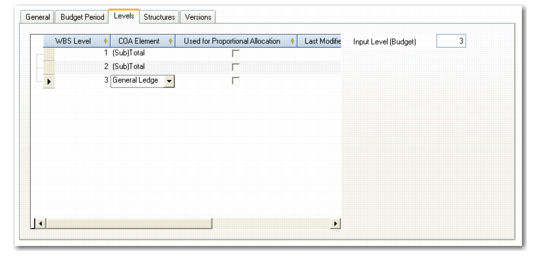
Levels Tab
Use the Levels tab to define the hierarchy and level of detail to include in the budget structure. A budget can contain a maximum of 15 levels.
At each level, you can specify whether to include GL accounts, sub-accounts, cost centers, projects, SAFs, or subtotals, and create a sequenced list. A subtotal is a calculated field that shows the sum of all underlying levels, both for budget and actual data. If the budget includes SAFs, they must be at the lowest level within the hierarchy.
The Input Level field indicates the level of responsibility for the budget administrator for tracking the budget. By default, the budget administrator must enter details at the lowest level of detail.
When you have defined levels and move to another tab, you can no longer modify the rows in the Levels tab or insert additional levels.
Note: If you want to update the budget levels after moving from the Levels tab, create a new copy of the budget. See
Copying Budgets.
Budget Create, Levels Tab
Field Descriptions
Right-click on the grid and select Insert a New Row to create budget levels.
WBS Level
This field displays the level number. The system increments this value for each new level row you create.
COA Element
Choose the COA hierarchy on which to base the budget structure from the following options for Allocation and Structured Report type budgets: Subtotal, General Ledger, Sub-Account, Cost Center, Project, and SAF.
If you are creating a budget for use in Financial Report Writer, two COA Elements are available: Report Analysis Code and SubTotal.
See
Financial Report Run for further details.
Used for Proportional Allocation
Select the field if you want to use the actuals that are retrieved for this budget to allocate costs. This field is not available for Financial Report Writer type budgets.
Last Modified Date/Time and User
These read-only fields display the ID of the user who last updated the record and the date and time of update.