Defining Topic Properties
After you define the budget structure, you need to specify the COA components that are the source of the actuals data. To do this, right-click on a topic, select Topic Properties, and the Topic Properties window opens.
You can link a COA component to a budget topic in a number of ways:
• Budget group. All COA components that belong to this group are linked to the topic.
• Link by level. Specify a single item, a comma-separated list, or a range.
• SAF level, where applicable. For topics at SAF level, specify the SAF structure.
The Topic Properties screen also lets you define if you can post to a topic, and the action to take for overruns for individual topics.
Note: If you create a budget for use in Financial Report Writer, you can only link a COA component to a budget topic by using an analysis code. The General tab is not displayed and the only editable field in the Topic Properties window is the Link by Level field on the COA Link tab.
See
Financial Report Run for further details.
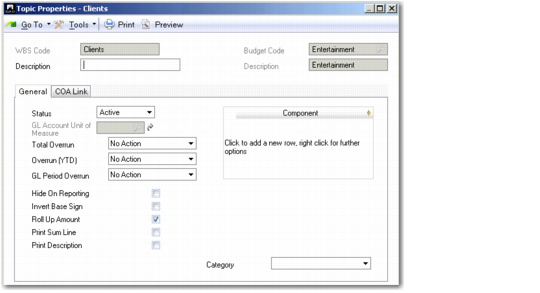
Topic Properties, General Tab
Field Descriptions
WBS Code
This field displays the current budget topic.
Description
Specify a description of the topic that you can optionally print on structured reports. You can enter up to 120 characters.
When using Budget Create to define a report structure, you can choose to print the topic description when reports based on this structure are printed. You indicate your topic printing preference using the Print Description field on the Topic Properties General tab.
The Description field and Print Description field are only enabled if the Use as Report field is selected on the General tab of Budget Create.
Budget Code
This field displays the code that identifies the budget.
(Budget) Description
This field displays the description of the budget.
General Tab
Status
Choose the status of the topic from the following:
Active: Indicates that actuals can be posted for the topic.
Closed: Indicates that the topic is at the end of its life cycle; no further postings are allowed.
Draft: Indicates that the topic is being set up; no postings have been made.
A topic’s life cycle moves from Draft to Active to Closed. An operational budget can contain a variety of topics in each status.
If the online check for budgets is set in System Maintain, the system displays an error message if you try to update actuals for a closed or draft topic. System Maintain is described in
QAD System Administration User Guide.
GL Account Unit of Measure
Specify the GL unit of measure for budgets that use quantities. This field is available if you selected the Quantity Info field in the General tab.
Overrun (YTD), Total Overrun, GL Period Overrun
Choose how the system responds if the budget amounts from the start of the budget period to date, for the entire budget, or for a particular budget period are overrun for the current topic. These overrun settings overrule the settings in the General tab.
In each field, the options are No Action, Warning, or Error.
No Action: The system lets the user enter transactions that cause overruns.
Warning: The system warns the user that the budget is overrun, but lets the user save the transaction.
Error: The system prevents the user from saving a transaction that overruns the budget figure.
Note: These fields do not display when the topic is a subtotal.
Hide on Reporting
Select the field to hide topics on the Balance Sheet and Income Statement reports. This field relates to report structures only. See
Structured Reports for more details.
Note: This field is only enabled for topics if Use as Report is selected in the budget header fields.
Invert Base Sign
Select the field to invert the operator (+ or –) that identifies positive or negative values. This field relates to report structures only. See
Structured Reports for more details.
Roll Up Amount
Select this field to indicate whether the current topic level can be rolled up to a higher level.
This field relates to report structures only. See
Structured Reports for more details.
Print Sum Line
Select the field to print a header or a footer line for the linked accounts.
This field relates to report structures only. See
Structured Reports for more details.
Print Description
Select this field if you want to print the topic description on reports based on this structure.
You specify a topic description using the Description field in the Topic Properties header.
The Description field and Print Description field are only enabled if the Use as Report field is selected on the General tab of Budget Create.
Category
Specify the GL category of the accounts linked to the current level in the report structure.
This field relates to report structures only. See
Structured Reports for more details.
Component Grid
Component
Use the grid if you want to limit which activities in the system can update this budget topic, based on business component. If no values are specified, the topic can be updated from any business component activity.
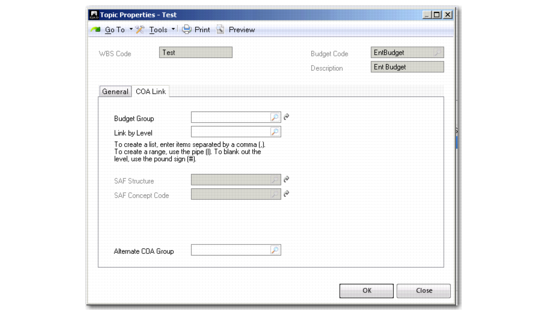
COA Link Tab
Select Topic Properties to define the link from the budget topic to the COA components. You can link by budget group, by level, or by SAF.
Topic Properties, COA Link Tab
Field Descriptions
Budget Group
Select a budget group to link all COA components that belong to the group to the topic.
A budget group can be associated with GL accounts, sub-accounts, cost centers, projects, and SAFs when they are defined. See
Setting Up General Ledger for details on creating COA components and assigning them to budget groups.
Link by Level
Specify the COA components to link to the budget topic.
A browse for COA components opens. The type of browse depends on the level of the topic within the budget hierarchy. For example, when linking COA components for GL accounts, a browse for GL accounts opens and when linking COA components for cost centers, a browse for cost centers opens.
Using the Link by Level field, you can define a single item, a comma-separated list, or a range (using the pipe character).
Important: This is the only field you can change if you are creating a budget for use in Financial Report Writer. Use it to link a budget topic to an analysis code. It is possible to link to multiple analysis codes. If you choose to link your budget topics to analysis codes this way, the original budget topic labels you entered are retained.
SAF Structure, SAF Concept Code
Specify an SAF structure and concept code for the first SAF level in the structure. The system creates rows for each SAF concept and automatically links the SAF concepts to the rows. These fields are enabled only when the topic references an SAF level.
Alternate COA
When running a structured report based on an alternate COA, such as the Regional Balance Sheet or Regional Income Statement, specify the alternate COA structure that you want to base the report on.
This field relates to report structures only. See
Structured Reports for more details.
See
Alternate Chart of Accounts for more information on setting up alternate COAs.