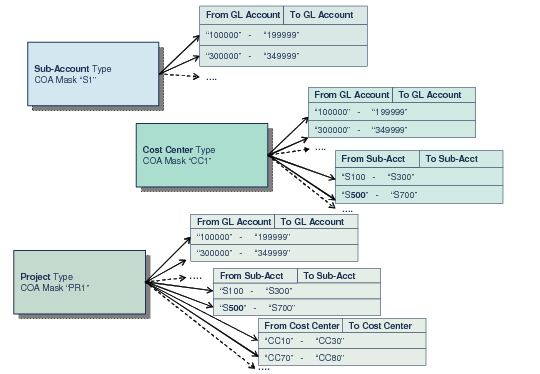
COA Masks
The COA mask is a matrix that defines the combinations of GL accounts, sub-accounts, cost centers, and projects to which you can post transactions.
Every COA element type has a separate COA mask maintenance function:
• Sub-Account Mask Create (25.3.9.1.1)
You specify a sub-account COA mask code and list the ranges of GL accounts with which sub-accounts assigned that COA mask can be combined. See
Sub-Account COA Mask.
• Cost Center Mask Create (25.3.9.2.1)
You specify a cost center COA mask code and list the ranges of GL accounts and sub-accounts with which cost centers assigned that COA mask can be combined. See
Cost Center COA Mask.
• Project Mask Create (25.3.9.3.1)
You specify a project COA mask code and list the ranges of GL accounts, sub-accounts, and cost centers with which projects assigned that COA mask can be combined. See
Project COA Mask.
You assign a COA mask to an element using the COA Mask fields in Sub-Account Create (25.3.17.1), Cost Center Create (25.3.20.1), and Project Create (25.3.11.1.1). The COA mask code you specify must be of the same type as the COA element. One COA mask can be reused by many COA elements.
COA Mask Types
Three control fields in Domain Create (36.1.1.1.1) indicate which COA mask types are active: Sub-Account Mask, Cost Center Mask, and Project Mask. You can only define a COA mask if it has been activated in Domain Create. Postings are validated for each of the types marked as active.
Three additional fields in Domain Create control how the system treats COA elements that are not assigned a COA mask. The COA Element without Mask fields contains two options: No Posting Restrictions and Exclude from Posting. If, for example, you activate cost center masks and select No Posting Restrictions in the COA Element without Mask field, cost centers that are not assigned a COA mask can be used in any posting. Alternatively, if you select Exclude from Posting in the COA Element without Mask field, cost centers that are not assigned a COA mask cannot be used in postings. For more information on domain settings, see
Setting Up Domains.
COA masks can be shared by multiple domains, and are, therefore, stored at shared set level. You can share a set of COA masks across domains using shared sets of the following types:
• Sub-Account Mask Shared Set
• Cost Center Mask Shared Set
• Project Mask Shared Set
The COA mask codes are stored in the shared sets, and you can share COA masks regardless of how the COA elements are shared. The COA mask ranges are stored according to the COA shared sets for the current domain.
Different domains that use the same chart of accounts can use different sets of COA masks. For example, the same sub-account COA mask can be shared by Domain1 and Domain2, a particular project COA mask can be used by Domain1 only, and a different project COA mask can be used by Domain2.
When domain setup is complete, you can no longer modify the shared sets assigned to the domain. However, this restriction does not apply to the three COA mask shared sets, which can be modified at any time.
The system also uses the COA masks you define to restrict lookup values wherever account combinations are entered. For example, if sub-account COA masks are active and you create a journal entry posting line and specify the GL account, the sub-account lookup only lets you select from the sub-accounts that can be used with the GL account you specified.
COA mask combinations are synchronized with the analysis you define for GL accounts. You define the default sub-account, cost center, and project for an account on the account Analysis tab, and these combinations must match those of the active COA masks.
When you have defined Both as the analysis type, and At Least One or None as the analysis limitation in GL Account Create, the cost center and project analysis for the account does not have to match the COA mask combination exactly. Instead, the system checks the COA mask for at least one of the elements in the combination. If this is found, the posting is validated. If the COA mask contains any cost center or project in combination with the account, you can choose to leave the Cost Center or Project fields blank for the account when generating a posting.