Processing Incoming Bank Files
Use the Process Incoming Bank Files function (31.1.6) to import bank files from your bank, and to generate customer and supplier payments in the system from the transaction messages contained in the files.
Process Incoming Bank Files is also used in EDI Advanced Banking. See
EDI Advanced Banking for Accounts Receivable.
The Process Incoming Bank Files function includes the options described in the following sections.
Create Customer Payment
When the message type from the bank indicates that a customer payment has been received, the program that processes the bank file creates a customer payment.
To assign the payment format of the created payment, the system uses the EDI trading partner ID (for example, USBank) of the imported bank file to retrieve the bank file format with the same name. The same bank file format must also be specified on a unique Bank Payment Format Link (25.11.2).
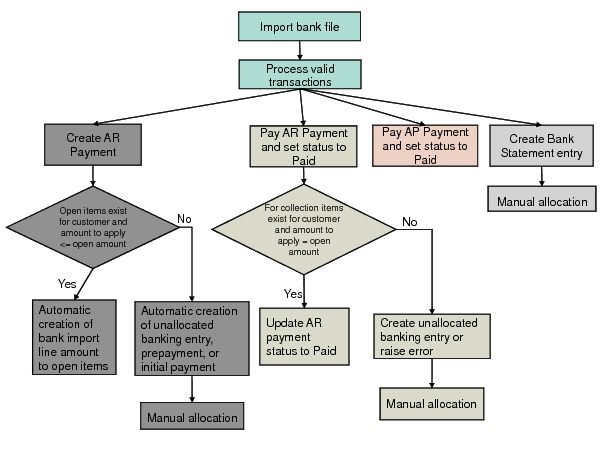
When payments are created, the system also tries to allocate the payment to open items. If there is an open item for a customer with a matching daybook and voucher reference and the bank file import amount is less than or equal to the open invoice amount, by default, the bank import line payment amount is applied against the open item. If the program allocates invoices, the new payment is assigned the status For Collection or Paid, depending on the settings in Process Incoming Bank Files (31.1.6). However, when no matching invoice is found, you can also configure the system to take a different action. Using Payment Processing Configuration Maint (31.1.13), you can configure the system to create a prepayment, an unallocated banking entry, or an initial status payment, which you can then allocate manually later.
If the program cannot find a matching customer, an error message is raised or an unallocated banking entry is created, depending on the configuration in Payment Processing Configuration Maint.
There is also an option on the Process Incoming Bank Files screen to create the customer payments directly with status Paid (and at the same time debit the bank GL account). This option is only possible if the payment can be allocated to open invoices.
Many banks use a lockbox address to handle incoming payments. The address is checked daily and the customer checks are registered in the bank’s system before a bank file listing the checks received is sent to your company. Use this function to create new customer payments in the system to correspond with the checks listed. See
New AR Payments.
Pay Customer Payment
When the message type from the bank indicates that a customer payment has been cleared—that is, the payment was cashed on the bank account—the program that processes the bank file searches for a customer payment with the status For Collection with a matching amount. If it finds the payment, the system sets the payment status to Paid, the bank GL account is debited, and the customer payment account is credited.
When a payment cannot be found, the system raises an error message by default. However, using Payment Processing Configuration Maint, you can also configure the system to create an unallocated banking entry instead of raising an error message.
Bounce Customer Payment
When the message type from the bank indicates that a customer payment has been bounced (payment refused), the program that processes the bank file searches for a customer payment with the status For Collection and a matching amount. If it finds the payment, the system sets the payment status to Bounced, and the linked invoices are reopened. The customer control account is debited, and the customer payment account is credited.
Pay Supplier Payment
You issue payments to your supplier, which your supplier sends to their bank. The supplier’s bank arranges a money transfer from your bank. When the message type from the bank indicates that a supplier payment has been paid from your bank account, the program that processes the bank file searches for a supplier payment with the status For Collection and with a matching amount. If it finds the payment, the system sets the payment status to Paid and the bank GL account is credited. See
Processing Existing AP Payments.
Bounce Supplier Payment
When the message type from the bank indicates that a supplier payment has been Bounced (payment refused), the program that processes the bank file searches for a supplier payment with the status For Collection and with a matching amount. If it finds the payment, the system sets the payment status to Bounced, and the linked invoices are reopened. The supplier control account is credited, and the supplier payment account is debited.
Create Banking Entry
This message type lets you create unallocated bank statement lines in the system.
Acknowledge Bank Receipt
This message type is used in EDI Advanced Banking. See
EDI Advanced Banking for Accounts Receivable.
Other
The Other category refers to any other message type from the bank that has no equivalent transaction in the Financials. Records of this type are not processed.
Bank File Process Flow
To process customer and supplier payments, you must set up the bank accounts, payment formats, and payment statuses Paid/Bounced beforehand. When you use the Bank File Process to complete a payment cycle, the accounts, payment formats, and statuses required for the final stage of the process must already be configured, to enable the system to complete the payment and generate the final postings. See
Customer Payments.
The system validates the transactions contained in the bank file by matching customer or supplier information in the transactions against customer or supplier records stored in the system.
The bank import process supports full or partial customer payments. If there is an open item for a customer with a matching daybook and voucher reference and the bank file import amount is less than or equal to the open invoice amount, the bank import line payment amount is applied against the open item.
If there is no match, you can manually select a customer, and also manually select open items to which you can then allocate the payment. For supplier transactions, when these records match an existing supplier payment with status For Collection, the payment is marked as Paid. If they do not match, you can manually select a supplier, and also manually select open payments that must be set to Paid.
One bank file can contain multiple types of transaction messages, and you can filter the messages by type, date, bank account, or action. For example, you can choose to process only new customer payments, only existing supplier payments, or all payments within a range of dates.
Optionally, the system creates a bank statement line for each processed transaction message that results in a posting on the bank account (for example, when a payment is paid) or for message types that result in the creation of a bank statement line only. The system groups the lines by the bank statement numbers provided by the bank.
Note: You cannot undo the processing of a transaction message once you have clicked to process it. You can, however, reload the bank file and manually correct transaction processes that produced errors during the initial processing run.