QAD 2016 Enterprise Edition Training Guides
>
Financials-Advanced
>
GL Coding Structures
>
Automatically Populated SAFs
Automatically Populated SAFs
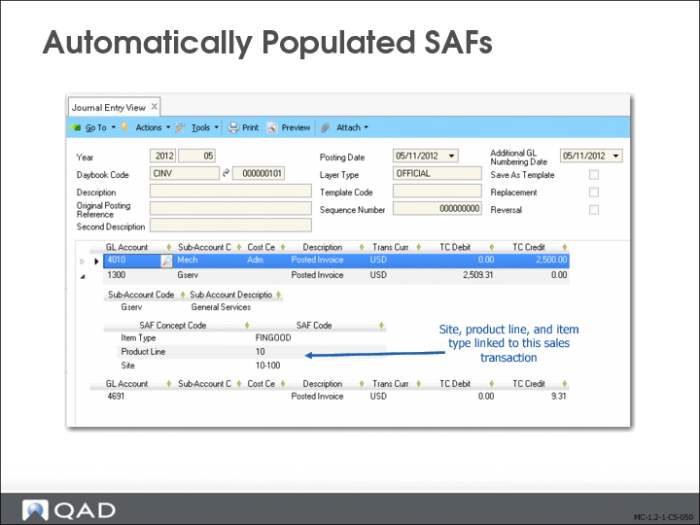
Supplementary Analysis Fields are populated automatically, and can be viewed in detail by drilling down the transaction in Journal Entry View (25.13.1.3).
SAF Features
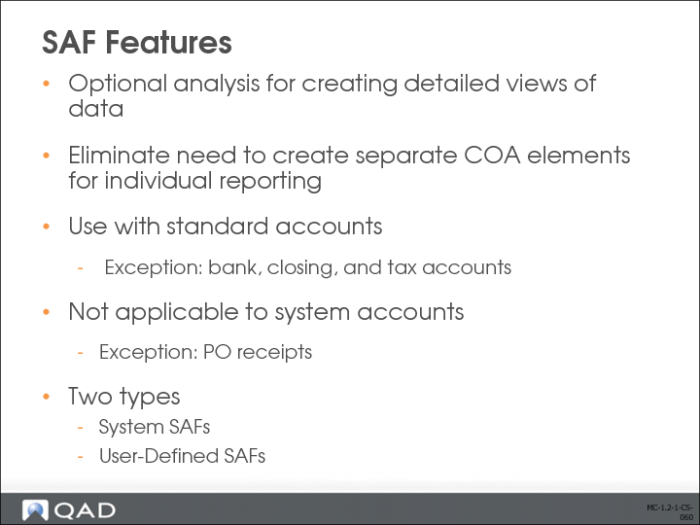
SAF analysis is optional. It lets you create detailed views of data. Using SAFs, you can analyze a single account in many different ways by filtering based on the SAF codes included in the postings to the account. A carefully planned set of SAF structures avoids the need to set up separate COA elements for individual reporting.
SAF analysis can be applied to all GL accounts, except bank, closing, and tax accounts. SAF analysis is not supported for System accounts except for Purchase Order Receipts. You can apply SAF analysis to both revenue and expenses, and, normally, a separate SAF structure is set up for each of these types of transaction. In addition to system SAF concepts, user-defined SAF analysis can augment operational reporting or can be used with financial transactions only. See
User-Defined SAFs.
System SAFs
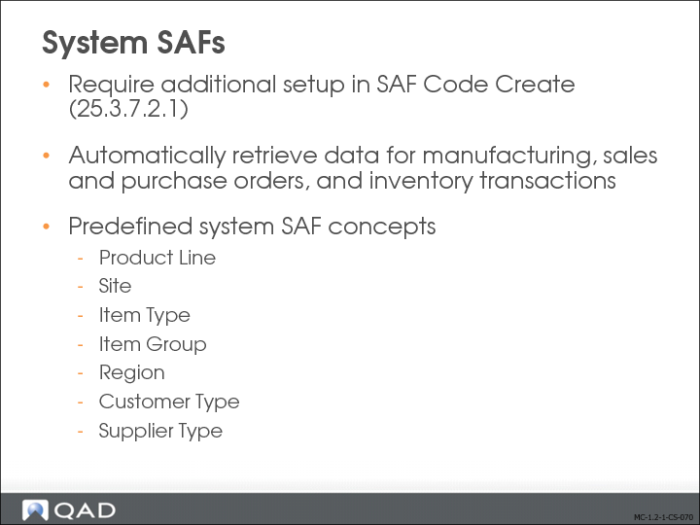
Seven SAF concepts are predefined and provided with the system. They are designed to interact with operational transactions and capture key analysis details useful for reporting the GL effects of operations, such as sales by region, sales to OEM customers, or work orders by item type.
The following system concepts are provided:
Product Line
This concept captures values created in Product Line Maintenance (1.2.1) and associated with items involved in operational transactions.
Site
This concept captures values created in Site Maintenance (1.1.13) and associated with items involved in operational transactions.
Item Type
This concept captures generalized code values created in Generalized Codes Maintenance (36.2.13) and associated with items in Item Master Maintenance (1.4.1) when those items are used in operational transactions.
Item Group
This concept captures generalized code values created in Generalized Codes Maintenance (36.2.13) and associated with items in Item Master Maintenance (1.4.1) when those items are used in operational transactions.
Region
This concept captures generalized code values created in Generalized Codes Maintenance (36.2.13) and associated with customers in Customer Data Maintenance (2.1.1) when those customers are referenced on operational transactions.
Customer Type
This concept captures codes created in Customer Type Create (27.20.4.1) and associated with customers in Customer Create (27.20.1.1) when those customers are referenced on operational transactions.
Supplier Type
This concept captures codes created in Supplier Type Create (28.20.4.1) and associated with suppliers in Supplier Create (28.20.1.1) when those suppliers are referenced on operational transactions.
While the system concepts are specifically designed for capturing details of operational transactions, you can use a combination of system and user-defined concepts in the same structure.
System concepts cannot be deleted, but can be disabled by clearing the Active field. Data is captured for a concept only when it is active. Since system concepts have a predefined meaning, you cannot modify other fields of the concept or create new system concepts.
Not all concepts apply to every transaction. For example, when you post a sales order, the Supplier Type field does not apply, since a customer—not a supplier—is associated with the sales order shipment. For more information on system concepts and the types of operational transactions they apply to, see
QAD Financials User Guide.
You can include a maximum of five system SAF concepts in each SAF structure, and you can use the same SAF system concept in different SAF structures.
Retrieving SAF Codes for System Concepts
If new system SAF codes are used in operational transactions, you must manually update the system SAF codes in SAF Code Create (25.3.7.2.1) before you can use the codes in a Financials posting.
User-Defined SAFs
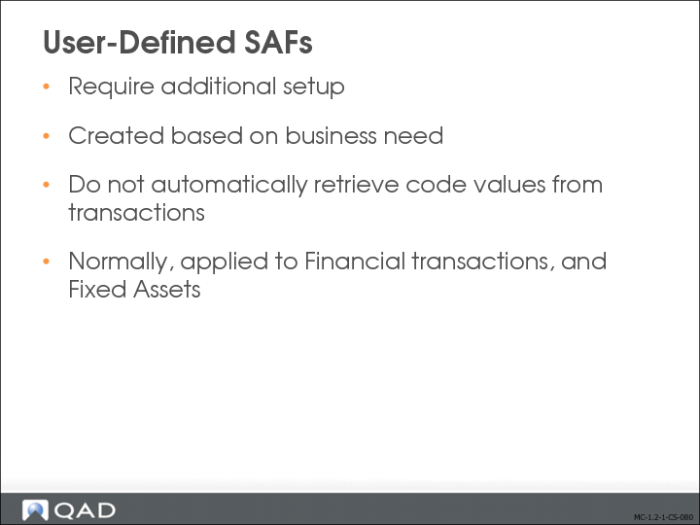
Create user-defined SAF concepts (25.3.7.1) based on your business requirements, and unlike system SAF concepts, they do not automatically retrieve code vales from transactions. Instead, you manually create both the concept and the SAF codes it uses and then select the code or define defaults.
User-defined SAF concepts are normally applied to financial transactions only, although you can also use them with fixed assets. Like system concepts, you can include a maximum of five user-defined SAF concepts in each SAF structure, and you can use the same user-defined SAF concept in different SAF structures.
You can create user-defined SAF analysis to track specific costs arising from any type of financial transaction.
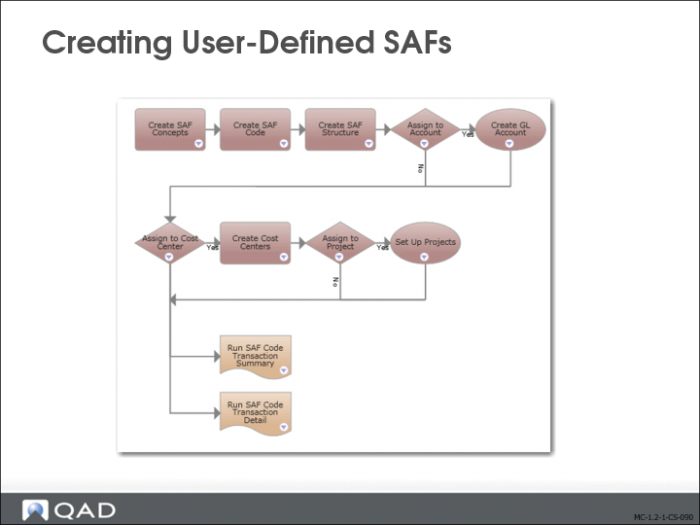
Creating User-Defined SAFs
The process map displays the steps involved in creating user-defined SAFs. For details on the SAF creation steps, refer to
QAD Financials User Guide.
SAF Defaulting
The system validates the SAF structure to ensure that each SAF concept, both system and user-defined, has a default SAF code.
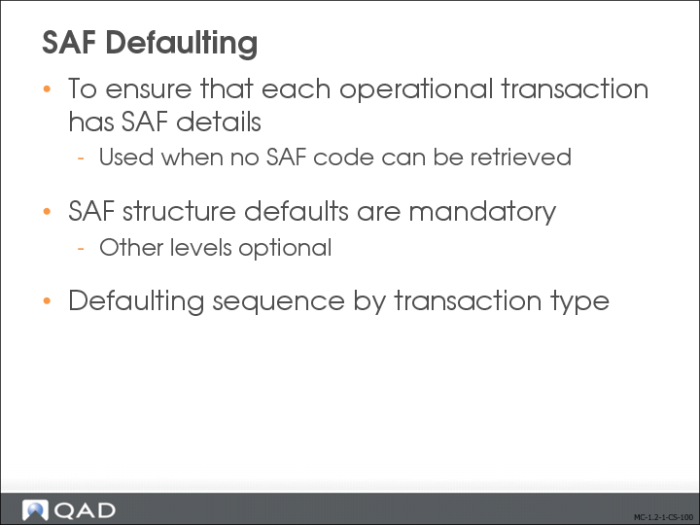
System SAF concepts retrieve codes from operational transaction records. Operational transactions are posted automatically, and you cannot manually correct SAF data before posting. Therefore, to ensure that posting is successful, you must define default values. The defaults are used when a code for an active SAF concept cannot be retrieved for a transaction. This substitute SAF code ensures that the transaction is processed.
Default SAF codes can be defined on multiple levels. The defaulting mechanism selects the most likely default SAF code for the concept, based on an order of precedence determined by the type of transaction in which the SAF is being used. Only the default at the structure level is required; others are optional.
Default codes for SAF concepts are defined for multiple components:
• Customers, on the Defaults tab
• Suppliers, on the Defaults tab
• Business relations, on the Defaults tab
• Projects, on the Defaults tab
• Cost centers, on the main screen
• GL accounts, on the Defaults tab
The table lists the SAF defaulting sequence when a value is not found in the transaction or when SAF data is specified manually in programs, such as Journal Entry Create.
The system always finds the correct structure to use based on the type of analysis and the value of the Retrieve SAF Structure from GL field. The system then finds default values for codes by searching the components in the table in the listed order. If no values are defined for a component, the system then checks the next component. Since default values must be defined for the SAF structure, a value is always found.
Transaction Type | Defaulting Sequence |
Non-Invoice Operational and Journal Entries | Cost center or project GL account SAF structure |
Customer Invoices and Credit Notes | Customer Business relation Cost center or project GL account SAF structure |
Supplier Invoices and Credit Notes | Supplier Business relation Cost center or project GL account SAF structure |
SAF Defaulting Example
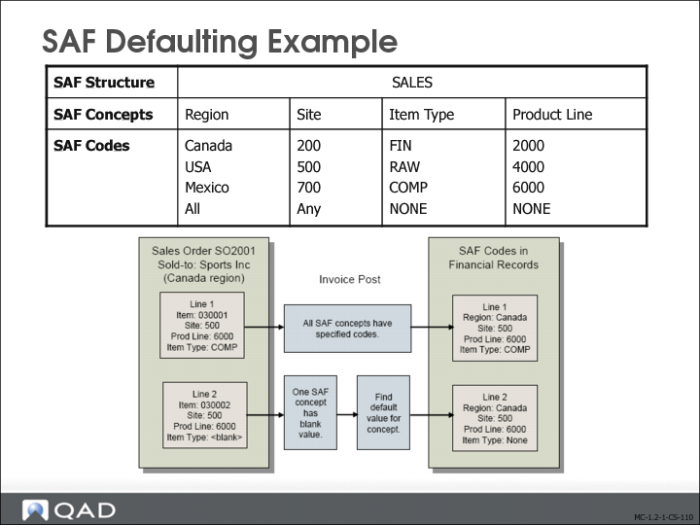
Customer Sports Inc. in Canada periodically buys quantities of item 030001 from site 500 with item type COMP. This item belongs to product line 6000. The sales order transactions for these line items are posted to the sales account GL10001. Occasionally, the customer also buys item 030002 from that same product line; it has a blank item type.
SAF system concepts for site, region, item type, and product line are active. You must assign every SAF concept a default SAF code when you set up the SAF structure; when the system uses the default value, it means that the code was blank in the originating transaction. You might want to assign default codes like the following to indicate that the code was not relevant in the transaction:
• Default code Any for the Site concept
• Default code All for the Region concept
• Default code None for the Item Type concept
• Default code None for the Product Line concept
You combine these four concepts in an SAF structure called Sales and assign the SAF structure to account GL10001.
You now create sales order SO2001 for customer Sports Inc. with two lines: one for item 030001 and one for 030002. When you post an invoice that updates account GL1001, the codes for all the active concepts are stored with the transaction history so they are available for analysis. In this example, the SAF codes would have the following values.
For line item 030001:
SAF Reporting
1 Site is 500 from the sales order line.
2 Region is Canada from the sales order customer.
3 Item Type is COMP from the sales order line item.
4 Product line is 6000 from the sales order line.
For line item 030002:
1 Site is 500 from the sales order line.
2 Region is Canada from the sales order customer.
3 Item Type is None from the default value.
4 Product line is 6000 from the sales order line.
The retrieval process for system concepts is automatic, and requires no user input. However, you must supply the default values for active concepts that do not have a value.
SAF Reports and Views
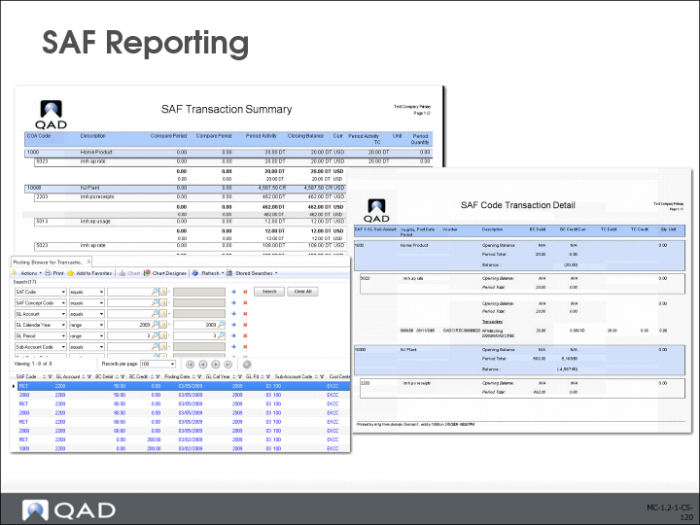
Two specific SAF reports and one view are available:
• SAF Transaction Summary (25.15.3.5) lists all transactions in which SAFs are used in combination with GL accounts and sub-accounts.
• SAF Transaction Detail (25.15.3.6) provides a detailed breakdown of GL postings, based on SAF codes.
• Transactions by SAF View (25.15.4.24) provides a detailed breakdown of GL postings based on SAF codes.
Also, in most GL, Cost Center and Project reports you can use SAF as filter criteria, just as any other GL coding element, which provides additional analysis capabilities.