Site-Linking Rules
Use Linked-Site Rules Maintenance (30.18.1) to set up site-linking rules for inventory sites. The rules you set up here determine the default cost source site in Item-Site Cost Maintenance (1.4.18). These are defaulting rules for linked target sites, not strict data enforcement rules. You can change the GL cost source site for individual items.
Three site-linking rules determine the default GL cost source site for items:
• Linking rule 1 sets the inventory site as the default cost source site.
The inventory site is also the default site if you are not linking costs. However, if you implement linking rules, this setting lets you retain the inventory site as the default site for some item attributes, while linking other attributes to alternate sites.
For example, you may want to set up the inventory site as the default cost site for manufactured items (Purchase/Manufacture code M), and set up another site as the default cost site for configured items (Purchase/Manufacture code C).
• Linking rule 2 sets the site in Item Master Maintenance (1.4.1) as the default cost source site.
This setting lets you set up costing on a per item basis easily. For example, if your business manufactures an item at one site and distributes that item from several sites, you can set up the manufacturing site entered in Item Master Maintenance as the default cost source site for that item. This eliminates the need to set up separate GL standard costs for the same item at each distribution site.
• Linking rule 3 sets any site you designate as the default cost source site.
Important: Set up linking rules for inventory sites only. To avoid setting up chained or circular links, do not assign linking rules to the cost source site. A warning message displays in Linked-Site Rules Maintenance, and the site code fails to default to the GL Cost Source Site field in Item-Site Cost Maintenance.
Circular Link
Chained Link
You can specify a default cost source site for all items at an inventory site, or you can associate a linking rule at an inventory site with one of the following item attributes:
• Product line
• Item type
• Purchase/Manufacture code
You can select only one item attribute for a particular inventory site. Existing linking rules for an item attribute must be deleted before you can associate a different attribute with an inventory site.
Example: Linking rules for inventory site 20000 are associated with the product line attribute. Linking rules for the item type or Purchase/Manufacture code attribute cannot be assigned as long as the product line attribute is associated with the site.
This lets you determine different primary sites for different item classifications depending on your business requirements.
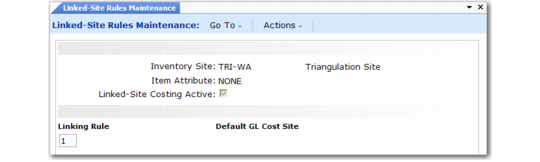
Linked-Site Rules Maintenance (30.18.1)
Inventory Site
Enter the code for the site where inventory is held.
Item Attribute
Optionally enter an item attribute identifying the items to associate with linking rules. You can select according to product line, item type, or Purchase/Manufacture code. You can select only one item attribute for each site. Enter None, the default, to select all items without regard to attribute.
Linked Site Costing Active
Enter Yes to activate linked-site costing for this site. The default is Yes.
Item Attribute Code
If an attribute has been selected, enter the product line, item type, or Purchase/Manufacture code associated with the linking rule.
Warning It is possible to assign a blank value to product lines and other item attributes. Do not assign blank values if you use linked-site costing, since you cannot use blank to specify all other attribute values.
Linking Rule
Enter the linking rule to assign to this site. See
Site-Linking Rules.
Default GL Cost Site
If you have selected linking rule 3, specify the default cost source site for items or designated item attributes.