Creating Application Document Definitions
QAD provides a number of standard definitions for the layout and contents of documents to be used as templates when you are defining specific implementations.
To set up your own templates, use Application Definition Maintenance (35.15.10). You can define formats at both the record and field levels.
Note: You can use this program to create new document definitions or to modify any definitions you have created yourself. However, you cannot modify the QAD-developed document definitions that were provided with eCommerce. Instead, copy an existing definition with Application Definition Copy (35.15.2) and then modify the copy.
Create a different definition for each type of document. Use the first frame to identify a definition by a unique combination of name, version, and direction. You also specify the gateway programs used to transfer the data and to produce reports during processing.
Note: It is also possible to create an implementation definition based on an existing document definition, as well as an external .xml or .xsd file, or on Progress source code that defines a temporary table. See
Creating Document Definitions.
Application Definition Maintenance (35.15.10)
Name
Enter a name for the document definition or use the arrow keys to scroll through the list of existing documents.
Note: You cannot modify the QAD-developed template document definitions that were provided with eCommerce.
Version
Enter a version number. You can use the same name for more than one document definition, then use a different version number to differentiate among multiple document definitions with the same name.
Additionally, you can use Direction—inbound or outbound—to distinguish between multiple documents with the same name.
Direction
Enter the direction of the file transfer that uses this document definition. Always specify the direction relative to your system—documents imported into your system are inbound, while documents exported from your system are outbound.
Gateway Program
Enter the name of the Progress gateway program used to transfer this document. If this definition is based on a QAD-developed definition, the value defaults. If you are creating your own, enter the name of a custom-developed Progress program.
Gateway Report Program
Enter the name of the Progress program used to generate reports related to document transfers.
Gtwy Process Priority
Enter the process priority value (0-99999) to set the gateway processing priority for this document. The default is 0, which is the lowest (normal) processing priority.
This value controls the sequence in which different document types are processed at the gateway level. For example, eCommerce Manager (35.22.13) uses the priority to determine the sequence in which the business unit processes multiple EMT documents.
DS Program
Optionally, enter the name of the Progress program that is run persistently and contains the dataset definition and methods.
Procedure
If you enter a value in DS Program, enter the name of the procedure or method that is run to process the dataset.
Choose Go to define the records and fields that are included in the document.
Application Definition Maintenance (35.15.10),
Application File Records Frame
Seq
The sequence number of this record. Choose Insert to add a record. The system automatically assigns the next number, but you can change it to any number. Organize the records in a logical numerical hierarchy.
Important: In all cases, the first record created must be sequence number 1. For example, you cannot use a sequence of 10, 20, 30, 40. Instead, use 1, 10, 20, 30, 40.
Record Name
Enter a name for this record. Each record name must be unique in an application document definition. Record names in application document definitions and implementation definitions must follow a set of naming conventions.
This record name is used as a record variable by the transformation process, independent of the sequence number. See
Record Naming Conventions.
Requirement
Enter Mandatory to indicate that this record is required during the transfer process, Optional to indicate that it is not. If the system cannot find mandatory records while transferring records, it generates an error message and does not process the associated document.
Loop Occurs
Enter the number of times the processing logic loops through the records during transformation.
Loop Ends Seq
Enter a defined record sequence number to indicate where the loop ends. For example, enter a Loop Ends Seq value of 2 on sequence number 2 to indicate that the entire loop sequence takes place on a single record. Or, enter an end sequence of 4 on sequence number 3 to indicate a loop that starts at 3 and ends at 4.
To specify a loop structure that includes all records, enter zero or a number higher than the last record sequence defined.
Generic
Enter Yes if this record for generic mapping of one or more database tables within the application. The Table field is then enabled so you can enter table names.
Table
Enter the schema names of the tables this record applies to. Separate multiple table names with commas. You cannot leave this field blank when Generic is Yes. The system validates your entries. If the tables do not exist, the system displays a warning.
Fields
Enter Yes to access an additional frame that lets you display, enter, or edit the fields contained in this record.
If Fields is No, you cannot access the fields for a record.
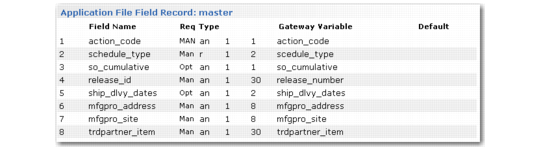
Application Definition Maintenance (35.15.10), Application File Field Record Frame
Field Seq
The sequence number of this field in the record. Choose Insert to add a field. The system automatically assigns the next available number. You can modify the number as needed or navigate to the blank fields at the bottom of the frame and assign numbers.
Note: It is recommended that you number the fields sequentially, beginning with 1—making available a total of 100 fields for each record. Although the system accepts non-sequential numbers, their use is not recommended.
Field Name
Enter the name of the field. This name must be unique in the record.
Requirement
Enter Mandatory to indicate that this field is required during the load process, Optional to indicate that it is not. If the system cannot locate mandatory fields, it generates an error message and does not process the associated record.
Type
Enter the type of data that is included in this field. Valid entries are:
• AN (Alphanumeric)
• D (Date)
• I (Integer)
• L (Logical)
• R (Real number)
Min
Enter the minimum number of characters required in this field. The system validates that required or optional data is greater than or equal to the minimum required value for the field.
Max
Enter the maximum number of characters allowed in this field.
• If the field lengths are variable and separated by the delimiter specified in EC Subsystem Definition Maint, the system validates that the field length is between the Min and Max values.
• If the field lengths are fixed, the system uses this value to calculate where each field starts and ends.
Gateway Variable
Enter the name of the gateway variable associated with this field. These variables determine the specific way data is transformed. If this document definition was copied from a QAD-provided template, the gateway variable is copied from that file. If not, the variable must be defined in the program specified in the Gateway Program field.
Default
Optionally enter a default value for this field.