QAD 2017 Enterprise Edition
>
User Guides
>
EDI eCommerce
>
Setting Up EDI eCommerce
>
Defining a Specific Implementation
Defining a Specific Implementation
EDI eCommerce includes a number of generalized application document definitions for data. You cannot directly edit these definitions. Instead, you can copy a definition and tailor it as required to accommodate the data exchange needs of a specific trading partner. In eCommerce, this definition is known as an implementation.
The system uses three definitions to correlate the specific data structure and format requirements of your system and the EC subsystem:
• The implementation definition
• An exchange file definition
• A transformation definition
Note: You can use this program to modify an implementation definition you have created yourself or one based on a copy of a QAD-developed template definition. However, the system does not allow you to modify a QAD-developed definition. If you attempt to do so, the program acts as an inquiry and shows the data in display-only mode. Use Implementation Definition Copy (35.15.3) to copy a definition before modifying it. See
Copying Implementation Definitions.
Use Implementation Definition Maint (35.15.13) to define the data exchange requirements for a specific trading-partner implementation. The program includes three primary frames. Optional frames display when:
• This implementation is used for mapping data to or from extensible markup language (XML) format.
• You are defining turnaround data.
• You are setting up fields that can be updated during document export.
Note: It is also possible to create an implementation definition based on an existing document definition, as well as an external .xml or .xsd file, or on Progress source code that defines a temporary table. See
Creating Document Definitions.
In the first frame, you name the implementation and specify an associated
application document definition.
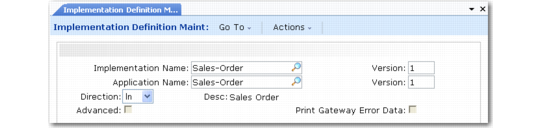
Implementation Definition Maint (35.15.13), First Frame
Implementation Name
Enter an alphanumeric name for this implementation.
Version
Enter a version number for this implementation. You can use the same name for more than one implementation, then use a different version number to distinguish between them.
Application Name
Enter the name of a document definition to copy to create this implementation definition. This definition can be one you created or one supplied by QAD.
Version
Enter the version number of the document definition you are using as a template for this implementation document.
Direction
Enter the direction relative to your system—inbound or outbound—of the document definition you are using as a template for this implementation definition.
Multiple document definitions can have the same name and version number and be distinguished only by direction. Be sure to use the right version.
Desc
Optionally enter a text description of this implementation. This description is for reference only.
Advanced
When this field is Yes, another frame lets you specify information related to XML translation of data. The frame is identical to the frame that displays when you set Advanced to Yes in Exchange Definition Maintenance (35.15.6). See
Exchange Definition Maintenance, XML Information Frame.
Print Gateway Error Data
Enter Yes to print the data from the repository for each field defined in Implementation Definition Maintenance where Display is set to Yes.
Note: Set More to Yes to access the Display field.
When a gateway error occurs, this feature lets you view the data that possibly caused the failure.
Use the next frame to edit an existing record structure or add new records. To add or modify fields in a record, set Fields to Yes for that record line and choose Go.
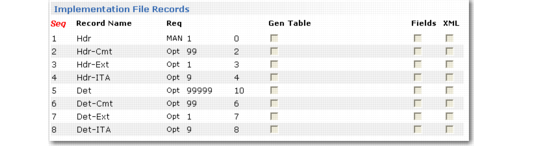
Implementation Definition Maint, Implementation File Records Frame
Seq
The sequence number of this record. Choose Insert to add a record. The system automatically assigns the next number. You can modify sequence numbers as needed. Choose Go to modify an existing record.
Important: In all cases, the first record in a document added to the repository must be sequence number 1. Other records can be numbered as you choose. The following table shows examples of valid and invalid record sequences.
Valid | Invalid |
1, 2, 3, 4, 5 | 2, 3, 4, 5 |
1, 10, 20, 22, 30 | 10, 20, 22, 30 |
After you have used an implementation definition in a transformation definition, you cannot change record sequences in the implementation definition without deleting and reentering the entire transformation definition.
Record Name
Enter a name for this record. Each record name must be unique in an implementation definition.
The transformation process uses this name as the first part of the record variable, independent of the sequence number.
Note: Naming conventions apply to the record names used in application document definitions and implementation definitions. When you create new definitions, use these names.
Record Naming Conventions lists the naming conventions.
Record Naming Conventions
Document Type | Record Name | Description |
Sales Order | HDR | Header |
| HDR-EXT | Header Extended |
| HDR-CMT | Header Comment |
| DET | Detail |
| DET-EXT | Detail Extended |
| DET-CMT | Detail Comments |
| DET-SOB | SO Configuration Bill |
Customer Schedule | HDR | Header |
| HDR-EXT | Header Extended |
| DET | Detail |
| DET-EXT | Detail Extended |
| ATH | Authorizations |
Invoice | HDR | Header |
| HDR-EXT | Header Extended |
| HDR-CMT | Header Comment |
| DET | Detail |
| DET-EXT | Detail Extended |
| DET-CMT | Detail Comments |
| ADDR | Address |
ASN | HDR | Header |
| HDR-EXT | Header Extended |
| CTR-TARE-SUMM | Container Tare Summary |
| TARE-HDR | Tare Header |
| TARE-DET | Tare Detail |
| CTR-TARE | Container Tare |
| CTR-PRIM | Container Primary |
| CTR-ITEM | Container Item |
| ITM | Item |
| ITM-EXT | Item Extended |
| ITM-AUTH | Item Authorizations |
Requirement
Enter Mandatory to indicate that this record is required during the load or unload process or Optional to indicate that it is not. If the system cannot load or unload mandatory records, it generates an error message and does not process the associated document.
Loop Occurs
Enter the number of times the processing logic loops through the records during loading or unloading.
Loop Ends Seq
Enter a defined record sequence number to indicate where the loop ends. For example, enter a Loop Ends Seq value of 2 on sequence number 2 to indicate that the entire loop sequence takes place on a single record. Or, enter an end sequence of 4 on sequence number 3 to indicate a loop that starts at 3 and ends at 4.
To specify a loop structure that includes all records, enter zero or a number higher than the last record sequence defined.
Gen
Enter Yes if this record applies generically to one or more database tables within the application. The Table field is then enabled so you can enter table names.
Table
Enter the schema names of the tables this record applies to. Separate multiple table names with commas. You cannot leave this field blank when Generic is Yes. If the tables do not exist, the system validates your entries and displays a warning.
Fields
Enter Yes to display an additional frame that lets you enter or edit the fields contained in this record.
XML
Enter Yes to display the XML Tag and Namespace fields. Those fields do not display when XML is No.
XML Tag
Optionally enter the XML tag associated with this record. When the field is blank, the system uses the record name as the XML tag when transforming documents to XML format.
Namespace
Optionally enter the XML namespace associated with this implementation record.
In XML, a namespace is a unique identifier for a collection of element type and attribute names. The namespace lets you use identical type and attribute names for multiple purposes based on the namespace identifier.
In the next frame, you can edit the fields copied from the application document definition or add new fields.
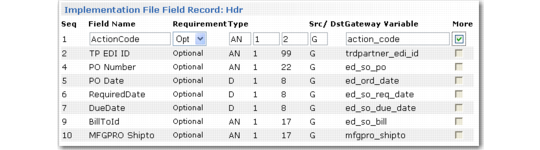
Implementation Definition Maint, Implementation File Field Record Frame
Seq
The sequence number of this field in the record. Choose Insert to add a field. The system automatically assigns the next number. You can modify the number as needed or navigate to the blank fields at the bottom of the frame and assign numbers.
Note: It is recommended that you number the fields sequentially, beginning with 1. A total of 99 fields are then available for each record. Although the system accepts non-sequential numbers, their use is not recommended.
Select a line and choose Go to edit an existing field record.
Field Name
Enter or modify the name of the field. This value is used with the record name, formatted as recordname.fieldname, during transformation.
Requirement
Enter Mandatory to indicate that this field is required during the load or unload process or Optional to indicate that it is not. If the system cannot find mandatory fields while loading records, it generates an error message and does not process the associated record.
Type
Enter the type of data stored in this field. Valid entries are:
• AN: Alphanumeric
• D: Date
• I: Integer
• L: Logical
• R: Real number
Min
Enter the minimum length of this field. The system validates that required or optional data is greater than or equal to the minimum required value for the field.
Max
Enter the maximum length of this field.
• If the field lengths are variable and separated by the delimiter specified in EC Subsystem Definition Maint, the system validates that the field length is between the Min and Max values.
• If the field lengths are fixed, the system uses this value to calculate where each field starts and ends.
Source/Destination
Enter the type of variable associated with this field. Valid choices include:
• G: Gateway. The gateway uses this variable type during the transfer process.
• T: Turnaround. This variable type represents imported data that is stored in the turnaround data table, indexed, and later associated with an exported document.
• D: Data entry. The operator adds this data during processing. This function is not currently implemented.
Gateway Variable
Enter the name of the variable associated with this field. The gateway program uses this variable to move data into the application. The default variable is copied from the associated application document definition.
More
Leave this field set to No to skip the next frame. Enter Yes to display another frame that you can use to define field data used in additional applications of the implementation definition.
The next optional frame applies to implementation definitions used for the following purposes:
• Outbound ASNs and invoices, when you want to be able to update data on the outbound document before exporting it to your trading partner
• Imported documents, when you want to define custom fields that display on the report generated during import
• XML documents, when you want to specify an XML tag type and tag for a field
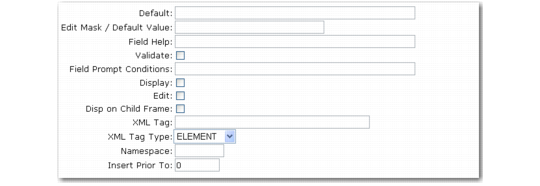
Implementation Definition Maint, Field Update Frame
The following fields in this frame are currently implemented:
Default
Enter the value to include in the field when Display is No. When that is the case, the system does not prompt for a value during processing.
Edit Mask/Default
When you want to display custom fields on the report generated during import, use this field to specify the field length and label to display, separated by a slash (/). For example, if you enter 4/Max, the report displays the output defined in this implementation record in a four-character field, with a label of Max.
Note: Set Display to Yes for these values to have an effect.
Field Help.
Enter text to display at the bottom of the data entry screen when the cursor is in this field during editing. For example, you can describe the type of data or values enter.
Validate
Enter Yes to activate the validation process for all documents using this implementation definition. The setting applies to both inbound and outbound documents. When set to Yes, the value of the field associated with this option is compared against the values defined in Data Validation Maintenance. If the value is not found, a transformation error occurs. See
Validating Data Values.
Field Prompt Conditions
This field is not currently used.
Display
This field is used under the following circumstances:
• When you are defining fields to include in custom reports that are printed for inbound documents created based on this implementation definition. To define a field length and column label for a custom report in the Edit Mask/Default Value field, set Display to Yes for the field to include in the report.
• When Print Gateway Error Data is set to Yes in the initial frame. Set Display to Yes so that field data displays when errors occur.
• When the implementation is for an exported document such as an invoice or ASN, and you want the system to display a prompt to update a value during export. Set this field to Yes for the data entered in the Edit Mask/Default Value field to display when the document is exported.
Edit
Enter Yes to have this field display for editing when you specify Update or Both in the Update/Export/Both field of Shipment ASN Export (35.4.1) or Invoice Export (35.4.3). See
Exporting Documents.
Disp on Child Frame
This value is used during the export update process. When set to Yes, this functions like the Display option but instead displays field on a child frame, retaining the information previously displayed.
XML Tag
Optionally enter an XML tag name associated with this field. If you do not enter a value, the system uses the field name as the tag.
XML Tag Type
Indicate the type of the specified XML tag. Valid values are Attribute and Element. The default is Element.
Namespace
Optionally enter the XML namespace associated with this field.
In XML, a namespace is a unique identifier for a collection of element type and attribute names. The namespace lets you use identical type and attribute names for multiple purposes based on the namespace identifier.
Display Prior To
When this implementation creates XML documents, specify the sequence number of the record before which you want to insert the value of this field. Use the up and down arrow keys to scroll through available record sequence numbers; the system displays the names of the associated records.
If Src/Dst is T, indicating a turnaround variable, another frame displays. Use it on inbound definitions to enter the table and field to associate with the turnaround data for this implementation. On implementations for outbound documents, enter the name of the function used to retrieve the turnaround data and attach it to the exported document.
Turnaround Data Location, Inbound
Table Name and Index Name
On implementation definitions for imported documents, enter the name of the database table and field with which this turnaround data value is associated.
Note: Turnaround data is not stored in the specified table. Instead, it is stored in a set of turnaround repository tables that use the table and field names as part of the index.
Turnaround Data Retrieval, Outbound
Retrieval Function
For exported documents, enter the name of the function defined in eCommerce Function Maintenance (35.15.21) that retrieves the turnaround data from the database and adds it to the outbound document. When you enter a valid function, the system displays the parameters from the function definition for update. See
Using Transformation Functions.
Note: The QAD function GetTadData is provided for turnaround data retrieval.