Acknowledging Purchase Orders
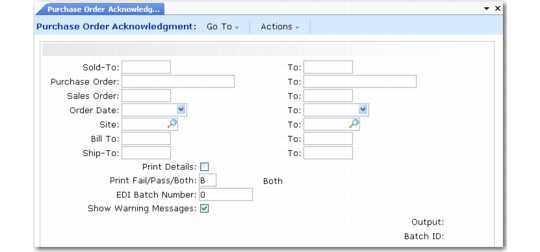
Use Purchase Order Acknowledgment (35.4.5) to notify your trading partner that you have received a purchase order and entered it as a confirmed sales order. Only confirmed sales orders are acknowledged.
This export uses the following trading partner parameters, which are set up in Trading Partner Parameter Maint (35.13.10):
• Logical position 03: Send EDI PO Ack; set to Yes or No
• Character: PO Ack Document Name; set to the name of the application document definition to use; for example, MFG855
• Integer: POAck Document Ver; set to the version number of the application document definition to use
Purchase Order Acknowledgment (35.4.5)
A purchase order acknowledgment reflects the contents of the sales order. The acknowledgement is not necessarily identical to the original purchase order that generated the sales order. For example, the quantity ordered may not be available on the due date. The acknowledgment document in that case reflects a different quantity, a different due date, or both.
Note: Use the Include Invoiced field to control whether the system scans the Invoice History (ih_hist) table when selecting records for export. The default is No, since typically PO acknowledgements are sent before the resulting sales order is shipped and invoiced. Leaving the field set to No can significantly improve program performance. Change the field to Yes only if you send out PO acknowledgements after shipment.
You can also use this program to export purchase order acknowledgments that have been automatically generated from EMT sales orders. Ordinarily, you use eCommerce Manager to export such PO acknowledgments. However, Purchase Order Acknowledgment lets you enter selection criteria to specify a range of POs or even a single PO to acknowledge.
See
QAD Sales User Guide for information on EMT.
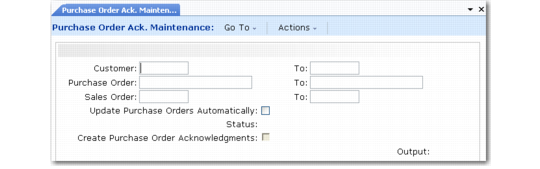
Optionally, you can use Purchase Order Ack. Maintenance (35.4.4) to assign or modify the status of purchase orders before sending the acknowledgments to the customer.
Enter selection criteria to specify which purchase orders to update based on the customer, the customer’s purchase order number, or your sales order number. You can update all lines of all the purchase orders meeting the selection criteria at once by setting Update Purchase Orders Automatically to Yes. Then set Status to indicate which status all the lines should be changed to. Leave Update Purchase Orders Automatically set to No to display the individual purchase order lines. You can then assign an individual status code to each line.
Valid status codes are:
0: Pending
1: Accepted in full
2: Accepted with a change
3: Rejected
When you choose to update the selected purchase orders automatically, you can generate a report for review before actually updating the status. To do this, set Create Purchase Order Acknowledgments to No. When this field is Yes, the system selects the purchase orders and automatically updates the status.
Purchase Order Ack. Maintenance (35.4.4)