Using EDI eCommerce
This chapter discusses day-to-day use of EDI eCommerce.
Introduction to eCommerce UseIllustrates some of the basic uses of eCommerce and how to begin using it.
Importing DocumentsDescribes how to use Document Import (35.1).
Exporting DocumentsDescribes how to use Document Export (35.4).
Tracking Import/Export Document StatusDescribes the tracking processes and illustrates how to use them most effectively.
Maintaining the Document RepositoryExplains how programs can be used to modify repository data and documents.
Introduction to eCommerce Use
The system does most of the processing automatically based on the way trading partner documents, exchange files, and transformation maps are set up. Day-to-day users of eCommerce generally use only a few programs to import and export files.
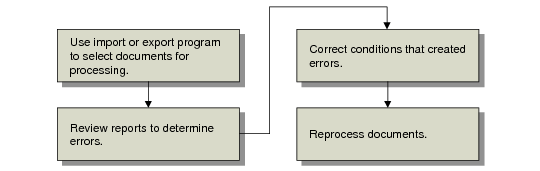
eCommerce User Task Flow shows a typical task flow.
eCommerce User Task Flow
EDI eCommerce’s process control logic can be started in one of three ways:
• A system user can begin processing by selecting documents using either Document Import (35.1) or one of the programs on the Document Export menu (35.4).
• The system can search at regular intervals for inbound files from an EC subsystem or outbound documents in the database. When it finds new files or documents, the system automatically begins processing.
• You can write a custom program that lets the EC subsystem invoke eCommerce processing whenever it has files to send to your system. See
Scheduling Automatic Processing.
This chapter assumes that processing begins when the operator selects documents using one of the menu programs.
In addition to import and export programs, eCommerce provides several tools for viewing and modifying data in the data repository. Items in the data repository include documents in various stages of transition between the EC subsystem and your system. Routinely using these programs to change data is not recommended. However, they can be valuable for modifying such things as erroneous control records that prevent the system from processing a file.
To regain disk space, you can archive and delete data when it is no longer needed. For example, you can delete exchange file and application documents that have already completed processing, transformation, and loading to the EC subsystem or the database. Other programs let you archive and delete turnaround data records and comments linked to imported orders.
Note: The gateway programs used to import and export documents check for blocked customer/supplier transactions defined for the corresponding menu program. For example, you can use Document Import to import a customer’s purchase order, which creates a sales order during gateway processing. However, if the customer address is blocked from creating transactions in Sales Order Maintenance, EDI eCommerce issues error messages during import and does not create a sales order from the imported document. See
Archiving and Deleting EDI eCommerce Data.
See
QAD Master Data User Guide for information on blocked transactions.
Using eCommerce with EMT
EDI eCommerce supports Enterprise Material Transfer (EMT), which lets you automatically generate purchase orders from sales orders. You can use eCommerce to exchange EMT purchase orders, PO change and acknowledgment documents, and shipping documents with your trading partners up and down the supply chain.
Several eCommerce programs are designed specifically for use with EMT. To put them in the appropriate context, these programs are described in the EMT chapter of
QAD Sales User Guide.
• eCommerce Manager (35.22.13)
• PO Change Ack Export (35.22.15)
• PO Change Export (35.22.16)
Using eCommerce with Trade Sales
Under trade sales agreements, trade sales suppliers do not communicate directly with the customer. A sales agreement exists between you and your customer that you create orders, transact, and document the material delivery from a trade sales supplier to the customer. However, the trade sales supplier delivers the actual material to the customer. You transact the order and shipment and inventory is temporarily added and issued; however, no trade sales supplier materials are ever physically added to your inventory or consumed.
When you create customer trade sales orders in Customer Scheduled Order Maintenance (7.3.13), the system automatically:
• Creates supplier scheduled orders
• Creates supplier planning or shipping schedules when you import active trade sales customer planning or shipping schedules
• Creates the following shipment documents when you import an ASN for a trade sales supplier scheduled order: PO shipper, PO shipper receipt, SO shipper, SO shipper confirmation, and optional ASN sent to the customer
Fields in EDI eCommerce work with parameter settings in Trading Partner Parameter Maintenance (35.13.10) to automate trade sales processing. You can set up EDI eCommerce to manage two ASN processes:
• Trade sales suppliers send you an original ASN.
• Trade sales suppliers send you a copy of the ASN.
If the trade sales supplier sends you the original ASN, you send your own ASN to the customer. The system automatically creates your ASN from the SO shipper. If the trade sales supplier sends you a copy, you typically do not send your own ASN to the customer as this duplicates data the customer receives and can lead to confusion.
The system creates an SO Shipper automatically from the ASN data that the trade sales supplier sends to you, so no additional ASN setup is required to create the SO shipper.
Set the following to send ASNs to the customer automatically:
• Export ASN to Yes in eCommerce Manager
• Queue Trade Sales ASN to Yes in Trading Partner Parameter Maintenance for the supplier
Set the following to automatically send system-created supplier planning or shipping schedules to trade sales suppliers:
• Export Supplier Schedules to Yes in eCommerce Manager
• Queue TS Schedules to Yes in Trading Partner Parameter Maintenance for the supplier
• Send EDI Plan Schedule or Send EDI Ship Schedule to Yes in Trading Partner Parameter Maintenance for the supplier
The system adds exported schedules to the eCommerce Session Report.