Exporting Supplier Schedules
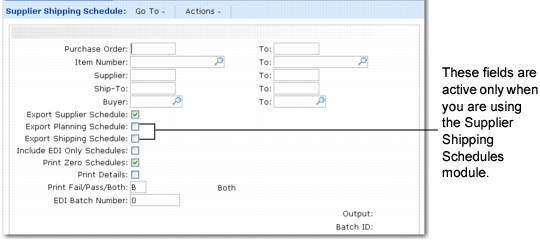
Use Supplier Shipping Schedule (35.4.8) to send your suppliers planning and shipping schedules—based on scheduled orders—to communicate short-term and long-term requirements.
Supplier schedules are cumulative, schedule-driven purchase orders with multiple line items from which releases of requirements and due dates are issued. They are typically used by companies with long-term supplier contracts that require regular weekly or daily deliveries. The schedules specify, for the near term, dates and even hours of deliveries. They also inform MRP and the supplier about long-term plans.
See
QAD Scheduled Order Management User Guide for information on Supplier Schedules.
The types of schedules you can export are determined by whether you use the optional Supplier Shipping Schedules module.
If you are not using Supplier Shipping Schedules, you create and export schedules that combine planning and shipping data. With the optional functionality, you can separate long-term planning requirements from specific daily and hourly delivery requirements.
If you have this module installed and enabled in Supplier Schedule Control (5.5.7.24), you can update the Export Planning Schedule and Export Shipping Schedule fields in Supplier Schedule Export. Otherwise, Export Supplier Schedule is the only available option.
This export uses the following trading partner parameters, which are set up in Trading Partner Parameter Maint (35.13.10):
• Logical position 04: Send EDI Plan Schedules; set to Yes or No
• Character: Plan Sch Document Name; set to the name of the application document definition to use; for example, MFG830
• Integer: Plan Sch Document Ver; set to the version number of the application document definition to use
• Logical position 05: Send EDI Ship Schedules; set to Yes or No
• Character: Ship Sch Document Name; set to the name of the application document definition to use; for example, MFG830
• Integer: Ship Sch Document Ver; set to the version number of the application document definition to use
Supplier Shipping Schedule (35.4.8)
You select schedules for export by specifying criteria, as in the other export programs. Supplier Shipping Schedule has four additional fields:
Export Supplier Schedule
Enter Yes to export supplier schedules that match the selection criteria. Otherwise, enter No.
When the Supplier Shipping Schedules module is active, this field defaults to No and cannot be modified.
When the Supplier Shipping Schedules module is not active, this field defaults to Yes and can be modified as needed.
Export Planning Schedule
Enter Yes to export planning schedules that match the selection criteria. Otherwise, enter No.
When the Supplier Shipping Schedules module is active, this field defaults to Yes and can be modified as needed.
When the Supplier Shipping Schedules module is not active, this field defaults to No and cannot be modified.
Export Shipping Schedule
Enter Yes to export shipping schedules that match the selection criteria. Otherwise, enter No.
When the Supplier Shipping Schedules module is active, this field defaults to No and can be modified as needed.
When the Supplier Shipping Schedules module is not active, this field defaults to No and cannot be modified.
Include EDI Only Schedules
Enter No to export both EDI and non-EDI schedules. Supplier Shipping Schedules disregards the setting for EDI Schedules in Supplier Scheduled Order Maintenance and includes both EDI and non-EDI supplier schedules for export.
Enter Yes to export only schedules that have EDI Schedules set to Yes in Supplier Scheduled Order Maintenance.
When this field is No and the system cannot find valid associated settings in Trading Partner Parameter Maint (35.13.10), errors result. By setting the field to Yes, you can avoid having to review error messages associated with schedules that should not be exported.
Print Zero Schedules
Enter Yes to select all scheduled orders that meet the other selection criteria, including orders with no requirements. You can use this option to select a zero schedule to inform your supplier that requirements from a previous schedule are no longer needed.
If No, only scheduled orders with at least one non-zero requirement quantity are selected.