Creating a Tax Invoice
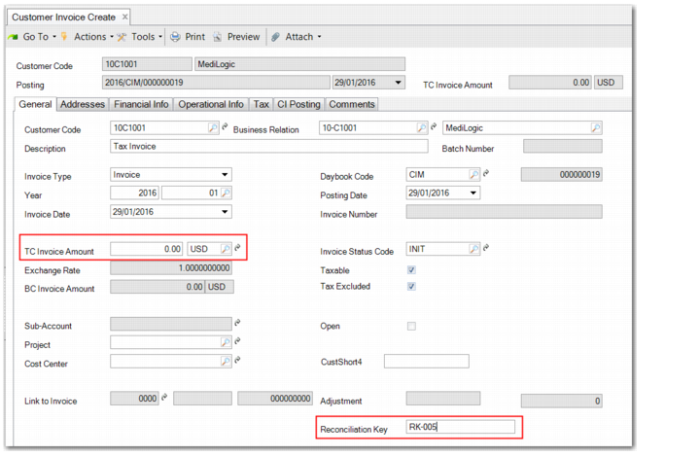
If the tax on the prepayment needs to be declared, create a zero-amount customer invoice for the prepayment and only include the applicable taxes. The taxes for the zero-amount invoice are then included in your tax declarations, and the invoice does not impact your customer’s AR balance.
Add the Reconciliation Key field to the Customer Invoice functions using Design Mode and record a reconciliation key for the tax invoice so that you can easily find and reconcile it later.
Before you issue a final invoice to the customer, you can record multiple prepayments and multiple corresponding tax invoices.
Customer Invoice Create, Tax Invoice with Reconciliation Key
Creating the Final Invoice
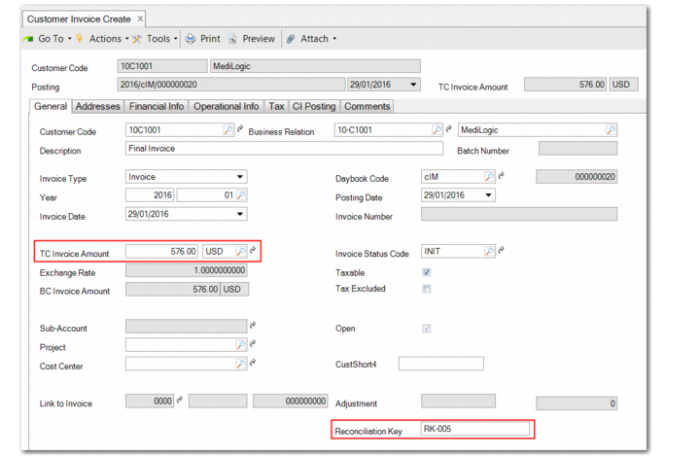
When your company ships goods or provides services, you send the final invoice to the customer and record the invoice using Customer Invoice Create. As with the tax invoice and prepayment, assign the same reconciliation key so that you can easily find the invoice later.
Since this invoice is for the whole tax amount, you must reverse the original tax invoice created for the prepayment.
Customer Invoice Create, Final Invoice with Reconciliation Key
Reversing Customer Invoices
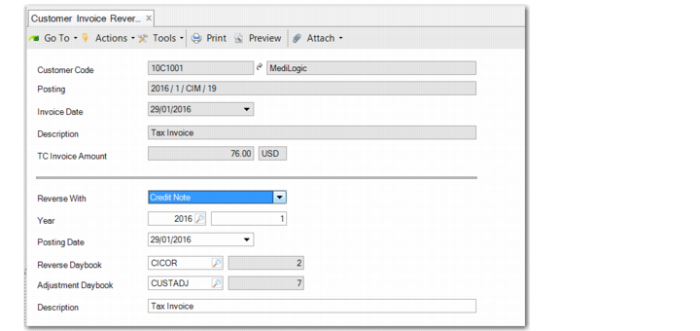
When you have recorded the final invoice for the customer in Customer Invoice Create, you then reverse the tax invoice that you created previously.
Customer Invoice Reverse, Reversing the Tax Invoice
Linking the Invoices Using Open Item Adjustment
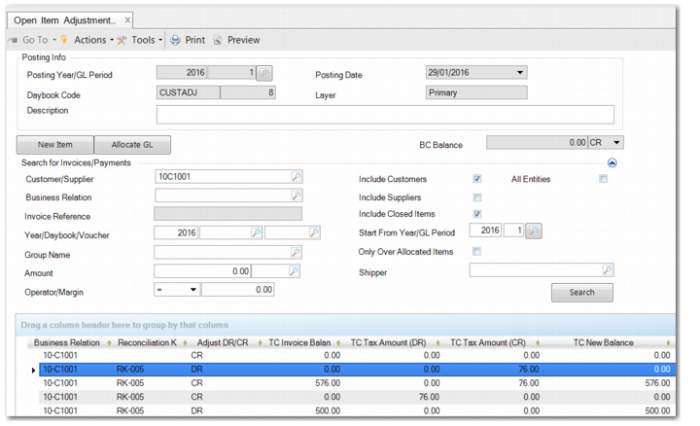
Use Open Item Adjustment Create to adjust the final invoice with the prepayments. To maintain the relationship between all documents involved in the reconciliation process, you must also add the closed tax invoice and the reversal invoice to the open item adjustment. Using Open Item Adjustment, you can use the Reconciliation Key field to search for all documents in the work flow. To track the corresponding taxes, you also need to include the closed tax invoices based on prepayments and the reversal invoices as well.
For closed items, use the Starting from Year and Period filter to narrow the search results. You need to include closed items to retrieve the reversed invoice.
The adjustment must include the prepayments, the tax invoices based on the prepayments, the reversed tax invoices, and the final invoice.
Open Item Adjustment Create, Items with Reconciliation Key
Running the AR Prepayment Tax Reconciliation Report
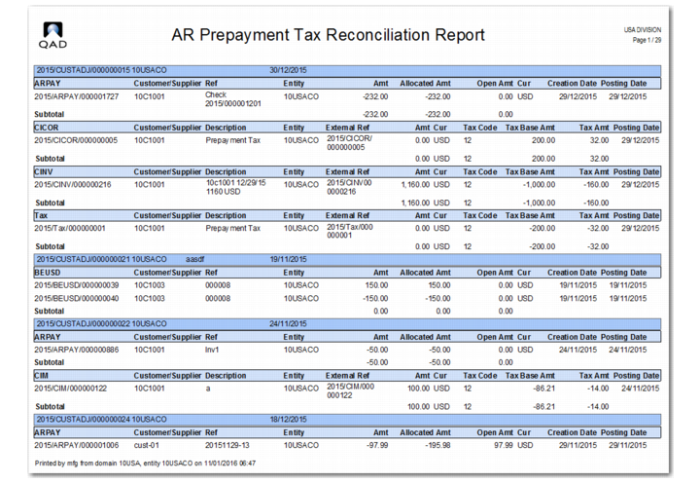
The AR Prepayment Tax Reconciliation report contains output on which you can base your prepayment tax reconciliations. The report lists all transactions that meet the other search criteria. The data is grouped by daybook for each open item adjustment.
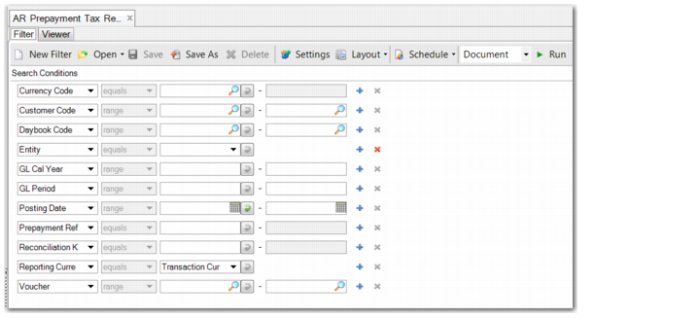
AR Prepayment Tax Reconciliation Report, Criteria
The search criteria are:
Currency Code
Specify the currency code for which you want to run the report.
Customer Code
Specify the customer code or range of customer codes for which you want to run the report.
Daybook Code
Specify the daybook code or range of daybook codes for which you want to run the report.
Entity
Choose the entity for which you want to run the report. The Entity field is mandatory.
GL Cal Year
Specify the GL calendar year or range of years for which you want to run the report. The GL Cal Year field is mandatory.
GL Period
Specify the GL period or range of GL periods for which you want to run the report. The GL Period field is mandatory.
Prepayment Ref
Specify the prepayment reference for which you want to run the report.
Reconciliation Key
Specify the reconciliation key for which you want to run the report.
Reporting Currency
Choose the currency in which to print the report output. The options are Base Currency, Statutory Currency, and Transaction Currency.
Voucher
Specify the invoice voucher number or range of voucher numbers for which you want to run the report.
AR Prepayment Tax Reconciliation Report