Maintaining Test Specification and Item Links
Overview
Because a test specification is defined and exists independently from items, you must define specific links between test specifications and items. IAQ allows you to define links between an item and one or more test specification test IDs or between a test specification test ID with one or more items.
The link between a test specification and an item includes parameters that determine whether the test specification applies to the testing of an inventory lot or to a work-in-process operation. When a test specification applies to an inventory lot, you must specify an item or item and site. When it applies to a work-in-process operation, you must specify an item, routing, and operation, or an item, site, routing, and operation.
Note: You can view existing linked information through the Item Test Specification Report.
Linking a Test Specification to an Item
IAQ gives you the following options for viewing and maintaining the test specification and item links:
• Test Specification Item Links tab. In this tab, located on the second level of the Maintain Test Specification collection, you can view the items that are linked to the test specification. You can also associate the test specification to items, items/sites, or items/routings/operation records.
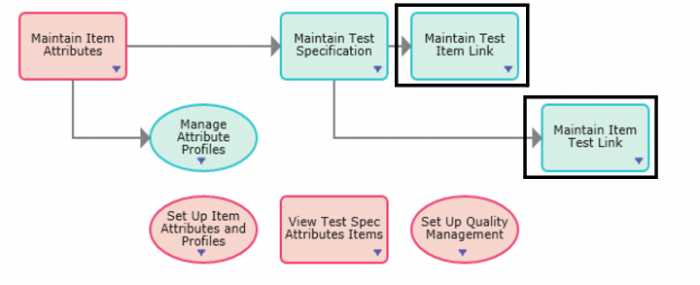
• Maintain Test Item Link. In this browse collection, you can view and maintain test specification and item links, associate a test specification with items, items/sites, or items/routings/operation records, and add attributes to the test specification.
• Maintain Item Test Link. In this browse collection, you can view and maintain item and test specification links, associate items, item/sites, or items/routings/operation records with one or more test specifications, and add attributes to the test specification.
• Test Specification Item Links tab. In this tab, you can view the items that are linked to the test specification. You can also associate the test specification to items, items/sites, or items/routings/operation records.
Follow these steps to link a test specification to an item:
Note: The following procedure shows how to link a test specification to an item using the Maintain Test Item Link collection.
1 Open Maintain Test Item Link in the Manage Test Specifications process map.
Note: To link an item to a test specification, select Maintain Item Test Link.
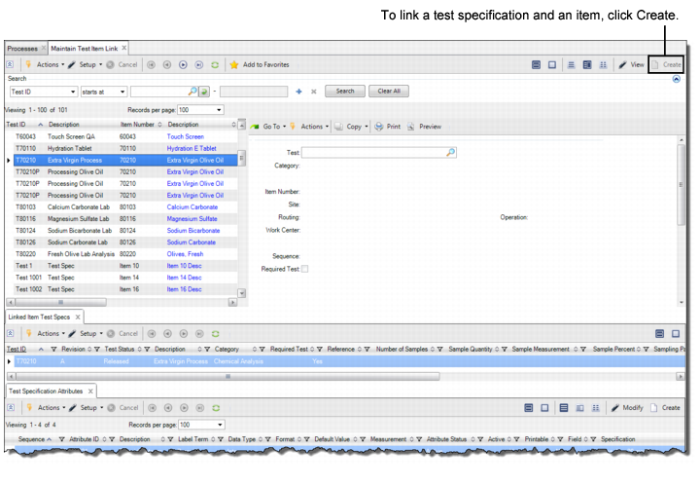
2 Highlight the test specification and click Create in the upper browse.
3 Enter the relevant information in the following fields:
Test
This field displays the test ID associated with the test specification. If you are linking an item to a test ID, select or enter the test ID to associate to the item.
Category
This field displays the category for the selected test ID.
Item Number
Select or enter the item number to associate with the test ID. If you are linking an item to a test ID, this field displays the item number.
Site
Optionally, select or enter a site. If you specify a site, then only items at the chosen site link to the test specification.
Routing
For WIP, enter a valid routing or process code. If you enter a routing code, the test specification triggers only when item uses that code.
Operation
Enter a number identifying a step within a specific routing code. Operations are uniquely numbered and sequenced steps within a routing. Each step is assigned an operation sequence number. Routing operations always print in ascending sequence. For example, operation 20 follows operation 10.
Work Center
Displays the work center code and the machine code, which together identify a work center for a valid routing and operation.
Sequence
Enter a sequence number for the test specification for the item. The sequence determines the order in which test specifications print on reports.
Required Test
Select this check box if the test is required for the item, item/site, or item, routing, and operation combination. When a test specification is required, then an automatically created test record for that test specification must be either completed and closed or canceled. It cannot be deleted. The default is No.
Note: The test specification must have a Draft status to add attributes.