Sizing Option Panel
Select Options from the Preference tool bar button to display three fields that provide default values to workbench functions.
Reconcile Cards
This field sets the default for the same field on the Card Calculation Data tab. The initial value is from Kanban Control.
When the system-recommended number of cards in Kanban Master Maintenance is not the same as the actual number of active cards, you can have the system automatically bring the loop back into balance by clicking the Reconcile/Print Cards button.
Note: The total number of active cards does not include limited-use cards, which have an active code of Close, Period, or Cycles.
When Card Reconciliation is Yes in the Card Calculation Data tab for one or more loops and you save your changes, the system records the number of loops needing reconciliation on the Reconcile/Print Loops button on the Tool Bar to indicate that cards are available for printing.
Note: Even before you do any workbench sizing, the system may determine that one or more loops in the selection criteria need to be reconciled. If this is the case, a value displays on the button when you initially enter the workbench. Optionally, you can reconcile those loops immediately by clicking Reconcile/Print Loops. No save is needed.
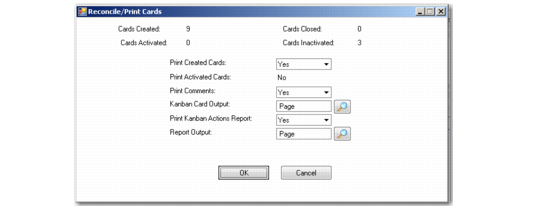
After completing sizing activities and saving your changes, click Reconcile/Print Loops. This removes or adds replenishment cards as needed and displays an additional frame that lets you print any new cards before leaving the workbench.
Reconcile/Print Cards Frame
If a loop requires fewer cards, reconciliation may decrease the number of cards by inactivating some, using the following rules:
• When Decrease at Consume is Yes in the loop’s Kanban Master Maintenance record and Card Reconciliation is Yes in Kanban Control, cards are not reduced by the workbench reconciliation function. Instead, the system counts all active, non-limited cards for the loop each time a card is recorded in Kanban Consume/Post and compares this to the optimum number of cards. If the current card is not needed, the user is prompted to inactivate it and physically remove it.
• When either of those two fields is No, the system uses the phase-out method specified in Kanban Control to determine whether cards are inactivated immediately or next time they are consumed.
If the reconciliation function indicates that additional cards are required, the Kanban Control phase-in method determines whether any current inactive cards are reactivated before new ones are created.
Move Card Sizing
For two-card loops, you can use the Move Card Sizing field to specify whether and how the number of move cards is adjusted when replenishment cards are reconciled.
The default is set in Kanban Control. The value in the Option Panel applies to all loops for the workbench session.
You can:
• Leave the number of move cards as-is, regardless of replenishment card changes.
• Add or remove move cards as needed to balance the new maximum buffer size.
• Set the number and kanban quantity of move cards to match the reconciled replenishment cards.
See
Move Card Sizing for more information.
Cost Set
Optionally enter the identifier for the cost set used in inventory value calculations. The default comes from Kanban Control, if one is specified. Entries are validated against records defined in Cost Set Maintenance (30.1).