Control Program
Use Kanban Control (17.24) to specify several system-level parameters that determine how kanban processing is done, as well as default values for various programs. If you use sequence enforcement and auto-print functions, you can also specify control settings that apply directly to some or all of your kanban loops.
Note: Depending on how you use Kanban, you may need to perform some additional setup tasks prior to entering default values in Kanban Control. See the individual field descriptions for more information.
The program consists of several frames, which are described in the following sections.
Initial Frame
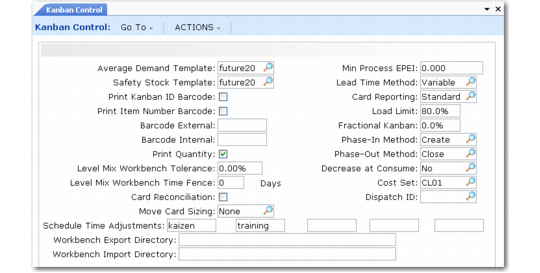
Use the first frame to define default values for several programs.
Kanban Control (17.24), Initial Frame
Average Demand Template and Safety Stock Template
Enter the default templates for the system to use when it calculates average demand and safety stock, either when you run Average Demand Calculation (17.2.1) or Safety Stock Calculation (17.2.2), or when related information is updated from a workbench program.
These values default to the supermarket item detail records for new loops in Kanban Master Maintenance (17.1.4).
Print Kanban ID Barcode
This field indicates the default print setting for new kanban loop records defined in Kanban Master Maintenance (17.1.4). Enter Yes to print kanban ID barcodes on kanban cards.
To implement barcodes, you must have a barcode-capable printer. You may also need to add printer-control codes in the Bar Code Control frame in Printer Setup Maintenance (36.13.2). See
QAD System Administration User Guide for details.
Print Item Number Barcode
This field indicates the default print setting for new kanban records. Enter Yes to print item number barcodes on kanban cards.
Barcode External and Barcode Internal
Optionally, enter codes representing the barcode formats used outside or inside your company. For example:
• The external code can be the format used on shipping labels received from your suppliers.
• The internal code can be the format recognized by the scanners used to record kanban transactions between assembly processes in your plant.
Print Quantity
This field indicates the default print setting for new kanban loop records. Enter Yes to print the kanban container quantity on each kanban card.
Level Mix Workbench Tolerance
Specify the allowable tolerance percentage between the total amount planned to be scheduled and the total amount actually scheduled in Level Mix Workbench (17.14.1). This value defaults to the Tolerance % field in Level Mix Workbench. You can change it when you run the program. See
here.
Example: The tolerance percent is 5% and the total amount planned to be scheduled is 1000 units. The system displays a warning message if you complete entry in the workbench and the actual quantity planned is less than 950 units or greater than 1050 units.
Level Mix Workbench Time Fence
Specify the default number of calendar days into the future, starting from today, where flow scheduled orders are considered frozen and will not be automatically rescheduled by Level Mix Workbench. This value defaults to the Time Fence Days field in Level Mix Workbench. You can change it when you run the program.
Example: Assume today is December 4 and Time Fence Days is 5. Any flow orders imported into Level Mix Workbench up to and including December 8 will not be automatically replanned.
When the workbench value is 0 (zero), the system does not freeze any flow schedules.
Card Reconciliation
Enter Yes to activate automatic kanban card reconciliation functionality. This is also the default setting for the same field in the following programs:
• Kanban Sizing Workbench
• Kanban Process Workbench
• Supermarket Workbench
• Kanban Workbench Import
When Card Reconciliation is Yes in one of those programs, the system automatically creates or modifies replenishment cards so the total of all active cards multiplied by the kanban quantity is equal to the maximum buffer size for the loop.
Example: The kanban size is 10, and the maximum buffer is modified to 50 by one of the workbench programs. The card-reconciliation function adds or removes cards as needed to result in 5 active replenishment cards.
Note: The system disregards limited-use cards (those with Active Code set to Close, Cycles, or Period) when determining the number of active cards. See
Limited-Use Cards.
If reconciliation requires cards to be added, the system uses the phase-in method defined in Kanban Control to determine whether to activate any available inactive cards before creating new ones. See
Phase-In Method.
If cards must be removed, the system first looks at the Decrease at Consume value specified for the loop in Kanban Master Maintenance:
• When Decrease at Consume is Yes or Yes Conf, the reconciliation function does not inactivate or close unneeded cards. Instead, the system reconciles the number of cards in the loop each time you record a card in Kanban Consume/Post. If a card is no longer needed, the system either inactivates it automatically (when Decrease at Consume is Yes) or prompts you to confirm the card’s inactivation (when Decrease at Consume is Yes Conf) and physically remove it from the shop floor.
Important: Even if you do not use automatic reconciliation in the workbenches, Card Reconciliation must be Yes in Kanban Control for the Decrease at Consume functionality to work during Kanban Consume/Post.
• When it is No, cards are removed from the loop based on the phase-out method specified in Kanban Control.
For two-card loops, use Move Card Sizing to control how card reconciliation affects move cards.
Move Card Sizing
Specify whether you typically update the number of move cards in two-card loops in response to changes made by the automatic card-reconciliation function. This is the default setting for the same field in the following programs:
• Kanban Sizing Workbench
• Kanban Process Workbench
• Supermarket Workbench
Valid values are:
• None (the default). The workbench does not adjust the number of move cards regardless of replenishment card changes.
• MaxBuf. The workbench adds or removes move cards as needed to balance the new maximum buffer size without changing the kanban quantity.
Example: The replenishment card has a kanban quantity of 10, while the move card has a kanban quantity of 20. Automatic card reconciliation has changed the actual number of replenishment cards to 8, resulting in a maximum buffer size of 80. The number of move cards is adjusted to 4 (maximum buffer size / kanban quantity).
If not evenly divisible, the number of move cards is rounded to the nearest whole integer value.
• ReplCrd. The system sets the number and kanban quantity of move cards to match the reconciled replenishment cards. If the kanban quantity has changed, all move cards are closed or inactivated based on the Kanban Control Phase-Out Method field. New move cards are created.
Schedule Time Adjustments
Optionally enter up to five reference codes related to calendar adjustments specified in Process Calendar Except Maint (17.1.14) or Process Non-Workday Update (17.l.25). The system validates entries against that program. See
Set Up Process Shifts.
These fields default to Preliminary Level Schedule Report (17.14.2), Level Mix Workbench (17.14.1), and Level Mix Workbench Export (17.14.1).
Time adjustments are typically used to identify such exceptions to the standard shift calendar as holidays or irregularly scheduled meetings that cannot be accounted for by shortening the shift hours.
Workbench Export and Import Directory
Optionally enter the default paths to the directories where the workbench export and import programs place output files and look for import files. You can change these directories when you export or import data. See
Using External Applications.
The workbench export and import programs are typically required only if you do not use the included versions of the workbench programs. In that case, use the export programs to create comma-delimited files containing the same records provided to the workbenches. You can then manipulate the data with a custom external program, export the results to a data file, and use the associated workbench import program to load the updates into the system.
Note: One of these programs—Kanban Workbench Import (17.2.17)—serves an additional function. You can use it to load a comma-delimited file that can automatically create new loops and supporting records. See
Importing Kanban Workbench Data.
Minimum Process EPEI
Optionally enter the default minimum EPEI for new processes defined in Kanban Process Maintenance (17.1.3). The default is 0 (zero). See
EPEI.
The Kanban Control field uses decimal days. However, in Kanban Process Maintenance, the system converts the value to the units specified in the EPEI Display Option field for the process.
Specify a minimum process EPEI, for example, when you never want to set up the machines in your processes more than once each day. If the calculated EPEI is less than the specified minimum, the system uses the minimum value instead.
Lead Time Method
Specify the default method the system uses for calculating the lead time for each item produced by a kanban process. This value defaults to Kanban Process Maintenance. You can change it for individual processes.
Valid values are:
• Variable (the default). In Kanban Sizing Workbench and Kanban Process Workbench, the system calculates the item lead time dynamically based on the potential queue of other items. The item lead time is the sum of the setup and cycle times for the order quantity of all other items produced by the process, plus the setup and cycle time for one kanban quantity of the item itself.
• Fixed. In the kanban workbenches, the system sets the item lead time to the replenishment time for the loop specified in Kanban Master Maintenance.
Card Reporting
Specify the default method used for kanban card piece reporting. This value defaults to Kanban Master Maintenance. You can change it for individual loops.
Valid values are:
• Standard. The kanban is recorded as consumed when the first piece is removed from the container. This is the default value.
• Add. The kanban is not recorded until the last piece is removed. The system increases the order point by an additional kanban quantity.
• Remove. The system reduces the loop size by decreasing the order point by one card.
This setting affects kanban sizing calculations performed using the kanban workbenches.
Note: For a loop with only one or two kanbans that has Card Reporting set to Add or Remove, sizing in the kanban workbenches can result in a logical inconsistency based on the value of Fractional Kanban for the loop that could remove card requirements for both the order point and the order quantity. This would result in a card requirement of zero. When this occurs, the system displays a warning message and sizes the loop as one kanban. See
Fractional Kanban.
Load Limit
Specify the percentage of the total calculated time available during the EPE interval that the system can use for planning the load on a kanban process. The default is 80%. This value defaults to Kanban Process Maintenance. You can change it for individual processes.
If the planned load for a process based on the time required for setups and the cycle time is greater than this percentage, the system displays a warning message in the workbench.
Fractional Kanban
Specify the default fractional kanban percentage for new kanban loops. The default is 0 (zero). When the setting for a loop is 0 (zero), the system does not use fractional kanban logic. It cannot be greater than 99%. This value defaults to Kanban Master Maintenance. You can change it for individual loops.
When you use Kanban Sizing Workbench to size loops, the Fractional Kanban value for the loop lets you control the point at which the system increases the order quantity to provide an additional card. When both the preliminary order point and the preliminary order quantity are greater than zero but less than this percentage of the kanban quantity, the revised order quantity is set to zero. Otherwise, it is set to the revised kanban quantity, resulting in an additional card in the loop.
Note: The Kanban Master Maintenance setting can have special significance when Card Reporting is set to Add or Remove. In that case, the workbench calculation may produce a logical inconsistency that would result in removing all cards from the loop because of the fractional kanban logic. When this occurs, the system displays a warning message and sizes the loop as one kanban.
Phase-In Method
Specify the method used by card management and automatic reconciliation functions when adding cards to kanban loops. This is a system-wide control; all kanban loops use the value specified here.
• Create (the default): The system automatically creates the required number of new cards even if the loop has existing inactive cards.
• Activate: If the loop already has inactive cards, the system activates them first, then creates more cards if needed to meet the total requirement.
Phase-Out Method
Specify the method used by card management and automatic reconciliation functions when removing cards from kanban loops. This is a system-wide control; all kanban loops use the value specified here.
• Close (the default): The system changes the active status on unneeded cards to Close. They are automatically inactivated the next time they complete a kanban cycle.
• Inactivate: The system inactivates unneeded cards immediately, even if they are full. They can no longer be used to record kanban transactions.
Note: Cards with a status of Empty Accumulate are inactivated immediately during reconciliation regardless of this setting.
Decrease at Consume
Specify whether you typically want to have cards that are no longer needed based on card management or automatic reconciliation functions removed from the loop the next time they are consumed. This is the default setting for the same field in new Kanban Master Maintenance records.
• No (the default): Card management and automatic card reconciliation functions use the phase-out method specified in Kanban Control to determine how cards are removed from the loop.
• Yes: The next time an unneeded card is recorded in Kanban Consume/Post, the system automatically inactivates it without prompting the user for confirmation.
• Yes Conf: When an unneeded card is recorded, the system displays a confirmation prompt before inactivating the card.
Note: Card Reconciliation must be Yes in Kanban Control to activate the Decrease at Consume feature on the system level. When it is No, the loop-level field has no effect.
Cost Set
Optionally enter the identifier for the cost set used in inventory value calculations in the kanban workbenches. The default is blank. Entries are validated against records defined in Cost Set Maintenance (30.1).
Dispatch ID
Enter an optional sequence identifier used to generate the batch number assigned to cards when they are dispatched using Kanban Dispatch List Processing. This value must be defined in Number Range Maintenance (36.2.21.1) for target dataset knbd.dispatch_id.
See
QAD System Administration User Guide for information on number ranges.
This field is required only if you use dispatch lists to communicate kanban demand data to source suppliers, processes, or supermarkets.
When this field is blank, Kanban Dispatch List Processing does not generate dispatch ID numbers. Although you can still generate non‑EDI dispatch lists in simulation mode by setting Update Dispatched Cards to No, the actual processing can take place only when a sequence is defined.
While creating a dispatch list using this sequence, the system stores the number as a dispatch ID associated with the cards included in that dispatch session. You can use this ID in several programs on the Kanban Dispatch Menu (17.5) to retrieve information about dispatched cards.
Note: Although you can define longer generated numbers in Number Range Maintenance, the kanban card detail and history fields where they are stored are limited to 24 characters. You should consider this when setting up the sequence definition.
Kanban Transaction Control Settings
The next frame includes settings that control processing for programs on the Kanban Transactions Menu (17.6).
Kanban Control, Kanban Transaction Control
Transaction Display Pause in Seconds
Enter the period of time, in seconds, to display a frame containing kanban card information during a kanban transaction session. The information frame displays for the number of seconds specified before the system prompts for the next kanban ID. The kanban information is used for verification purposes only. Enter 0 (zero) if you do not want to display the kanban information frame. See
Record Kanban Transactions.
Important: When you use the QAD .NET UI and this field includes a value, the system does not automatically clear the display. You must press the spacebar each time to enter the next card. To avoid this, leave the field set to 0.
Effective Date Entry
This field indicates whether the system prompts for an effective date at the beginning of a kanban transaction session. Enter Yes to allow the entry of an effective date for a kanban transaction session. Enter No to use the system date for kanban transactions.
FIFO During Ship Trans Entry
Enter Yes to display a prompt during Kanban Ship (17.6.4) that lets you update the current FIFO process as the source of the kanban transaction. See
FIFO Process Data.
This setting applies only to kanban loops that have Use FIFO set to Yes in Kanban Master Maintenance.
When this field is No, the prompt does not display during Kanban Ship. The system records the current process as the source of the transaction.
Controlled Kanban Entry
Indicate the level of control placed on kanban data entry during a kanban transaction session. Use controlled entry to mandate that selected kanban data must be the same for the duration of a kanban transaction session. For example, you can limit kanban entry to kanban cards associated with a specific supplier.
• None: Kanban entry is not controlled.
• Warning: When the kanban data does not match the control data, a warning displays. The warning can be accepted or overridden.
• Error: When the kanban data does not match the control data, an error displays and the kanban entry is automatically rejected.
When this field is set to Warning or Error, a frame displays during a kanban transaction session allowing entry of control data. The control data is used for all transactions during that session.
PO Receipt Data Entry
Specify whether the system typically prompts for purchase order receiving information when a card is recorded in Kanban Fill/Receive. This is the default for new loop records in Kanban Master Maintenance.
When the field is Yes in the loop record, the system displays optional data-entry fields for a receiving note and packing slip number when the card is recorded.
Lot Entry
Specify whether the system typically prompts for a lot number and reference when a card is recorded in Kanban Fill/Receive. This is the default for new loop records in Kanban Master Maintenance.
When the field is Yes in the loop record, the system displays optional data-entry fields for a lot number and reference when the card is recorded.
Modify Inventory Data
Specify whether users are typically allowed to update default values when recording kanban fill/receive or ship transactions. This sets the default value for new loop records in Kanban Master Maintenance.
When Modify Inventory Data is Yes for a loop, Kanban Fill/Receive and Kanban Ship display editable fields for certain kinds of inventory data. Depending on the source of the loop (supplier, inventory, process) and the transaction, fields can include:
• Quantity Accepted
• Quantity Scrapped
• Reason (including Multi option) for scrap quantity
• Receipt Location
• Issuing Location
Enabling this option lets you record receipt and shipment transactions on which the quantity processed does not have to equal the kanban quantity. For example, you can record the quantity scrapped when receiving a card for a process loop. In a similar situation, with the loop Modify Inventory Data field set to No, Kanban Fill/Receive automatically records the kanban quantity. You cannot account for scrap.
Modify Inventory Threshold
Specify the default maximum percentage of the kanban quantity that is considered an acceptable difference between the kanban quantity and the quantity actually recorded in Kanban Fill/Receive or Kanban Ship.
This value defaults to new loop records in Kanban Master Maintenance.
When Modify Inventory Data is Yes for a loop and the user changes the actual quantity received or shipped from the default (the kanban quantity), the system calculates the difference as a percentage of the kanban quantity. If the percentage is equal to or greater than the specified threshold, a warning message displays.
Note: The system calculation is based on an absolute value, so the threshold applies to recorded quantities both greater than and less than the kanban quantity.
When this field is 0 in the loop record, the system does not validate the quantity entered.
Example: A Kanban Master Maintenance record for a loop has the following settings:
• Kanban Quantity is 50.
• Modify Inventory Data is Yes.
• Modify Inventory Threshold is 10.00%.
When recording a card for this loop in Kanban Fill/Receive, you enter 40 in the Quantity Accepted field. The system calculates the difference between this and the kanban quantity (50 – 40 = 10). It then determines the percentage of the kanban quantity represented by the difference (10 / 50 = 0.20). Since 20% is greater than the specified threshold of 10%, the system prompts you to confirm the quantity accepted.
However, if you enter 48 in Quantity Accepted, the difference is only 2 (50 – 48). This represents only 4% of the kanban quantity (2 / 50 = 0.04). Since that is less than the specified threshold, the system accepts the quantity without a warning prompt.
Regeneration Enforcement
Specify how cards are typically managed when they are recorded in one of the programs on the Kanban Transactions Menu and the system determines that certain card and loop values are no longer identical. This is the default for new loop records in Kanban Master Maintenance.
Valid values are:
• None (the default): The system records the transaction.
• Warning: The system displays a warning and prompts you to continue. You can complete the transaction.
• Error: The system displays an error. You cannot complete the transaction.
Regeneration is required when one of the following is true:
• The kanban quantity and source ID on the card are not the same as the quantity and source ID in Kanban Master Maintenance.
• The routing and BOM codes on the card are not the same as the loop codes. The system searches for the loop’s routing and BOM codes in the following sequence:
1. Item/step records defined in Kanban Item Master Maintenance
2. Item/site detail records
3. Item master records
4. Routing and BOM codes that are the same as the item number
Kanban Cycle Enforcement
Indicate the level of enforcement for minimum kanban cycles. Use minimum kanban cycles to control how quickly kanban data for the same card can be entered into the system. Enforcing a minimum kanban cycle prevents the problem of inadvertently entering the same kanban card twice during a kanban transaction session.
• None: A minimum kanban cycle is not enforced, regardless of the time period specified in the Minimum Cycle fields.
• Warning: When the same kanban ID is entered in a time cycle less than the minimum cycle defined for that card, a warning displays. The warning can be accepted or overridden. When the warning is accepted, the kanban entry is rejected.
• Error: An error displays and the kanban entry is automatically rejected when the time cycle for a kanban entry is less than the minimum cycle defined for that card.
The minimum kanban cycle is the sum of the days, hours, minutes, and seconds entered in the Minimum Cycle fields for each kanban card.
This field sets the default for new kanban loop records defined in Kanban Master Maintenance.
Minimum Cycle Days, Hrs, Min, Sec
A minimum kanban cycle is the sum of the days, hours, minutes, and seconds entered in these fields. These fields set the default for new kanban loop records.
Maximum Cycle Days, Hrs, Min, Sec
Maximum kanban cycle is used by Missing Kanbans Report (17.6.18) to determine whether a kanban card is misplaced. A kanban card is considered missing when the elapsed time between the last transaction for that card and the current date and time exceeds the maximum kanban cycle. See
Generating Reports.
The maximum kanban cycle is the sum of the days, hours, minutes, and seconds entered in these fields. These fields are used as the default for new kanban records. A maximum kanban cycle is not enforced when a maximum cycle time is not specified.
Replenishment and Move Sequence Enforcement
Specify whether the system enforces the sequence in which kanban replenishment or move card transactions are recorded.
• No (the default): The associated card type can be recorded in any sequence. The system disregards settings for individual transaction types in Kanban Control or Kanban Master Maintenance.
• Yes: Depending on the value of User Control Prog Tran Settings in Kanban Master Maintenance, the system enforces the transaction sequence as defined in Kanban Control or Kanban Master Maintenance.
Accumulator Monitor Pause Time
Specify the number of seconds the system pauses each time before cycling through applicable loop records when Accumulator Monitor is running. Valid values are 1 to 999. See
Monitor Accumulator Quantities.
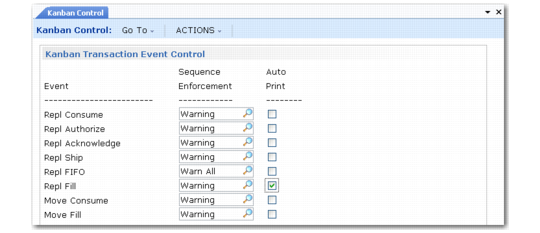
Transaction Event Settings
The next frame includes two types of values:
• Sequence enforcement settings
• Auto-print settings
Depending on the value of Use Control Prog Tran Settings specified for individual loops in Kanban Master Maintenance, these settings can be used in two ways:
• When Use Control Prog Tran Settings is No, the values specified becomes the defaults for new kanban loop records. You can update them in the Kanban Transactions Event Control frame in Kanban Master Maintenance.
• When Use Control Prog Tran Settings is Yes, the loop uses the values specified in Kanban Control.
Kanban Control, Kanban Transaction Event Control Frame
Sequence Enforcement
Use these fields to specify the level of sequence enforcement associated with each kanban transaction event. Valid values for both move card transactions and most replenishment card transactions are:
• None (the default): The system does not check the sequence of events for this transaction.
• Warning: If events for this transaction are recorded out of sequence, the system displays a warning message. You can still record the card.
• Error: If transaction events are recorded out of sequence, you cannot complete the transaction.
The Repl FIFO field applies only to loops that are supplied by FIFO processes. It includes additional options that let you control whether warning or error messages apply only to the first FIFO process in the loop or to all FIFO processes.
Auto-Print
Use each field to specify whether you typically reprint cards after they are recorded using the associated transaction. When it is Yes, recording the card sets the Auto Print field in the card detail record to Yes. When you run Kanban Multi-Card Print (17.3.5), you can control whether the system includes these cards in the selection.
Note: You can update the card auto-print value manually in Kanban Card Maintenance (17.3.1) or Kanban Multi-Card Maintenance (17.3.2). See
Maintain Cards.