Tabbed Detail Frames
Each workbench provides a collection of seven tabbed frames. Each frame contains a logically related collection of fields, in some cases grouped in sub-frames.
Drag and drop the tabs to change their display order. If you do not want a tab to display, use the Hide/Show Tab button on the tool bar to toggle the display of individual tabs. You also can right-click on a tab and select Hide, but you must then use Hide/Show Tab to view it again.
The tabbed frames (sequenced as shown in the default Kanban Sizing Workbench) are:
• Order Point Data
• Order Quantity Data
• Card Calculation Data
• Run-Out Data
• EPEI
• Process Data
• Analyst Data
The tabs are the same in both workbenches (although their default sequence is different); however, their use sometimes varies between the workbenches. For example:
• In Kanban Sizing Workbench, information on the EPEI and Process Data tabs is relevant only when the selected loop is sourced by a process. For inventory and supplier loops, labels display on those tabs, but none of the fields are populated.
• In some cases, fields display in one workbench with gray shading to indicate that they are read-only, but can be modified in the other workbench. For example, even when a loop is sourced by a process, you cannot update process master data from Kanban Sizing Workbench. That data applies to the process itself, rather than the item represented by a kanban loop. Instead, the system displays process information for reference. The fields are gray, indicating that the values can be modified in Kanban Process Workbench.
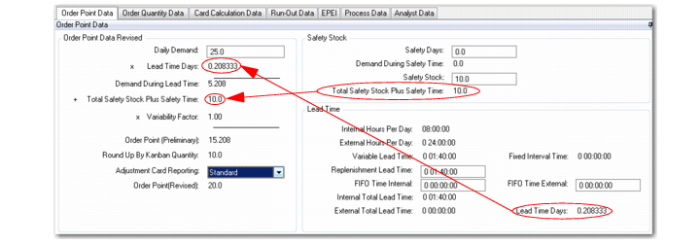
A feature of the tabbed display not available in the grid is the relationships between fields. For example,
Calculated Fields in Order Point Data Tab shows the structure of the Order Point Data tab. The field groupings—along with sub-frames—show how calculated values are derived.
Calculated Fields in Order Point Data Tab
For descriptions of the fields available in the tabs, see
Workbench Data.