Recalculations in Kanban Process Workbench
A Manual Recalculation option is available in Kanban Process Workbench.
When Recalculation Mode is Automatic (on the workbench tool bar), the system always recalculates the entire workbench when you update any field and then change focus to a different field or press Enter. However, if a large number of processes are included in the workbench, automatic recalculations can be time consuming.
To limit the fields that cause recalculations when they are modified, set Recalculation Mode to Manual. Individual loop sizes are still recalculated automatically when you change certain information. However, if the field affects the EPEI or Variable Lead time calculations—which could cause a change in all of the loops in the process—these are not automatically recalculated in manual mode. To recalculate them, press Recalculate or save your work. (The button is only available when in Manual mode and when the workbench has been modified since the last save or manual recalculation.) Since these values can ultimately change the sizing of all loops in the process, it is likely that the individual loop sizing is incorrect. The system calculates the individual loop sizes automatically so that you can see some of the granular changes. For example, if you update Daily Demand, the workbench shows the impact on Total Safety Stock and Order Point. However, this field also affects the EPEI, which is not recalculated, so the order quantity is probably incorrect for this loop as well as all the others.
Fields Calculated Automatically in Manual Mode
|
Sizing Frame
|
Process Item Frame
|
|
Daily Demand (Revised)
|
Minimum Item EPEI (Revised)
|
|
Replenishment Lead Time
|
EPEI Revised
|
|
Internal FIFO Time
|
EPEI Automatic
|
|
External FIFO Time
|
Yield
|
|
Safety Days
|
|
|
Safety Stock
|
|
|
Variability Factor
|
|
|
Packs per Kanban
|
|
|
Card Reporting
|
|
|
Fractional Kanban
|
|
|
Order Quantity Multiple in Kanbans
|
|
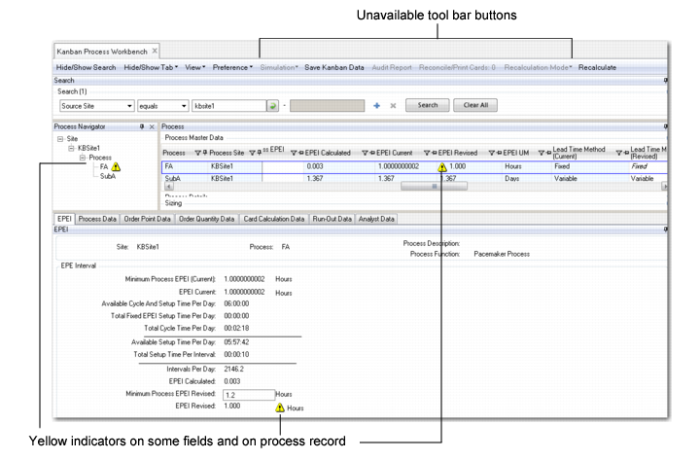
In manual mode, the system provides visual clues when changes to individual fields have left workbench data in a “stale”—or non-current—state. Indicators adjacent to the following fields and on process records show that data is inaccurate until manual recalculation:
• EPEI Revised
• Variable Lead Time
Additionally, the following tool bar buttons are unavailable because stale data would cause the results of those actions to be inaccurate:
• Simulation
• Audit Report
• Reconcile/Print Cards
Note: Recalculation Mode is also disabled while the workbench contains stale data; you cannot change the setting to Automatic until the data is recalculated.
Indicators that Manual Recalculation Is Needed summarizes how the UI indicates that the workbench includes stale data.
Indicators that Manual Recalculation Is Needed