Single-Card Maintenance
Use Kanban Card Maintenance (17.3.1) to update data associated with a single kanban card. You must know the kanban ID of the card, or scan the card using a barcode reader.
You can use Kanban Card Status Report (17.3.13) to identify the kanban IDs of all the cards in a loop.
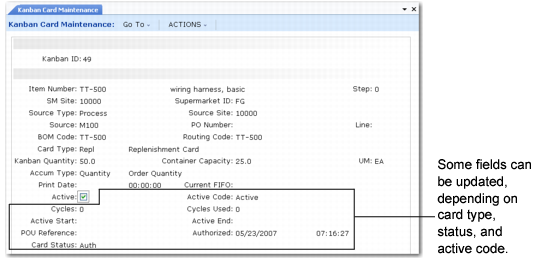
Kanban Card Maintenance (17.3.1), First Frame
When you enter a valid kanban ID and click Next, the system displays an initial screen of loop and card data. You can update the Active field as needed. Other fields can be edited based on such factors as the type of card.
Active
Specify whether this card is available for use in this kanban loop.
When Active is No, the card cannot be recorded using programs on the Kanban Transactions menu, and the item quantity the card represents is not included in system kanban and supermarket sizing calculations.
When they are created, the default setting for new cards is Yes. However, if a loop has too many cards, you can inactivate individual cards, either permanently or temporarily. For example, if the result of running a workbench simulation indicates that current demand can be met more effectively by fewer kanbans, you can inactivate the recommended number of cards. If subsequent demand increases require more kanbans, you can reset the field to Yes on as many additional cards as needed.
Cards can be automatically inactivated during card reconciliation if the system determines that they are no longer needed to support the optimum loop size. See
Card Reconciliation.
When Active Code is Cycles or Period, the system bases the active status on the number of times a card has been used or the specified active dates.
This field must be No for you to delete the card.
Note: You cannot reactivate a card for a loop that has had modifications made to the kanban quantity, source, bill of materials (BOM), or routing since the card was inactivated. You must use Kanban Card Create to regenerate the cards for the loop.
Active Code
When Active is Yes, optionally update the code associated with the active status of this card:
• Active: The card can be recorded using programs on the Kanban Transactions menu. The system automatically sets this value when Active is Yes.
• Inactive: The card has been inactivated. When you set Active to No, the system automatically sets Active Code to Inactive.
• Close: A full card can be recorded for one more cycle. The next time it is consumed, the system automatically inactivates it. If the card is empty, it can be filled once more; then it is inactivated the next time it is consumed.
• Cycles: The card can go through the number of fill/consume cycles specified in Cycles. After completing those cycles, it is automatically inactivated. The system displays the current usage in Cycles Used.
• Period: The card is active only between the dates specified in Active Start and Active End. The system automatically inactivates it the first time it completes a fill/consume cycle after the end of the range.
Use the Cycles and Period settings, along with the appropriate associated values, to define a limited-use card.
Cycles
Enter the number of cycles for which this limited-use card is active. The default is 1.
Each time the card goes through a fill/consume cycle, the system increments the Cycles Used field by 1. When all the specified cycles are used, Active is automatically set to No, and you can no longer record the card using programs on the Kanban Transactions menu.
Note: You can access this field only when Active Code is Cycles.
Active Start/End
Enter the range of dates over which this limited-use card is active. The default is the current date.
Note: You can access these fields only when Active Code is Period.
POU Reference
Optionally enter or modify a point-of-use reference associated with a kanban move card. For instance, this can be the location code representing where the items are used.
You also can assign a POU reference value to a move card when you record it using Kanban Consume/Post (17.6.1).
Authorized
Optionally update the system-defined date and time when this card most recently authorized production.
These fields can be updated only for replenishment cards with a card status of Authorized.
Card Status
Optionally update the current status of this kanban card.
Based on the program used to record a card, the system assigns a status code to the card, either when it is recorded or as a result of an automated process. Valid values are:
• EmptyAcc (Empty Accumulate): Kanban Consume/Post assigns this status based on the accumulator type for the loop defined in Kanban Master Maintenance. The card is awaiting evaluation by Accumulator Monitor based on quantity, time, or schedule parameters. When the total quantity represented by all the cards with this status reaches the order quantity, the system automatically changes the status of the cards to Authorized. Empty Accumulate is the status assigned to new replenishment cards. They are then analyzed by Accumulator Monitor to see if they should be changed to Authorized.
• Auth (Authorized): Production is authorized for the quantity shown on the card. This is the status code assigned to new move cards. Replenishment cards with this status can be included on a dispatch list.
• Ack (Acknowledged): The supplying source has acknowledged receipt of a production authorization. For example, when the item is provided by an external supplier, this can mean that the supplier has received a dispatch list that includes this card and the card has been recorded using Kanban Acknowledge (17.6.3).
• Shipped: The kanban amount has been produced and has left the supplying source; the associated replenishment card has been recorded using Kanban Ship (17.6.4). For example, when the item is provided by an external supplier, the item has been produced and is in-transit to the consuming destination. When the source is a manufacturing process that includes a series of first-in, FIFO processes, this status indicates that the items have completed the last FIFO process.
• Full: The kanban quantity has been produced and is ready to be consumed or, in a two-card system, moved to the point of use; the card has been recorded using Kanban Fill/Receive (17.6.5).
• In FIFO (In FIFO Process): When the source is a manufacturing process that includes a series of FIFO processes, this status indicates that the items are still under the control of FIFO processes. This status is assigned when the card is recorded using Kanban Ship. When the card is recorded after completing the last FIFO process, the system changes the status to Shipped.
Note: In two-card loops, the only valid status codes for move cards are Authorized and Full.
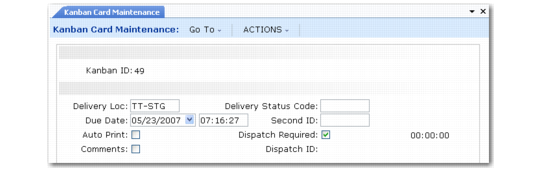
The second frame includes additional card data. Several fields are currently for reference only.
Kanban Card Maintenance, Second Frame
Delivery Location
Specify an optional code representing the location where the kanban item is delivered. This is for reference only.
Delivery Status Code
Specify an optional status code associated with the shipment or delivery of this kanban. This is for reference only.
Due Date and Time
Optionally enter or modify the date when this kanban is due from the supplying source.
The system calculates this date automatically when:
• Recording the card in Kanban Consume/Post results in card authorization.
• The card is recorded in Kanban Authorize.
• Accumulator Monitor changes the card status to Auth based on accumulator settings defined in Kanban Master Maintenance.
• Card status is changed to Auth in Kanban Card Maintenance or Kanban Multi-Card Maintenance.
The date calculation is based on the source type for the loop.
If the source type is an external supplier, the system assumes a 24-hour clock in calculating due dates.
It determines the due date on supplier loops by adding values specified in Kanban Master Maintenance to the current date, as follows:
Due Date = today’s date + Replenishment Time + Fixed Interval Time (for accumulator types Time or Schedule) + FIFO Time External + FIFO Time Internal
If the source type is a manufacturing process or an inventory supermarket, the system bases the date calculation on the source site calendar.
It first calculates the total time required to fill the kanban as follows:
Total time = Replenishment Time + Fixed Interval Time (for accumulator types Time or Schedule) + FIFO Time Internal (using site calendar) + FIFO Time External (using 24-hour clock)
Based on the site calendar, the system then determines how many days it will take using the total time calculated:
Due Date = today + calculated number of days from above
Example: The source site calendar specifies a single shift that runs from 8 AM until 5 PM Monday through Friday. If the card is authorized on Monday at 4 PM:
• If the total time is 2 hours, the due date will be Tuesday.
• If the total time is .5 hours, the due date will be Monday.
• If the total time is 10 hours, the due date will be Wednesday.
Note: The due date logic considers holidays defined in Holiday Maintenance when calculating internal times—including dates available for delivery from external suppliers. For example, if the calculated due date falls on a specified holiday, the due date/time is adjusted to the start of the next business day. However, it does not adjust the standard amount of time allowed the supplier. For example, if the typical delivery time is 3 days and a company holiday falls during that time frame, the system does not assume the supplier takes the holiday and does not extend the time to 4 days to compensate.
Second Card ID
Enter an optional card identifier that can be used in addition to the system-assigned kanban ID. This field is for reference only.
Auto Print
Specify whether this card can be selected for automatic printing by Kanban Multi-Card Print.
This value can be updated automatically based on the current card status, as well as the associated Auto Print setting in either Kanban Control or Kanban Master Maintenance. Which setting applies depends on the value of Use Control Prog Tran Setting in Kanban Master Maintenance. See
Auto-Print.
Qty Accepted
Enter the quantity that was considered acceptable for use when the card was last shipped or received. The default value depends on the setting of Modify Inv Data for the loop record in Kanban Master Maintenance:
Yes: The value entered when the card was last recorded in Kanban Ship or Kanban Fill/Receive
No: The kanban quantity
When the loop record has a percentage specified in Modify Inv Threshold, the system calculates the difference between Qty Accepted and the kanban quantity as a percentage of the kanban quantity. If the percentage is equal to or larger than the specified threshold, a warning message displays.
Note: The system calculation is based on an absolute value, so the threshold applies to recorded quantities both greater than and less than the kanban quantity.
Qty Scrapped
For process loops, enter the quantity that was considered not acceptable for use when the card was last shipped or received. The default value depends on the setting of Modify Inv Data for the loop record in Kanban Master Maintenance:
Yes: The value entered when the card was last recorded in Kanban Ship or Kanban Fill/Receive
No: 0 (zero)
Dispatch Required
Specify whether this card will be selected the next time Kanban Dispatch List Processing is run with selection criteria that match the kanban loop.
You can update this field only when Active is Yes. Additionally, the card status must be one of the following:
• Auth or Ack, for any kind of loop
• In FIFO, for process loops that include FIFO processes
If you change the value from Yes to No, the system sets the dispatch date and time to the current date and time, and leaves the Dispatch ID field at its current value.
If you change it from No to Yes, the date, time, and dispatch ID are set to blank. The system updates these fields next time the card is selected in Kanban Dispatch List Processing.
Dispatch ID
The system displays the system-generated batch number assigned when the card was placed on a dispatch list.
Comments
Enter Yes to display a standard transaction comments screen for entering comments that apply to this card.
All comments print at the bottom of the kanban card.
Single-Function Programs
Three additional programs let you perform single-function changes to individual cards by simply entering the card number or scanning the barcode:
• Use Kanban Card Activate (17.3.8) to set Active to Yes on an inactive card and add the kanban quantity to the working buffer.
• Use Kanban Card Deactivate (17.3.9) to set Active to No on an active card and reduce the working buffer by the kanban quantity.
• Use Kanban Card Close (17.3.10) to set Active Code to Close on an active card.