Define Loops in Kanban Master Maintenance
Typically, you use this program to set up base data for the loop. Although you can manually size kanbans and supermarkets, a number of other programs on the Kanban menu can automatically calculate detailed data and update the values for the kanban loop:
• Average Demand Calculation (17.2.1) updates the Daily Demand field by calculating average demand over the period specified in Demand Calculation Template Maintenance (17.1.6). See
Calculate Average Demand and Safety Stock.
• Safety Stock Calculation (17.2.2) calculates safety stock based on the method and template you specify in Kanban Master Maintenance.
• Kanban Sizing Workbench calculates the number of kanban cards or kanban quantity, the maximum buffer size, the order quantity, and the order point. See
Using Kanban Workbenches.
• Supermarket Workbench (17.2.7), Level Mix Workbench (17.14.1), and Historical Buffer Evaluation (17.2.13) are analysis tools that can be used to simulate the effects of modified loop data, then update the loop record with new maximum buffer size, kanban quantity or number of cards, safety stock, variability, and replenishment lead time data. See
Analysis, Scheduling, and Reporting.
Kanban Master Maintenance consists of multiple frames that let you:
• Set up basic data about the loop.
• Define the source of the loop.
• Optionally, associate a sequence of FIFO processes with the source.
• Specify supermarket details, including sizing and safety stock data.
• Define detailed card information, such as sizing and the method the system uses for accumulating cards to reach the order quantity.
• Control transaction-related processing such as sequence enforcement.
Basic Loop Data
The initial frame includes basic information about the kanban loop, including the item it supplies, an optional step number associated with the item at this loop, the kanban supermarket the loop supplies, and the source type.
Kanban Master Maintenance (17.1.4), Initial Frame
Item
Enter the number of the item that is replenished with this kanban loop. It must be defined in Kanban Item Master Maintenance (17.1.1).
The same item can have more than one loop. For example, one loop for a purchased item could identify a supplier as the supplying source and a storeroom as the consuming destination. Another loop for the same item could identify the storeroom as the supplying source and a location in production as the consuming destination.
Step
Specify a step number associated with this item for this kanban loop. When you are defining a new kanban loop, the item/step combination must already be defined in Kanban Item Master Maintenance.
Using step numbers lets you identify an item at a stage of the manufacturing process independent of any associated routing information. By using step numbers, you can distinguish between multiple loops with the same item, site, and supermarket.
Example: Item A goes through processes P1, P2, and P3 during the manufacturing cycle. P1 supplies supermarket S1, which in turn supplies P2 through a kanban loop defined as step 10. Another loop is defined between P2 and supermarket S2 (step 20), which then supplies P3 through another loop (step 30). Identifying each loop with a step number gives you a method of seeing the manufacturing cycle as a series of sequential steps, rather than a collection of sometimes unrelated operation numbers.
SM Site
Enter the site code where the kanban supermarket is located. This value must be defined in Site Maintenance (1.1.13).
Supermarket
Enter the identifier representing the kanban supermarket that is supplied by this loop. This value must be defined for the specified site in Supermarket Maintenance (17.1.2). See
Setting Up Kanban Supermarkets.
Source Type
Enter the kind of source that provides this kanban item to this loop:
• Process: The item is manufactured by a kanban process. This is the default for new kanban master records.
• Inv: The item is supplied from the inventory of a kanban supermarket.
• Supplier: The item is purchased from an external supplier.
If you modify an existing record by changing this field, the system prompts you to confirm the change.
Note: The content of the next frame depends on this setting.
Source Data
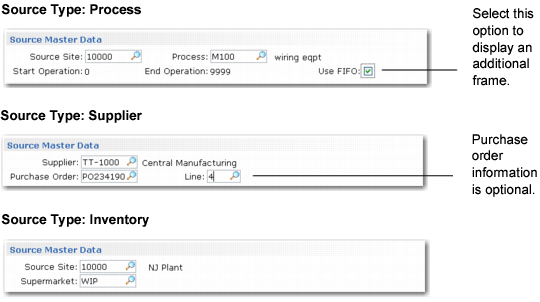
The Source Master Data frame identifies the source of the item. The source can be a manufacturing process, an external supplier, or another kanban supermarket.
The content of the frame varies based on the value of Source Type in the first frame:
• When the source is a process, the system displays the range of manufacturing operations associated with the process in Kanban Process Maintenance. You also can set Use FIFO to Yes to display an additional frame that lets you add FIFO lane processes to the loop.
• When the loop is supplied by an external supplier, you can add optional purchase order data.
• When the source is an inventory supermarket, simply specify the site code and supermarket identifier.
Kanban Master Maintenance, Source Master Data Frame
Source Site
Enter the site code associated with the process or inventory supermarket that supplies this loop. This field does not display when Source Type is Supplier.
Process
Enter a process defined in Kanban Process Maintenance (17.1.3) as either a pacemaker or a standard process. This field displays only when Source Type is Process. See
here.
Note: The primary process source cannot be a FIFO lane.
When you have associated a range of routing operations with this process in Kanban Process Maintenance, the system displays them at the bottom of the frame.
Note: If the specified item has not been associated with this process in Kanban Process Maintenance, the system automatically adds it as a process item.
Use FIFO
Enter Yes to display an additional frame that lets you enter one or more references to FIFO lane processes used to produce this kanban item. See
here.
This field defaults to No for new kanban master records. When FIFO processes have been entered, the field defaults to Yes. Set it to No if you do not want to enter, delete, or resequence FIFO processes for the kanban loop.
Supermarket
Enter a supermarket defined in Supermarket Maintenance (17.1.2) that supplies this kanban loop. This field displays only when Source Type is Inventory. See
here.
Supplier
Enter a valid, active supplier code defined in Supplier Create (28.20.1.1) and completed in Supplier Data Maintenance (2.3.1).
Note: These fields display only when Source Type is Supplier.
Purchase Order and Line
Optionally identify the purchase order used to obtain this kanban item from the supplier. This must be a valid, open purchase order. It is validated against the item number only when you also specify a line number.
This can be a discrete PO, a supplier schedule, or a blanket PO. If you specify a scheduled order, the system date must fall within the order effective date range; otherwise:
• You cannot receive items using Kanban Fill/Receive.
• A warning displays when you create kanban loops using Kanban Master Maintenance or copy master records using Kanban Master Copy.
For a blanket PO, when you send a dispatch list to the supplier authorizing replenishment of an empty kanban, you can have the system attempt to release a PO against the blanket by:
• Setting Blanket PO Release to Yes in the second Card Tracking Control frame. See
here.
• Setting Release Blanket POs to Yes in Kanban Dispatch List Processing (17.5.1).
When Impact Inventory is Yes in the Kanban Transaction Control frame, the system automatically generates purchase receipt transactions for the specified purchase order when you process replenishment cards for this loop using Kanban Fill/Receive (17.6.5). If you leave these fields blank, the system prompts you for PO information when you record the card. See
Inventory Effects.
FIFO Information
When Use FIFO is Yes in the Source Master Data frame for a process loop, the FIFO Lane Detail frames let you specify a sequence of FIFO lane processes that support this kanban loop. The first frame displays any existing FIFO records so you can select them; the second lets you add, delete, or resequence FIFO processes for the kanban loop. See
FIFO Lanes.
Kanban Master Maintenance, FIFO Frames
Seq
Enter the sequence in which material goes through FIFO lanes during this process. You can resequence existing records by entering a decimal. For example, if you want to insert a new FIFO process between existing sequence numbers 1 and 2, enter sequence 1.5 for the new process. When you save your changes, the system reassigns sequences 1, 2, and 3 to the process records.
Process
Enter a valid FIFO process ID. This must be defined in Kanban Process Maintenance with Process Function set to FIFO.
If the Kanban Process Maintenance record includes a range of operations, the system displays it for reference. See
Process Function.
Note: All operation numbers should be greater than the operation range specified for the primary process identified in the Source field. If operation numbers overlap or if they are not in the same sequence as the specified FIFO process sequence, a warning message displays. This is because this situation can cause components and labor to be backflushed more than once when Component/Op Transactions is Yes.
Supermarket Information
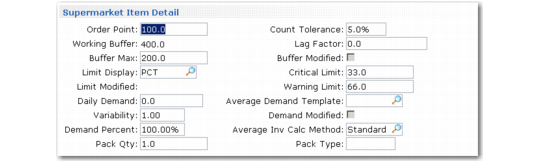
Use two Supermarket Item Detail frames to specify detailed information about the supermarket that is supplied by the kanban loop.
The first frame includes such details as quantities and buffer warning and critical limits. Display-only fields indicate whether manually entered quantities have been automatically updated by system calculations.
Kanban Master Maintenance, First Supermarket Item Detail Frame
Order Point
Optionally specify the supermarket inventory level at which a replenishment order is signaled to the supplying process. When you run the kanban workbenches, the system updates this field based on kanban and supermarket sizing calculations.
This should be a multiple of the value specified in Pack Quantity.
Working Buffer
The system displays the actual current supermarket size based on the number of active replenishment cards using the following formula:
Target Buffer = Kanban Quantity * Number of Active Cards
For example, inactivating a card in Kanban Card Maintenance (17.3.1) does not automatically reduce the Buffer Maximum value. It does, however, reduce the value of Working Buffer.
Buffer Maximum
Optionally specify the maximum quantity of the item to be maintained in inventory at this supermarket. When you run the kanban workbenches, the system updates this field based on kanban and supermarket sizing calculations.
When you review actual or projected supermarket performance using Historical Buffer Evaluation (17.2.13) or Supermarket Workbench (17.2.7), you can update this field based on a system-calculated optimized maximum buffer size.
This should be a multiple of the value specified in Pack Quantity.
Buffer Modified
The system indicates whether the initial buffer size has been updated.
Limit Display
Indicate how the values in the Critical Limit and Warning Limit fields are specified.
• Pct: Limits are entered as a percentage of the value of Buffer Maximum.
• Qty: Limits are entered as a quantity of items.
This value displays for reference in Historical Buffer Evaluation.
Limit Modified
The system displays the last date when the value of Critical Limit or Warning Limit was modified. A blank indicates that the fields are still set to their initial values.
Critical Limit
Specify the percentage of the Buffer Maximum value or quantity of items the system should use in determining whether the supermarket buffer size is too small. Use Limit Display to control whether this value is a percentage or a quantity.
When you run Historical Buffer Evaluation or Supermarket Workbench, the system analyzes the actual or projected performance of the buffer size as it relates to this value. Based on the result, it may display recommendations for increasing the buffer maximum.
This cannot be greater than the value in Warning Limit.
You also can update this field using Historical Buffer Evaluation.
Warning Limit
Specify the percentage of the Buffer Maximum value or quantity of items the system should use in determining whether the supermarket buffer size is too large. Use Limit Display to control whether this value is a percentage or a quantity.
When you run Historical Buffer Evaluation or Supermarket Workbench, the system analyzes the actual or projected performance of the buffer size as it relates to this value. Based on the result, it may display recommendations for increasing the buffer maximum.
This cannot be less than the value in Critical Limit.
You also can update this field using Historical Buffer Evaluation.
Daily Demand
Optionally enter the expected daily demand for the item supplied by this kanban loop.
The system automatically updates this value when you run Average Demand Calculation (17.2.1), as well as when you perform kanban and supermarket sizing using Kanban Sizing Workbench. See
here.
Average Demand Template
Optionally specify the template used to calculate the value in Daily Demand when you run Average Demand Calculation or update demand using the kanban workbenches. The template specifies the number of past and future days used in the demand calculation. The field is validated against records set up in Demand Calculation Template Maintenance (17.1.6).
When this field is blank, the system does not calculate average demand for the loop.
Note: Use Demand Calculation Template Update (17.1.7) to update the average demand template for multiple kanban loops at the same time. See
here.
Demand Modified
The system indicates whether the value of Daily Demand has been updated from its initial setting.
Variability
Enter the variability factor for this item. This value is used in order point and order quantity calculations.
Variability must be greater than zero. The default is 1.
Use this field to limit or increase the amount of inventory in the supermarket buffer. Variability factor is similar to safety stock, but can be a more convenient means of estimating variations for factors such as seasonality or sales promotions.
If you adjust the variability factor when performing kanban and supermarket sizing using the kanban workbenches, the system updates this field.
Note: Under most circumstances, this field should be left set to 1. Because of the compounding effect produced by safety stock, even small changes in the variability factor can have significant impact on sizing calculations.
Demand Percent
If the supplying source for this loop provides the same item to more than one supermarket, enter the percentage of that source’s total demand consumed by this supermarket.
When you adjust the percentage in the kanban workbenches and save your changes, the system updates this field.
Pack Quantity
Specify the number of items that are included in the standard packaging for this item. For example, if an item is packaged in a box of 25, set the field to 25.
The system uses this value to calculate the quantity per kanban.
Order Quantity and Buffer Maximum should be multiples of this value.
Package Type
Optionally specify the type of packaging that holds the quantity shown in Pack Quantity. For example, this could be Box or Case. This field is for reference only. Its value is not validated.
Average Inventory Calculation Method
Specify the average inventory calculation method for this loop.
The system calculates the value of the Average Inventory Units field in the kanban workbenches based on this method, as well as various other values from the workbench. See
Workbench Data.
Valid values are Standard and Mfg1. This field defaults from Kanban Item Master Maintenance (17.1.1). The calculation methods are described in the discussion of that program. See
Average Inventory Calculation Method.
Count Tolerance
Specify the allowable percentage of variation between the kanban inventory or WIP quantity (depending on the location type specified in Supermarket Maintenance), calculated as the number of full kanbans times the kanban quantity, and the system inventory balance, adjusted by the quantity represented by Lag Factor. The default is 5%.
Inventory Validation Report (17.6.13) marks the loop as out of tolerance if the difference between the inventory quantities varies by more than this percentage. See
here.
Lag Factor
Specify the number of kanbans that are expected to be in process at any particular time. The default is 0 (zero).
When you run Inventory Validation Report for this loop, the system accounts for the kanban quantity currently in process by multiplying the Lag Factor value by the kanban quantity, then subtracting the result from the system quantity on hand. It then compares the result with the kanban inventory level and determines if the difference is out of tolerance based on the specified percentage.
You can specify a lag factor when a kanban item is a component that is backflushed when the parent item is received sometime later than when the kanban is reported as consumed.
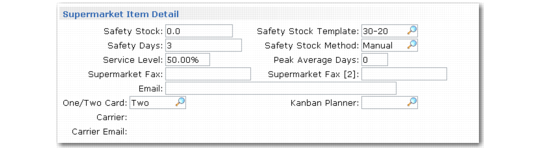
The second Supermarket Item Detail frame includes safety stock information. You can either enter data manually or specify the method the system uses to calculate it automatically.
The frame also includes supermarket fax and e-mail contact information used by Dispatch List Processing (17.5.1). See
here.
Kanban Master Maintenance, Second Supermarket Item Detail Frame
Safety Stock
Optionally enter the quantity that is maintained at the supermarket as a buffer to offset unanticipated fluctuations in supply or demand, such as material shortages or special customer orders. See
Safety Stock.
Leave this field set to 0 (zero) to have the system calculate a quantity based on the settings in Safety Stock Method, Service Level, and Peak Average Days when you run Safety Stock Calculation (17.2.2). Additionally, if you update the safety stock in the kanban workbenches and save your changes, the system updates this field. Other programs that can update safety stock include Supermarket Workbench and Historical Buffer Evaluation. See
Calculate Average Demand and Safety Stock.
This must be less than the values entered in Order Point and Buffer Maximum.
Safety Stock Template
Optionally specify the template used to calculate safety stock when you run Safety Stock Calculation (17.2.2) or update safety stock using the kanban workbenches. The template specifies the number of past and future days used as the basis of demand for safety stock calculations. The field is validated against records set up in Demand Calculation Template Maintenance (17.1.6).
Note: Use Demand Calculation Template Update (17.1.7) to update the safety stock template for multiple kanban loops at the same time. See
here.
Safety Stock Method
Specify the method used to determine safety stock for this item when you run a program that updates safety stock.
• Manual: No safety stock calculation takes place. Specify safety stock for this item by entering a quantity in Safety Stock or a number of days in Safety Days. If there is a value in the Daily Demand Field in the Supermarket Item Detail frame, the system calculates a value for Service Level based on standard deviations on the daily demand and an associated service factor. Otherwise, the service level is not calculated.
• Simple: The system calculates a standard deviation of average demand over the number of days in the planning horizon, which is the total number of historical and future days specified in Demand Calculation Template Maintenance (17.1.6). It then multiplies this demand by a service factor associated with the specified service level. To use this method, you must enter a valid value in Service Level.
• Peak: The system calculates the average demand for each n-day period within the planning horizon defined in Demand Calculation Template Maintenance, where n is the value specified in Peak Average Days. Safety stock is based on the highest demand during an n-day period. When you use this method, the Service Level is calculated based on standard deviations on daily demand.
Safety Days
Enter the number of days of demand to be covered by safety stock quantity. When you run Safety Stock Calculation or other programs that update safety stock such as the kanban workbenches or Historical Buffer Evaluation, the system updates the safety stock quantity based on the average demand over this number of days.
If you update the safety days in the kanban workbenches and save your changes, the system updates this field.
Note: When Safety Stock Method is Manual, the system uses both Safety Stock and Safety Days to determine safety stock. For example, if the average daily demand is 50 and you enter 50 in Safety Stock and 1 in Safety Days, the system combines these to provide total safety stock of 100.
Service Level
Enter a service level associated with this item for this kanban loop. This number cannot be less than 50.00 (the default) or greater than 99.99.
The service level is the percentage of time that inventory for this item does not typically run out before the replenishment time has been reached. For example, 50.00 means that 50% of the time, you will run out of this item before reaching the replenishment time. Higher numbers mean that the supermarket maintains more inventory for the item in the form of safety stock.
The way this field is used varies by the value of Safety Stock Method.
• Manual: Do not enter a value in Service Level. When Daily Demand in the Supermarket Item Detail frame is greater than 0 (zero), the system calculates the service level based on standard deviations on average demand. When Daily Demand is 0, the system does not update the Service Level field.
• Simple: Enter a value in Service Level. It is required to determine a system-defined service factor that is used in the safety stock calculation.
• Peak: The service level is calculated based on standard deviations on daily demand.
Peak Average Days
When Safety Stock Method is Peak, enter the number of days the system should use as a basis for determining peak average demand. The system calculates the average demand for each period of this number of days over the horizon defined in Demand Calculation Template Maintenance. The highest average demand over one of those periods is the basis of the safety stock calculation.
When Safety Stock Method is Peak, you must enter a value in this field.
Supermarket Fax and E-mail
Optionally enter a fax number and an e-mail address for the supermarket supplied by this kanban loop.
These values are used when a kanban dispatch list is output as a fax or e-mail. When dispatch lists are processed, kanban data can be sorted by supplying source and/or consuming destination. The dispatch list can be faxed or e-mailed to the supplying source, consuming destination, or both. See
Generate Dispatch Lists.
When these fields are blank, the system uses the information specified in Supermarket Maintenance (17.1.2).
You also can enter an alternate fax number. When primary and secondary fax numbers are specified, both numbers, separated by a comma, are printed on the first line of the fax report.
One/Two Card
Enter either One or Two to indicate the number of cards printed per container.
• In a one-card loop, a single card both controls inventory movement and authorizes replenishment of the kanban quantity.
• A two-card system has a move kanban and a replenishment kanban. A two-card system is used when the movement of a container of parts may not trigger an immediate replenishment of that part.
The layout of the first Card Tracking Control frame varies based on this setting. When it is One, the card tracking frame includes a single set of fields for the replenishment card. When it is Two, the frame displays separate columns so that you can define replenishment and move cards independently. See
Card Tracking Information.
Kanban Planner
Optionally, enter the code for the planner who is responsible for this kanban loop. If you enter a value, it is validated against codes entered in Generalized Codes Maintenance for field knb_planner.
Carrier
Optionally, enter the identifier of a freight carrier associated with a supplier kanban loop. This ID must be defined in Carrier Maintenance (2.17.1). The default is the carrier specified for the supplier in Supplier Data Maintenance (2.3.1).
If an e-mail address is specified in Carrier Maintenance, it defaults to the Carrier E-Mail field. You cannot update it.
Note: This field is accessible only when Source Type is Supplier.
Card Tracking Information
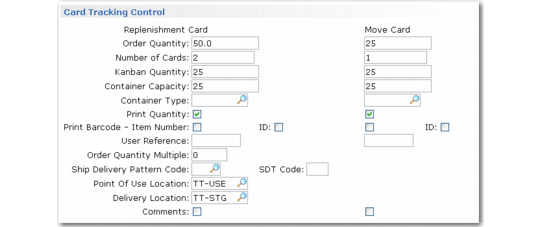
Use two Card Tracking Control frames to specify detailed information about the cards used in a kanban loop.
The first frame lets you enter sizing and control information for the kanban cards. When you use the kanban workbenches, you can have the system update much of this data based on kanban sizing calculations. See
Using Kanban Workbenches.
If you do not choose to use the kanban workbenches to size cards, you can enter the size and number of cards in this frame. Depending on the data you enter, the system may display warning messages recommending changes to some values.
After you finish setting up and sizing the loop, create and print the cards using Kanban Card Create (17.13.12). See
Create or Regenerate Cards.
If you are setting up a two-card loop, two sets of fields display so you can enter different data for the replenishment card and the move card, as shown in
Kanban Master Maintenance, First Card Tracking Control Frame.
Kanban Master Maintenance, First Card Tracking Control Frame
Order Quantity
Enter the number of units the supplying source will replenish when the inventory level at the supermarket reaches the order point. This can be represented by a single card or by an accumulated quantity from multiple cards. Use the next frame to specify whether multiple cards are accumulated based only on the quantity or on a combination of the quantity and interval-based factors.
You can enter a value manually or have the system update the field when you size the kanban loop using the kanban workbenches.
This should be a multiple of the value specified in Kanban Quantity.
Number of Cards
Enter the number of cards to be included in this kanban loop. The system may update this field when the supermarket maximum buffer size is modified.
Kanban Quantity
Enter the number of items per kanban.
Kanban Quantity represents the actual quantity to be placed in each container, regardless of the capacity of that container. For example, you use a standard container that holds 100 items, but you only want 50 items at a time.
Kanban Quantity must be the same as or less than Container Capacity. It should be a multiple of the value specified in Pack Quantity.
Container Capacity
This field identifies a physical constraint placed on the container or item, which could be any of the following:
• Maximum quantity held by a carton or container
• Standard supplier package size
• Production constraint such as size of an oven tray
• For unwieldy or heavy items, the maximum amount that can be handled
The system displays a warning message if you set this field to 0 (zero).
Container Type
Optionally enter the type of container associated with this kanban item when it is replenished, such as bin or carton. This field defaults from Kanban Item Master Maintenance (17.1.1).
If you enter a value, it must be defined in Container Type Maintenance (17.1.5).
See Kanban Containers and Labels.This information is printed on kanban cards.
Print Quantity
Enter Yes to print the kanban quantity on each kanban card. This value defaults from Kanban Control.
Print ID Barcode
Enter Yes to print a kanban ID barcode on each kanban card. This value defaults from Kanban Control.
Print Item Number Barcode
Enter Yes to print an item barcode on each kanban card. This value defaults from Kanban Control.
User Reference
Optionally enter an alphanumeric reference (up to eight characters) to this kanban loop. This value displays on various reports and inquiries.
Order Quantity Multiple
Optionally, enter the number of kanbans that serves as the lowest common denominator for system loop-sizing calculations. If you do not want to enforce an order quantity multiple, leave the field set to the default 0 (zero).
If you enter a value here, the kanban workbenches increase the order quantity until it is a multiple of this value. For example, if you enter 3, the system cannot size the loop at 2 or 5 cards. Instead, it rounds up the order quantity to the next multiple of 3, resulting in a number of cards that is also a multiple of 3: a loop size of 2 would become 3, a loop size of 5 would become 6, and so on.
Note: The system applies fractional kanban and card reporting method logic before adjusting the order quantity to meet the order quantity multiple requirement.
Ship/Delivery Pattern
Optionally enter a one or two-character code specifying the required routine ship or delivery patterns for this kanban loop. Entries are validated against codes defined in Generalized Codes Maintenance for field sch_sd_pat.
The ship/delivery pattern typically specifies the frequency when shipments or deliveries are accepted; for example, any day Monday through Friday, or Tuesday only.
This field is for reference only and can appear on some selected reports and inquiries.
SDT Code
Optionally enter a two-character shipping delivery time (SDT) code associated with this kanban loop.
SDT codes typically relate to exact times for supplier deliveries. Daily item requirements can be split into hour and minute buckets based on these codes.
This field is for reference only. It is not associated with SDT codes used elsewhere in the system.
Point of Use Location
Optionally enter a code representing the location where the kanban item supplied by this loop is used. Entries are validated against codes defined in Location Maintenance.
This field is for reference only.
Delivery Location
Optionally enter a code representing the location where the kanban item supplied by this loop is delivered. Entries are validated against codes defined in Location Maintenance.
This field is for reference only.
Comments
Enter Yes to update or enter comments related to cards in this kanban loop; otherwise, enter No. Comments defaults to Yes if comments are already associated with the cards; otherwise, the default is No.
When Comments is Yes, the transaction comments screen displays for you to enter or review comments regarding the cards.
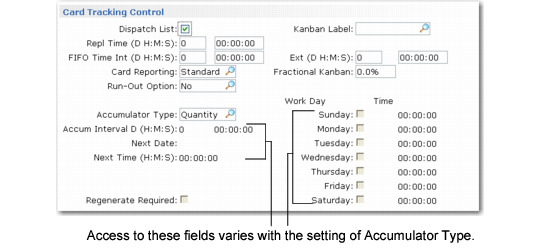
The second Card Tracking Control frame includes additional settings that control loop behavior. For example, use this frame to define the accumulator method for the loop to control how empty cards are authorized for production based on specified quantity or interval parameters.
Kanban Master Maintenance, Second Card Tracking Control Frame
Dispatch List
Indicate whether to allow selection of this kanban when dispatch lists are processed.
No: This kanban is ignored when dispatch lists are generated.
Yes: This kanban can be selected for dispatch list processing. When you click Next, the Dispatch Options frame displays. See
Dispatch List Information.
Replenishment Time
Enter the time required to replenish the item in days, hours, minutes, and seconds. This value is used in the calculations performed by the kanban workbenches. If you modify the replenishment time in that program and save your changes, the system updates this value.
Replenishment time includes the total time between recognizing that a product should be reordered and having the product supply available for use. This field represents a contract between supplying and consuming sites, reflecting maximum turnaround time.
FIFO Time Internal
Enter the amount of time—in days, hours, minutes, and seconds—required for this item to complete the total number of internal FIFO processes defined for the kanban loop. See
FIFO Lanes.
Note: You can track lead time associated with subcontract operations separately using the FIFO Time External field.
This value is used in due date calculations and the calculations performed by the kanban workbenches. If you modify the internal FIFO time in that program and save your changes, the system updates this value.
This field applies only to loops that are supplied by a primary process that includes one or more FIFO processes.
FIFO Time External
Enter the amount of time—in days, hours, minutes, and seconds—required for this item to complete the externally performed FIFO processes defined for the kanban loop.
When you run Process Item Operation Rollup for a process that includes operations with subcontract lead times specified in Routing Maintenance, the system adds the lead times for all those operations and enters the total here.
This value is used in due date calculations and the calculations performed by the kanban workbenches. If you modify the external FIFO time in that program and save your changes, the system updates this value.
This field applies only to loops that are supplied by a primary process that includes one or more FIFO processes with subcontract operations.
Card Reporting
Specify the method used for kanban card piece reporting. This value defaults from Kanban Control.
Valid values are:
• Standard
• Add
• Remove
This setting affects kanban sizing calculations performed using the kanban workbenches. See
Card Reporting for more information.
Fractional Kanban
Specify the fractional kanban percentage for this loop. It cannot be greater than 99%. This field defaults from Kanban Control. See
here for more information.
Run-Out Option
Enter Yes if the source that supplies this item runs the quantity needed to use the entire supply of a given material regardless of the kanban quantity. Otherwise, enter No. This value defaults from Kanban Item Master Maintenance.
Especially in situations with extensive setup times to change over to a key material, it is not always efficient to set up a work center for just the kanban quantity. Instead, you can make enough items to consume an entire bulk quantity of that material. For example, if changing over a process to set up a coil of steel takes significant time, you could consider using the entire coil each time you run the item. The total amount of material available, the quantity required to produce each item, and the amount of time required to change over to a new supply can be useful information for analyzing kanban setup and sizing alternatives.
This field is for reference. The value displays in the kanban workbenches and is included in files created by Kanban Workbench Export, along with the related run-out parameters defined in Kanban Item Master Maintenance.
Accumulator Type
Specify how the system accumulates replenishment cards for this kanban item after you record them using Kanban Consume/Post. You can accumulate cards based on either quantity-based or interval-based criteria.
• Quantity: When the sum of empty replenishment cards reaches the total amount specified in Order Quantity, the system authorizes all empty cards in the kanban loop regardless of how much time has elapsed.
• Time: When you use this type, enter a time in Accum Interval. Each time the specified interval elapses, the system looks at all empty cards in the loop. If the total of the individual cards meets the order quantity, all cards are automatically authorized.
• Schedule: Access the fields on the right side of the frame to specify days and times when the system evaluates the number of empty cards. If the total of the individual cards meets the order quantity, all cards are automatically authorized.
Run Accumulator Monitor (17.617.1.6) to update card status and display the status changes in real time. See
Monitor Accumulator Quantities.
Accumulator Interval
When Accumulator Type is set to Time, specify in days, hours, minutes, and seconds how often the system can authorize empty kanbans for this item, assuming that the total of empty kanbans has reached the value in Order Quantity.
Note: Accumulator Interval and Next Date are not accessible when Accumulator Type is Quantity.
Next Date and Time
When Accumulator Type is Time or Schedule, the system calculates and displays the next date and time that Accumulator Monitor will check for empty cards for this loop, based on the value of Accumulator Interval or the Work Day and Time settings.
You can manually override these system-calculated values to check accumulators earlier or later.
Work Day and Time
When Accumulator Type is Schedule, specify whether the system can authorize empty kanbans for this item on this day of the week, assuming that the total of empty kanbans has reached the value in Order Quantity.
For each day that is set to Yes, you can specify the time of day that the system searches for empty cards.
Note: These fields are accessible only when Accumulator Type is Schedule.
Regenerate Required
This display-only field indicates whether loop information has changed that might require you to regenerate and reprint kanban cards using Kanban Card Create (17.3.12). For example, if you print the kanban quantity on your cards and loop resizing updates that quantity, you can regenerate and print correct cards. See
Create or Regenerate Cards.
Kanban Label
Enter the optional identifier for a kanban label definition associated with this loop. This value must be defined in Kanban Label Definition Maint (17.3.18). See
Defining Kanban Labels.
Kanban label definitions are currently for reference only.
Dispatch List Information
Use this frame to define how dispatch lists will be used for this loop. Dispatch lists are generated in report format and can also be printed in fax format, or sent using e-mail or EDI eCommerce. You can generate and send dispatch lists sorted by supplying source, consuming destination, or both. See
Generate Dispatch Lists.
Note: This frame displays only when Dispatch List is Yes in the previous Card Tracking Control frame.
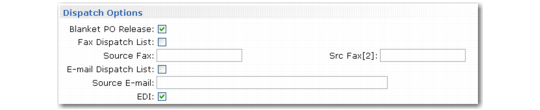
Kanban Master Maintenance, Dispatch Options
Blanket PO Release
Specify whether dispatch list processing attempts to release a PO from a blanket order. When this is Yes and you enter a valid blanket PO number in the Purchase Order field in the Source Master Data frame, dispatch list processing uses that blanket order as the default. When the loop does not specify a blanket PO number, the system attempts to find an available blanket order matching the supplier and item. See
Purchase Order and Line.
Fax Dispatch List
Indicate whether to allow selection of this kanban when dispatch lists are processed in fax format. When set to No, this kanban is not included in dispatch list fax reports.
Source Fax
Enter the fax number for the supplying source. This number is used when dispatch lists are reported by source. When this field is blank, the system uses the fax number defined in the supplier or site address. When a dispatch list is sorted by supplying source and printed in fax format, this fax number, preceded by a # symbol, is printed on the first line of the report.
E-mail Dispatch List
Indicate whether to e-mail dispatch lists for this kanban. When set to No, this kanban is not e-mailed or included in dispatch list e‑mail reports.
Source E-mail
Enter the e-mail address for the supplying source. This address is used when dispatch lists are reported by supplying source. When this field is blank for a loop supplied by an external supplier and you are using the Supplier Performance module, the e-mail address defined for the supplier is used. Otherwise, the system does not search further. For details on Supplier Performance, see
QAD Purchasing User Guide.
EDI
Enter Yes to generate dispatch lists for this loop in electronic data interchange format for export to the loop supplier using EDI eCommerce. The default is No. See
EDI Dispatch List Transmittal.
When you select this option for a supplier kanban, the system verifies that an EDI eCommerce trading parameter called Send Kanban Dispatch exists for the supplier and has been set to Yes. This is a logical parameter in Trading Partner Parameter Maintenance (35.13.10). If this is not defined, a warning displays.
Transaction Control Information
The Kanban Transaction Control frame includes settings that control system behavior when transactions are recorded for the loop, including time parameters to prevent kanban transactions from being entered multiple times and to help identify missing cards.
The frame also includes inventory control settings that specify whether recording transactions for the loop records inventory receipts and creates operation-related transactions such as component backflush.
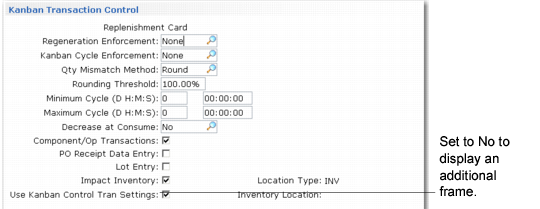
Kanban Master Maintenance, Kanban Transaction Control Frame
Regeneration Enforcement
Specify how cards are managed for this loop when they are recorded in one of the programs on the Kanban Transactions Menu and the system determines that cards should be regenerated. This occurs when certain card-detail values are no longer synchronized with loop values. This field defaults from Kanban Control.
Valid values are:
• None (the default)
• Warning
• Error
See
Regeneration Enforcement for more information.
Kanban Cycle Enforcement
Indicate the level of minimum kanban loop cycle enforcement. This field defaults from Kanban Control.
Valid values are:
• None (the default)
• Warning
• Error
See
Kanban Cycle Enforcement for more information.
Quantity Mismatch Method
Use this field in combination with Rounding Threshold to control how the system manages partial kanban quantities for this loop during certain automated processing functions. These functions determine which cards are selected based on loop and quantity information rather than card ID. They are associated with the following programs:
• Kanban Consumption Import (17.6.20)
• EDI eCommerce Document Import (35.1) when used to import advance ship notices (ASNs)
• PO Shipper Receipt (5.13.20)
The system uses the logic defined here when the item quantity called for does not represent an exact number of kanbans.
Example: A file imported using Kanban Consumption Import includes a quantity of 47. However, the kanban quantity is 20—or 2 cards with a remaining quantity of 7. The system uses Quantity Mismatch Method and Rounding Threshold to determine whether to round the number of cards selected up to 3 or down to 2, or to display an error message and not select any cards for update.
Valid values are:
• Round (the default). The system rounds the remaining quantity based on the value specified in Rounding Threshold and generates kanban history records without acknowledging that rounding took place.
• Warning. The system rounds the remaining quantity as specified in Rounding Threshold, creates kanban history records, and displays a warning message on the output report.
• Error. The system does not complete processing for the loop unless the quantity specified is an exact multiple of the kanban quantity. An error message displays on the output report.
Rounding Threshold
Specify the percentage of kanban size the system uses to round off partial kanban quantities in determining the number of cards to select for automated processing.
This value is used in combination with Quantity Mismatch Method. It applies only when that field is set to Round or Warning. When it is Error, the system does not process loops unless the specified quantity is an exact multiple of the kanban quantity.
Leave Rounding Threshold set to the default 100.00 to always round partial quantities down. Change it to 0.00 to always round them up.
Any other value represents the percent of the kanban quantity that must exist before the system rounds up to select an additional card. If the excess quantity is less than this percentage, the system rounds down.
Example: The kanban quantity is 20, and Rounding Threshold is 25.00%. This means that any remaining quantity of 5 or more will be rounded up. A record imported using Kanban Consumption Import includes a quantity of 47, or 2 cards with a remaining quantity of 7. Since 7 is greater than the threshold of 5, the system rounds up and selects 3 cards. In the same scenario with Rounding Threshold set to 50.00%, the system would only select 2 cards, since the remaining quantity of 7 does not meet the threshold requirement of 10.
Minimum Cycle
Enter the minimum kanban loop cycle time in days, hours, minutes, and seconds. Values default from Kanban Control.
Leave these fields blank if you do not want to enforce a minimum kanban loop cycle.
Maximum Cycle
Enter the maximum kanban loop cycle time in days, hours, minutes, and seconds. Values default from Kanban Control.
Leave these fields blank if you do not want to enforce a maximum kanban cycle.
Decrease at Consume
Specify whether you want to have cards that are no longer needed removed from this loop the next time they are consumed, as well as whether the system prompts for confirmation before removing them. This value defaults from Kanban Control.
Note: Card Reconciliation must be Yes in Kanban Control to activate the Decrease at Consume feature on the system level. When it is No, this field has no effect.
Component/Op Transactions
Indicate whether the system should automatically generate the following types of transactions when this kanban-controlled item is received into the supermarket:
• Backflush components from the bill of material.
• Record labor based on routing information.
• For loops that include subcontract operations, create a purchase receipt.
This field defaults to Yes when the supplying source is a manufacturing process. Otherwise, it defaults to No and you cannot update it.
PO Receipt Data Entry
Specify whether the system prompts for purchase order receiving information when a replenishment card from this loop is recorded in Kanban Fill/Receive. This value defaults from Kanban Control.
When the field is Yes, the system displays optional data-entry fields for a receiving note and packing slip number when the card is recorded.
Lot Entry
Specify whether the system prompts for a lot number and reference when a replenishment card from this loop is recorded in Kanban Fill/Receive. This value defaults from Kanban Control.
When the field is Yes, the system displays optional data-entry fields for a lot number and reference when the card is recorded.
Impact Inventory
Indicate whether kanban transactions for this item will impact inventory and the GL.
• Yes: The system automatically generates the appropriate inventory and GL transactions for each type of kanban transaction. This is the default value for new kanban loops when the consuming supermarket is an inventory location.
• No: Kanban transactions do not affect inventory balances or the GL. Only a kanban transaction record is created. In a high-volume manufacturing environment where inventory is tracked on a summary level, you should set this to No. This is the default value when the consuming supermarket is a WIP location.
You cannot set this field to Yes for an item that has one of the following characteristics:
• Family or configured item (Purchase/Manufacture is F or C in Item Master Maintenance or Item-Site Planning Maintenance for the supplying site)
• Phantom item (Phantom is Yes in Item Master Maintenance or Item-Site Planning Maintenance for the supplying site)
• Lot/serial-controlled item (Lot/Serial Control is not blank in Item Master Maintenance or Item Inventory Data Maintenance for the supplying site)
• Base process or co/by-product item (set up in Co/By-Product Maintenance or Process/Formula Maintenance)
Use Cumulative Order
Set this field to Yes to allow the process loop to process as a repetitive backflush transaction. When this is No, the system uses unplanned receipt logic.
Note: The repetitive production line should be defined on the process loop in Kanban Process Maintenance, where the production line site is the same as the process master. If the production line site is blank, the cumulative order is created using a blank production line.
Location Type
The system displays the value set in Supermarket Maintenance.
Inventory Location
Enter the code representing the location where inventory is stored for this loop. This defaults from Supermarket Maintenance, if a location is specified.
When Modify Inv Data is No, Kanban Fill/Receive automatically uses this as the receipt location. When that field is Yes, this value displays as the default in the Receipt Location field in Kanban Fill/Receive. You can change it.
The system validates this field based on the Automatic Locations setting in Site Maintenance:
• When Automatic Locations is Yes, the system displays a warning if the location has not been defined. It creates a temporary location the first time a card for the loop is processed by Kanban Fill/Receive.
• When Automatic Locations is No, the system displays an error message if the location has not been defined in Location Maintenance.
Modify Inventory Data
Specify whether users can update default values when recording kanban fill/receive or ship transactions for this loop. This value defaults from Kanban Control.
Modify Inv Threshold
Specify the maximum percentage of the kanban quantity that is considered an acceptable difference between the kanban quantity and the quantity actually recorded in Kanban Fill/Receive or Kanban Ship.
This value defaults from Kanban Control.
Receipt Shortfall
Specify the cumulative difference between the expected total receipt quantity (based on the number of times a card was received and the kanban quantity) and the actual receipts.
For new loop records, this field defaults to 0 (zero). Each time a card is recorded in Kanban Fill/Receive, the system determines if the quantity received is different from the kanban quantity. If so, the difference is applied to this field:
• For over-receipts, the additional quantity is subtracted from the Receipt Shortfall total.
• For under-receipts, the quantity is added.
This field is updated automatically only when Modify Inv Data is Yes. Otherwise, the amount received is automatically set to the kanban quantity, so differences do not occur.
The system uses this value when you run Kanban Card Management function 7, Process Accumulated Shortfall, which lets you create new limited-use cards to compensate for cumulative shortages. See
Process Accumulated Shortfall for information on this feature.
Use Control Program Transaction Settings
Specify whether sequence enforcement and automatic card print values for this loop are determined by Kanban Control or by Kanban Master Maintenance.
• No (the default): The system displays the Kanban Transaction Event Control frame. Use it to specify sequence enforcement and automatic print values that apply only to this loop.
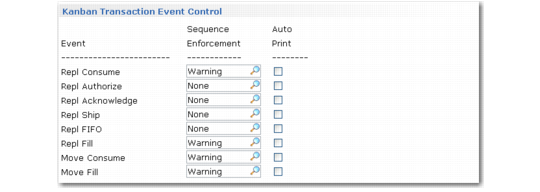
Kanban Master Maintenance, Kanban Transaction Event Control Frame
Sequence Enforcement
Use these fields to specify the level of sequence enforcement associated with each kanban transaction event for this loop. Values default from Kanban Control.
Valid values for both move card transactions and most replenishment card transactions are:
• None: The system does not check the sequence of events for this transaction.
• Warning: If events for this transaction are recorded out of sequence, the system displays a warning message. You can still record the card.
• Error: If transaction events are recorded out of sequence, you cannot complete the transaction.
The Repl FIFO field applies only to loops that are supplied by FIFO processes. It includes additional options that let you control whether warning or error messages apply only to the first FIFO process in the loop or to all FIFO processes.
Auto-Print
Use each field to specify whether you reprint cards after they are recorded using the associated transaction. When it is Yes, recording the card sets the Auto Print field in the card detail record to Yes. When you run Kanban Multi-Card Print (17.3.5), you can control whether the system includes these cards in the selection.
Note: You can update the card auto-print value manually in Kanban Card Maintenance (17.3.1) or Kanban Multi-Card Maintenance (17.3.2). See
Maintain Cards.