QAD 2017 Enterprise Edition
>
User Guides
>
Lean Manufacturing
>
Kanban Overview
>
Key Concepts in Kanban
Key Concepts in Kanban
Kanban Loops
A kanban loop is the workflow that controls inventory traffic between a supplying source and a consuming destination using kanban cards. The consuming destination for the loop is a kanban supermarket, described in the next section; the source can be:
• Another supermarket, which can provide work-in-process items such as partially completed subassemblies or raw materials, or finished goods
• A manufacturing process, which can consist of a series of routing operations
• An external supplier
Set up kanban loops by associating items with supplying sources and destination supermarkets using Kanban Master Maintenance (17.1.4). See
Define Loops in Kanban Master Maintenance.
Depending on the way cards are used to signal inventory movement between the source and destination or authorize production, loops can be set up to use either one or two cards.
Supermarkets
In lean manufacturing, a supermarket is a controlled inventory location used to schedule production at an upstream process. Supermarkets can absorb variations in demand, compensate for differences in processing time among production operations, and allow a single work cell or operation to supply multiple downstream processes with different, variable rates of demand.
A supermarket can serve both as the destination for completed kanban items from one loop and as the source of supply for another loop.
Supermarkets can hold either inventory or work-in-process (WIP) goods.
• Inventory supermarkets typically contain items that are part of perpetual inventory; for example, finished goods, subassemblies, fabricated parts or weldments, mixes or blends, purchased parts, or raw materials.
• WIP supermarkets typically include semi-finished material (partially completed subassemblies, fabrications, and so on) or material that has been issued from stock and is part of work in process.
These two kinds of supermarkets provide flexibility in the way you use kanban loops. For example, you can receive raw material from a supplier directly into stock by defining the destination as an inventory supermarket. You can then set up kanban loops between this inventory supermarket and point-of-use WIP supermarkets on the shop floor—using pull signals to replenish the WIP supermarkets. In a similar scenario that lets you track the inventory in the point-of-use supermarkets as part of the on-hand balance, define them as inventory supermarkets.
Typically, supermarkets are placed at points in the overall workflow when continuous flow is interrupted. For example, they can be placed:
• Between the customer and the pacemaker process to buffer variations in demand. The
pacemaker is normally the process that responds most directly to orders from external customers. See
Pacemakers.
• At a point that reduces the remaining time to completion to less than the customer lead time.
• Between operations where the batch size has to change because the every-part-every interval (EPEI) is too large. The EPEI is the total time required to run the average demand quantity of all the items produced by a process, including changeover times. See
EPEI.
• After operations that include unpredictable elements and long changeover times.
• Before a divergence point—a place where the process output begins to supply multiple downstream processes—or assembly operation.
• To store incoming parts and materials from external suppliers.
Define supermarkets in Supermarket Maintenance (17.1.2), and associate them with kanban loops in Kanban Master Maintenance (17.1.4). See
Setting Up Kanban Supermarkets.
Use the Supermarket Item Detail frame in Kanban Master Maintenance to define characteristics of how an item is stored at a supermarket for a specific kanban loop. For example, you can specify the maximum quantity that should be stored at the supermarket, the average demand, safety stock data, and buffer tolerances that can be used to evaluate historical and projected performance. See
Supermarket Information.
In addition to letting you manually specify the supermarket size, the system provides multiple methods for calculating and setting supermarket quantities that include a variety of flexible, user-defined parameters. Other features let you examine what-if scenarios for supermarket sizing in a workbench before updating the system:
• Use Kanban Sizing Workbench to size supermarkets as part of the process used for determining the number of kanbans in a loop. See
Using Kanban Workbenches.
• Use Supermarket Workbench (17.2.7) to view projected buffer performance based on your future forecasts and customer demand. See
Supermarket Workbench.
• Use Historical Buffer Evaluation (17.2.13) to view historical buffer data to see how well your supermarkets have performed under real-world conditions, and then adjust buffer sizes accordingly. See
Historical Buffer Evaluation.
Processes
In lean manufacturing, a process is a group of activities before and after which flow stops and inventory accumulates. In Kanban, you can define a process as the source of a kanban loop—with inventory accumulating at the loop destination, which is a supermarket.
Use Kanban Process Maintenance (17.1.3) to define the processes that supply kanban loops. Based on the relationship between the process and the kanban loops it supplies, that program lets you define each process as one of the following:
• A pacemaker
• A FIFO lane
• A standard process—a process that is neither a pacemaker nor a FIFO lane
Pacemakers
In a lean manufacturing environment, the pacemaker is the process that responds most directly to final demand. Often, this is near the end of the production cycle. For example, the pacemaker might be the final assembly process that supplies a finished-goods supermarket from which customer orders are filled.
You typically schedule production based on the pacemaker process. For example, you can use Preliminary Level Schedule Report (17.14.2) with Pacemakers Only set to Yes to determine the number of units that each shift on the pacemaker process needs to produce to meet demand. Level Mix Workbench (17.14.1) only creates level schedules for pacemaker processes.
Note: Although an item can be associated with more than one process, when you set up loops in Kanban Master Maintenance or define process items in Kanban Process Maintenance, the system validates that the item at the specified step is associated with only one pacemaker within a site.
FIFO Lanes
First-in, first-out (FIFO) lanes are a way of managing inventory between processes when a supermarket buffer is not necessary, but continuous flow is not practical. For example, a FIFO lane might be used in front of a large batch operation where dissimilar parts go through a process such as welding, plating, anodizing, stamping, painting, and so on.
The first process receives the signal to produce from the supermarket (or from a FIFO lane from a previous process) and moves material to the subsequent process. The item produced at the second process is run in the order that it is received. Completed material moves to the supermarket or to another FIFO lane.
Based on how closely the flow of kanban material is controlled, cards can be recorded using Kanban Ship (17.6.4) as the material moves through a series of FIFO lanes. The system tracks the material by assigning the cards an in-process status. When the last FIFO process is completed, the system changes the status to shipped to indicate that the kanban has moved to the supermarket. See
FIFO Process Data.
In Kanban Master Maintenance, you can specify one or a series of FIFO processes that perform work on a kanban item between the time it leaves the primary supplying process and when it reaches the destination supermarket.
Calculated Values
The system can calculate various values related to kanbans for use either by other system functions or for analyzing the best way to set up kanban loops. In most cases, you have the option of entering these values manually, although they may be subject to automatic update.
This section describes the main kinds of calculations used by Kanban.
EPEI
Every-part-every interval (EPEI) is an important concept in lean manufacturing. It indicates the time interval over which you can run every regular part produced in a process based on current demand. Knowing the EPEI helps determine the manufacturing lot size and supermarket quantities for each part produced in a particular manufacturing process, as well as the number of kanban cards in the replenishment loop. For example, if you have sufficient time to produce all the items more than once each day, you can consider using smaller lot sizes—leading to improved agility.
You can prevent the system from including rarely or irregularly produced items in process EPEI calculations by setting EPEI Auto to No for the item detail in Kanban Process Maintenance. In that case, the EPEI value is for reference only. Additionally, you can specify minimum EPEI values for both a process and an individual item—for example, if you do not want to set up a process more than once during a given period. If the system-calculated value is less than the minimum, the system uses the specified minimum instead. See
Define Processes.
While Kanban Process Maintenance includes several options for displaying EPEI, it often is expressed in days. For example, when you are using days as the display option, an EPEI of 0.5 means that, allowing for changeover times, the process can produce all of its items twice each day.
Example: Runtime for the three items made by a process requires 450 minutes, and there are 600 minutes available in the day. The total setup—or changeover—time for all three items is 60 minutes.
600 – 450 = 150 minutes available for changeover
To determine the number of intervals in a day, divide the time available for changeover by the time required for changeover:
150 / 60 = 2.5 intervals
The reciprocal of the number of intervals provides the EPEI for the process:
EPEI = 1 / 2.5 = 0.4
Average Demand
Average demand is the average total quantity of a kanban item required during each day over a specified historical or future period. Individual item average demand is required to determine supermarket size and kanban sizes for kanban loops, as well as for mix analysis and level scheduling activities. Average demand for all the items produced by a kanban process is needed to calculate takt time, pitch time, and EPEI.
The system can calculate average demand based on actual historical demand, projected future demand, or a combination of both. Since this calculation is actually being done for a kanban loop or loops and any given item may have multiple kanban loops, the system must include some additional logic to determine how much of each item’s total demand is being satisfied by a specific loop. This is done using the Demand Percent field in the Kanban Master record.
Use Demand Calculation Template Maintenance (17.1.6) to set up definitions of demand patterns, and associate a demand template with loop records in Kanban Master Maintenance. The system bases its calculation on that template when you run Average Demand Calculation. See
Calculate Average Demand and Safety Stock.
Note: The system also can update average demand based on calculations performed in Historical Buffer Evaluation, Kanban Sizing Workbench, Kanban Process Workbench, or Supermarket Workbench. Optionally, you can enter average demand for a kanban loop in the Daily Demand field in Kanban Master Maintenance. However, automated calculations overwrite any manual entry in this field.
When the template specifies only historical days, the system searches for inventory usage in the inventory history for kanban items within the specified site range and number of historical days. In this search, the system looks for issue and backflush transactions, including ISS-UNP, ISS-SO, ISS-FAS, ISS-WO, and similar transaction records that were recorded during the specified range. The specified range covers the period starting at the current day minus the specified number of historical days through the current day minus one. (Note that the current day is not included in the historical horizon, since issue transactions are still being processed for the current day.) Transactions by item are aggregated for the specified number of days, then the average quantity issued per day is calculated by multiplying the aggregated usage by the Demand Percent.
When the template includes only future days, the average daily demand for a component is derived directly from the average daily demand of each of its parent items, plus any additional independent demand (unconsumed forecast and customer orders) during the specified horizon. In this calculation, the system processes the items in the selection working from the highest bill of material level to the lowest (that is, from top to bottom). It also includes additional logic, using the Demand Percent, to calculate how much of the average demand will be sourced through the loop in question.
For each kanban loop and associated item being processed, the system computes the average daily demand using the following logic:
• Retrieve each of the parent items and multiply the parent item’s average daily demand by the quantity per in the bill of material to get calculated demand.
• Summarize the calculated demands across all parent items to get the exploded average daily demand.
• Search for any independent demand (unconsumed forecasts or customer orders) for the item during the specified horizon. The specified period includes any independent demands with dates earlier than the current date plus the specified horizon. (However, in the case where the specified horizon is 0, no search will be done since this setting prevents the system from calculating future average demand.)
• In the case of forecast demand, which will be loaded in the system in weekly periods, the calculation includes additional logic to prorate it into daily periods and to only include the days that are actually in the specified period.
• Independent demands will be averaged over the number of days in the specified horizon to get incremental average daily demand
• Add the exploded average daily demand to the incremental average demand to get preliminary average daily demand. This value is the average daily demand for the item. It represents the anticipated total average demand that must be covered by all production sources (all kanban loops).
• Calculate the average daily demand for the kanban loop being processed as the preliminary average daily demand times the demand percent from the Kanban Master record. This value is the final average daily demand.
Notice that this calculation does not use exploded MRP demands and does not require MRP to be run. Note that although the template says “Using MRP Demand” when the Future Demand Source is “Explode,” the actual logic does not use all the MRP detail requirements to compute the average demand. Only forecast and customer demand are read from the database for use in the calculation.
Some companies want to base component demands on a leveled MPS. This can be accomplished by setting the average demand for the finished goods items (MPS items) manually. The average demand for these items would be set to the leveled MPS quantity, and these items would be excluded from the selection for the average demand calculation. Since the logic in the system uses the parent item average daily demand in the calculation, this has the effect of creating component demands based on the leveled MPS.
When the template specifies both historical and future days, the system performs the same calculations individually. It then combines the total historical demand with the total future demand, and divides this by the total number of days to get the average daily demand.
Safety Stock
Safety stock is a type of buffer inventory that guards against running out of stock during the time it takes to replenish a supermarket’s regular inventory. For example, it is useful when actual usage exceeds forecasted demand. However, because a key lean manufacturing principle is to reduce inventory to the lowest practical level, accurate safety stock calculations are required to avoid excessive buffer inventories.
Use the Safety Stock Method field in Kanban Master Maintenance to define how you want to set up safety stock for an item supermarket. That field offers three options:
• Manual
• Simple
• Peak
When you choose a method other than Manual, the system calculates safety stock based on the safety stock template specified in Kanban Master Maintenance. Set up templates in Demand Calc Template Maintenance (17.1.6) and associate a template with each kanban loop in Kanban Master Maintenance. You can then update safety stock using Safety Stock Calculation. Additionally, the system automatically updates safety stock based on related modifications and calculations in one of the kanban workbenches or Historical Buffer Evaluation.
Manual Safety Stock
With this method, you can enter a quantity of items that you want to maintain as safety stock. Alternatively, enter the number of days of average demand required. The system calculates the safety stock level by multiplying this number of days by the calculated average demand.
Note: If you enter both a quantity and a number of days, the safety stock is the total of both. The system stores this total in the database and makes it available to Kanban Visualization.
Simple Safety Stock Method
With this method, the system calculates a standard deviation of average demand over the number of days in the planning horizon, which is the total number of historical and future days specified in Demand Calculation Template Maintenance. It then multiplies this demand by a service factor associated with the specified service level.
The service level is the percentage of time that inventory for this item will typically not run out before the replenishment time has been reached. For example, 50.00 means that 50% of the time, you will run out of this item before there is time to restock. Higher numbers mean that the supermarket maintains more inventory for the item in the form of safety stock.
Peak Safety Stock Method
With the peak method, the system calculates the average demand for each n‑day period within the planning horizon defined in Demand Calculation Template Maintenance, where n is the value specified in Peak Average Days. Safety stock is based on the highest average demand during an n‑day period
Card Accumulators
The size of a kanban does not have to be the same as the order quantity. To provide the agility to respond quickly to demand changes, the order quantity is typically set to a multiple of the kanban replenishment card quantity.
When you define kanban loops using Kanban Master Maintenance, you can set up accumulators to combine quantities from multiple kanbans—automatically authorizing production based on a cumulative quantity, an amount of time expired, or a schedule. See
Card Tracking Information.
In a manual environment, this would be the equivalent of accumulating cards in a slot and defining a rule to prohibit production until the specified number of empty cards is returned, until a certain amount of time has expired, or only on specified days of the week—assuming that the order quantity has been met.
When kanban transactions are processed for replenishment cards, the system accumulates quantities based on the type of accumulator specified in Kanban Master Maintenance:
• Quantity: When the sum of empty replenishment cards reaches the value in the Order Quantity field, the system authorizes all empty cards in the kanban loop.
• Time: After a specified time has elapsed, the system checks for empty cards. If the total of empty cards is equal to or greater than the order quantity, all the cards are authorized.
• Schedule: At user-specified days and times, the system checks for empty cards. If the total of empty cards is equal to or greater than the order quantity, all the cards are authorized.
Run Accumulator Monitor (17.6.6) to automatically authorize cards based on time and schedule parameters. See
Monitor Accumulator Quantities.
Limited-Use Cards
Sometimes it is useful to introduce one or more cards within a kanban loop for a short period of time. Some reasons might be:
• An item is produced infrequently.
• An item is scheduled to be phased out after one last production run.
• A need may exist to increase production for an item for a specified period of time; for example, cards that authorize production on a Saturday.
• A new kanban card needs to be introduced one or more times to temporarily build inventory for a new supermarket, or to meet a short, seasonal change in demand.
Controlling the card’s active status lets a planner temporarily increase a kanban’s supermarket buffer and at the same time define when that buffer can be reduced again.
Use Kanban Card Maintenance (17.3.1) or Kanban Multi-Card Maintenance (17.3.2) to define one or more limited-use cards for a kanban loop. Additionally, if you use the Increase Cards in Loop function of Kanban Card Management (17.3.16), you can specify limited-use parameters for the new cards. See
Managing Kanban Cards.
You can define a limited-use card based on:
• Number of fill/consume cycles. After the card has been used for the specified number of cycles, the system automatically inactivates it.
• Effective date. The card can be recorded only during the specified date range. The first time the card completes a fill/consume cycle after the specified end date, the system automatically inactivates it.
While a limited-use card is active, the system automatically updates the working buffer size for the loop to account for the additional kanban quantity. See
Working Buffer.
Kanban Transactions
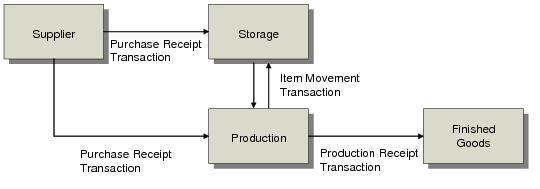
Kanban transactions convert visual replenishment signals to electronic signals. Kanban transactions track the movement of components into the production process and the movement of final products out of the production process. In a more controlled environment, transactions can also track material at a finer level; for example, as items pass along FIFO lanes between process operations.
When materials or components are required in the production process, they are pulled from raw material inventory or received directly from an external supplier. At the end of the production process, final products are transferred to finished goods inventory where they are available for shipment.
Depending on the life cycle of the kanban and how you choose to control the workflow within your plant, kanban transactions can be processed in several modes. The system creates a kanban history record each time you record a card. The card is assigned a status, shown in
Kanban Status, based on where in the cycle the transaction is recorded. See
Record Kanban Transactions.
Kanban Status
|
Status
|
Description
|
|
Empty Accumulate
|
Based on how the loop is set up, the system may accumulate cards until specified parameters are met. Cards with this status do not authorize production. See Card Accumulators. |
|
Authorized
|
The kanban is empty and production is authorized.
|
|
Acknowledged
|
The source of the loop has acknowledged receipt of a replenishment signal.
|
|
Shipped
|
Replenishment is completed, and the items are on the way to the consuming supermarket.
|
|
Filled
|
The supermarket or consuming destination has received the full kanban from the source.
|
|
In FIFO Process
|
This special-use status applies only to FIFO processes. It indicates that the card is still moving through a series of FIFO lanes. See FIFO Lanes. |
Kanban Transactions summarizes the available transactions and where in the cycle they are used.
Kanban Transactions
|
Transaction
|
Purpose
|
|
Kanban Consume/Post
(17.6.1)
|
Indicates that a move card has been consumed or a replenishment card has been posted. Sets status to Authorized or Empty Accumulate, depending on accumulator settings.
Note: You can also record consume transactions for batches of cards either by entering loop selection criteria or by importing a data file. See Batch Consume Programs.
|
|
Kanban Authorize
(17.6.2)
|
Authorizes production of the items on a consumed/posted replenishment card. Sets status to Authorized. Required only when accumulator settings do not trigger authorization, or to override accumulators to manually authorize production.
|
|
Kanban Acknowledge
(17.6.3)
|
Acknowledges that an authorized replenishment card has been received by the supplying source.
|
|
Kanban Ship
(17.6.4)
|
Indicates that the quantity on an authorized replenishment card has been produced and is being moved to the supermarket. For FIFO processes, can record movement along a FIFO lane. See FIFO Lanes. Note: When you import an advance ship notice (ASN) from your supplier using EDI eCommerce Document Import (35.1), the system can automatically record ship transactions. See Automatic Ship Transactions.
|
|
Kanban Fill/Receive
(17.6.5)
|
Indicates that a kanban has been filled or received. Based on setup data and source of items, creates production receipt and backflushes material, as well as generates PO receipt or performs inventory transfer. See Inventory Effects. Note: When you confirm delivery of supplier kanban items using PO Shipper Receipt (5.13.20), the system can automatically record fill transactions. See Automatic Fill Transactions.
|
The points at which you record transactions by entering or scanning kanban cards vary based on how your kanban loops are configured and how closely you want to track in-process items; for example:
• You can use Kanban Acknowledge to record that an external supplier has received a replenishment authorization. However, this transaction is not required.
• When your manufacturing processes use FIFO lanes, you can choose to record cards using Kanban Ship as they move between FIFO processes, or only when they complete the last process.
Dispatch Lists
When items are consumed and corresponding kanban cards are recorded using Kanban Consume/Post, you can send a replenishment order in the form of a dispatch list to replace what was used. When items are produced as part of a FIFO process, you also can generate dispatch lists for cards recorded using Kanban Ship to authorize production by a subsequent FIFO process. You also can produce a report on cards that have already been included on a dispatch list. See
Generate Dispatch Lists.
Optionally, you can use EDI eCommerce to export the dispatch list to the loop supplier in electronic data interchange (EDI) format. See
EDI eCommerce.
Sequence Enforcement
Based on Kanban Control and Kanban Master Maintenance settings, you can control whether the system requires cards to be recorded in a specific sequence using the programs on the Kanban Transactions Menu. See
Using Kanban Transactions.
Using Sequence Enforcement
Sequence enforcement functions assume the following expected transaction sequence for replenishment loops:
1 Consume
2 Authorize
3 Acknowledge
4 Ship/Move
5 Ship/FIFO (only on process loops with FIFO lanes)
6 Fill
For move loops, the expected sequence is:
1 Consume
2 Fill
When enforcing sequences, the system uses this order of transaction events to determine the expected event, based on the current transaction being recorded. It then determines the actual transaction from card detail records. If the expected and actual transactions are not the same, the system uses the enforcement level associated with the expected transaction to determine whether to accept the transaction, display a warning message, or issue an error. The system checks for error-level enforcement settings first; if none are defined, it then checks for warning-level enforcement.
Example: Users are required to record replenishment cards in both Kanban Fill/Receive and Kanban Consume/Post. Set the appropriate sequence enforcement fields to Error. If a user attempts to record the same card consecutive times in either program, the system displays an error message and does not allow the transaction.
Enable sequence enforcement on the system level by setting Replenishment Sequence Enforcement or Move Sequence Enforcement to Yes in Kanban Control. You also use Kanban Control to set the enforcement level for each type of transaction. Depending on the value of Use Control Prog Tran Settings in Kanban Master Maintenance, the system either enforces sequences based on the Kanban Control settings or uses loop-specific values.
Implementing Sequence Enforcement
Sequence enforcement is controlled on three levels:
• At the system level, based on the setting of Replenishment Sequence Enforcement or Move Sequence Enforcement in Kanban Control. Settings on other levels apply only when this field is Yes. See
Replenishment and Move Sequence Enforcement.
• Directly from Kanban Control. When Replenishment Sequence Enforcement is Yes, specify a type of enforcement (none, warning, error) for each event in the Kanban Transaction Event Control frame. Then set Use Control Prog Tran Settings to Yes for individual loops in Kanban Master Maintenance. See
Sequence Enforcement.
• Based on individual loop definitions set up in Kanban Master Maintenance. Set the fields in Kanban Control to the values you want to default to new loop records. Then—in Kanban Master Maintenance—set Use Control Prog Tran Settings to No for individual loops and modify the default enforcement settings as needed to control loop-specific behavior. See
Sequence Enforcement.
If you do not record transactions at certain steps in the kanban life cycle—for example, when your company does not record acknowledgements from suppliers—set the sequence enforcement level for that transaction event to None.
Inventory Effects
Based on the source type and control settings for the kanban loop defined in Kanban Master Maintenance, the system can automatically generate inventory and backflush transactions when the kanban is recorded in Kanban Fill/Receive.
Kanban Inventory Transactions
When Impact Inventory is Yes in the Kanban Transaction Control frame, the system automatically generates inventory transactions when the kanban card is recorded using Kanban Fill/Receive. For more information, see
Transaction Control Information.
Specific transactions depend on the source type:
• When the item is provided by a supplier, processing the replenishment card using Kanban Fill/Receive generates a purchase receipt for the purchase order (PO). You can associate a PO or blanket PO number with the supplier in the Source Master Data frame. If you do not, you are prompted for a PO number and line number in Kanban Fill/Receive. The system records the receipt at the consuming site and location (RCT-PO; for consignment orders, RCT‑CN), increasing the quantity on hand at the supermarket.
When Kanban Fill/Receive processes a subcontract purchase order, it retrieves the purchase order record created by Subcontract Routing/Op PO Maint (5.11) or the scheduled order record created by Subcontract Order MRP % Maint (5.5.1.21). Since multiple subcontract purchase orders or scheduled orders can exist for a specific routing and operation, you may be prompted to enter the correct order. Use the lookup browse to select available subcontract discrete purchase orders or scheduled orders.
• When the source is inventory from a kanban supermarket, filling the kanban by moving the items creates an inventory transfer from the supplying source to the consuming supermarket (ISS‑TR and RCT‑TR).When one of the supermarkets is a WIP location, moving the items creates an ISS-UNP or RCT-RS transaction, depending on the direction of the movement. If both the source and destination are WIP supermarkets, no transactions are created unless the source and destination supermarkets are in different sites. In that case, the system generates RCT-RS, ISS-TR, RCT-TR, and ISS-UNP transactions to account for intersite inventory movement.
• When the source is a manufacturing process, filling the kanban receives a production item at the consuming inventory supermarket location (RCT-WO), as well as creating a RCT-PO transaction if the routing record for the supplying process includes a subcontract operation that references a purchase order. If the destination is a WIP supermarket, the system creates inventory transactions only when subcontract operations are involved.
When Component/Op Transactions also is set to Yes for a loop supplied by a process, the components on the bill of material (BOM) for the item are backflushed from the supplying source (ISS‑WO) when you run Kanban Fill/Receive.
Note: Associate BOM codes with items in Kanban Item Master Maintenance (17.1.1).
Some programs that display inventory transaction history records, such as Transactions Detail Inquiry (3.21.1), include the card ID in the Remarks field for kanban transactions. You also can use the view programs on the Kanban Transactions Menu (17.6), which display both kanban and inventory transaction history.
Validating Inventory
If you do not record inventory transactions at the same time as kanban transactions—Impact Inventory is No in Kanban Master Maintenance—the inventory represented by full kanbans and the actual on-hand balance at inventory supermarket locations can be significantly different.
Based on related loop parameters, you can use Inventory Validation Report (17.6.13) to identify loops with potential problems that might require you to verify the card status or perform a cycle count. See
Generating Reports.
General Ledger (GL) Transactions
Inventory transactions created when you process a kanban card using Kanban Fill/Receive also result in GL transactions.
Purchase receipts for supplier kanbans:
• Debit the Inventory account for the item product line and receiving supermarket location. For consignment orders, this is the PO Consigned Offset account.
• Debit (or credit) the PO Price Variance account defined in Purchasing Account Maintenance for the item product line, order site, and supplier type.
• Credit the PO Receipts account defined in Purchasing Account Maintenance for the product line, order site, and supplier type. For consignment orders, this is the PO Consigned Inventory account.
• Credit the Overhead Applied account defined in Purchasing Account Maintenance for the item product line, order site, and supplier type to apply the fixed overhead portion of GL cost prior to calculating variance.
Item movements for inventory kanbans:
• Debit the Inventory account for the item product line and receiving supermarket location.
• Credit the Inventory account for the item product line and supplying source.
Production receipts for process kanbans:
• Debit the Inventory account for the item product line and receiving supermarket location.
• Credit the Work in Process (WIP) account defined in Work Order Account Maintenance for the item product line and supplying source/reference.
Component issues for process kanbans that include backflush:
• Debit the Inventory account for the item product line and receiving supermarket location.
• Credit the Inventory account for the item product line and supplying source/reference.
Note: To prevent labor and burden from being recorded twice against standard cost—once during backflush and again with the RCT-WO transaction generated with the production receipt—the system uses the following logic to determine when to record them:
• The transactions are recorded only in op_hist when there is a routing with operations.
• When no operations are specified, the transactions are recorded only in tr_hist.
To provide consistency with standard cost-creation functionality, order quantities are based on item master values rather than those in the kanban loop record.
You can define inventory accounts for product line, site, and location combinations in Inventory Account Maintenance (1.2.13); for consignment accounts, use Purchasing Account Maintenance (1.2.5). Otherwise, the system uses the default accounts set up by product line in Product Line Maintenance (1.2.1).
When inventory transactions affect more than one site, costs may differ between the two sites. Cost variances are posted to the Transfer Variance account defined for the item product line and site in Inventory Account Maintenance, if available. Otherwise, the account defined for the site in Site Maintenance is used. The system automatically generates the appropriate balancing transactions in the GL for each site.
• When the transfer-from and transfer-to sites are in different entities, a balancing entry is posted to the appropriate Cross-Company Inventory Control account defined for the domain referencing the intercompany codes associated with the entities.
• When the two sites are in the same entity, a balancing debit or credit is posted to the Transfer Clearing account defined in Inventory Accounting Control (36.9.2).
You can use the view programs on the Kanban Transactions Menu to review the GL transactions that were created with a card was recorded.
Card Reconciliation
When the number of cards shown in Kanban Master Maintenance is not the same as the actual number of active cards, you can have the system bring the loop back into balance by adding or removing cards.
Note: The total number of active cards does not include limited-use cards, which have an active code of Close, Period, or Cycles.
See here. Card reconciliation features are available in the following programs:
When you reconcile cards from one of the workbenches, use Move Card Sizing to specify how move cards in two-card loops are adjusted when replenishment cards are reconciled.
The programs also let you print any cards that were created or activated as part of reconciliation.
Note: When kanban cards are created manually—outside of any sizing logic like that in the kanban workbenches—and Kanban Control is set for automatic reconciliation, the system will retire the cards when they complete one cycle. In other words, when the card is emptied using Kanban Consume/Post, the system will determine that the card is not needed, because the working buffer exceeds the maximum buffer. The card will be either closed or deactivated, based on how cards are to be retired in the system.
For customers who want to size externally and still use the auto reconcile features, the solution is to set the Maximum Buffer field for the loop so that it includes all the cards they have created.
EDI eCommerce
You can use QAD’s advanced electronic data interchange (EDI) module, EDI eCommerce, to exchange kanban-related information with loop suppliers. You can:
• When you create a dispatch list to communicate demand to the loop supplier, export the list as an EDI transaction. See
Generate Dispatch Lists.
• When the supplier sends an advance ship notice (ASN) to inform you that the order has been shipped, import the ASN using Document Import (35.1), automatically change the status of the associated kanban cards, and generate transaction records. See
Automatic Ship Transactions.