Multiple-Card Maintenance
Use Kanban Multi-Card Maintenance (17.3.2) to view all the cards in a specified loop and select individual cards for update. You also can create additional cards and print cards using the same program.
Kanban Multi-Card Maintenance (17.3.2)
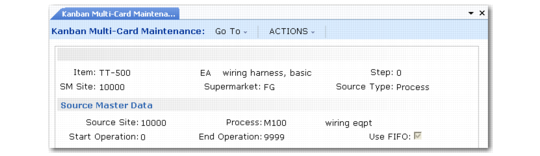
In the first frame, identify the kanban loop. The system displays source master data from Kanban Master Maintenance.
When you click Next, continuing navigation depends on the setting of Card Reconciliation in Kanban Control (17.24). When that field is Yes, the frame shown in
Kanban Multi-Card Maintenance, Analyze Card Information Frame displays. This lets you view the same kinds of card analysis data that is available in Kanban Card Management (17.3.16). If you do not want to view analysis data, leave both fields set to No and click Next to proceed. See
Analyze Card Information.
Kanban Multi-Card Maintenance, Analyze Card Information Frame
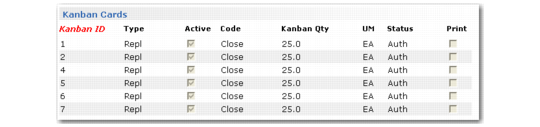
The system next displays a list of all the cards in the loop.
Note: For two-card loops, the system prompts you to enter a card type:
• Enter Repl to view replenishment cards.
• Enter Move to view move cards.
Kanban Multi-Card Maintenance, Kanban Cards Frame
Select a card to display details in the bottom frame.
Kanban Multi-Card Maintenance, Kanban Card Detail Frame
You can update the same fields as in Kanban Card Maintenance. Additionally, you can:
• Create a new card for the loop by clearing the Card ID field and pressing Enter. The system assigns the next available ID number and updates the working buffer by the kanban quantity. Update the remaining fields as required.
• Set Print to Yes to print the card.
When you finish adding or editing card information and click Back from the Kanban Cards frame, the system prompts you to print the cards that have Print set to Yes.
Note: If no cards are selected for printing, this prompt does not display.