Batch Consume Programs
You can have the system select loops to have cards consumed using one of the following methods:
After loops are identified using one of these methods, the system then searches eligible loops for active cards that can be consumed without violating transaction sequence rules defined in Kanban Master Maintenance. It searches for cards in the following order, based on the latest recorded kanban transaction event:
1 Fill
2 Ship
3 Acknowledge
4 Authorize
5 Consume
For multiple cards within an event status, the system selects cards based on the authorize date and time, with the oldest cards selected first.
When a card is consumed using either program, the system changes the card status to Authorized or Empty Accumulate, based on the accumulator logic specified in Kanban Master Maintenance. It also creates a kbtr_hist record for a Consume event.
Importing Consumption Data
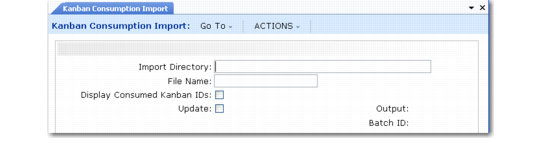
Use Kanban Consumption Import (17.6.20) to import a comma-delimited file, such as a comma-separated values (CSV) file.
Note: This program records consumption events only for cards in loops with Source Type set to Supplier in Kanban Master Maintenance.
Kanban Consumption Import (17.6.20)
Each record in the file must contain the following three values in the order shown:
1 A valid kanban item defined in Kanban Item Master Maintenance (17.1.1)
2 A valid, active code for a supplier defined in Supplier Create (28.20.1.1) and completed in Supplier Data Maintenance (2.3.1)
3 A decimal number representing the quantity to be consumed
The system uses the item and supplier in each record to identify loops that are eligible for card consumption.
Important: If multiple loops are identified, the following fields in Kanban Master Maintenance (17.1.4) must have the same values for all selected loops. Otherwise, an error message displays.
• Kanban Quantity
• Quantity Mismatch Method
• Rounding Threshold
After selecting eligible loops for the specified item sourced by the specified supplier, the system calculates the required number of cards by dividing the quantity to consume in the import file by the kanban quantity in Kanban Master Maintenance.
Note: A loop must include at least one active card to be considered by this program. If a loop is found but it has no active cards, the system still displays the message No kanban loops exist.
If the quantity to consume is not a multiple of the kanban quantity, the system uses the Quantity Mismatch Method specified in Kanban Master Maintenance to determine rounding rules. See
Quantity Mismatch Method.
The system searches across all eligible loops for cards that can be consumed.
Important: Because the system prioritizes cards based on the authorize date and time, this may result in the selection of cards from more than one loop.
If sufficient cards are not available among eligible loops to account for the required quantity to consume, no cards are updated. An error message displays on the output report.
To determine the specific cards consumed, set Display Consumed Kanban IDs to Yes. Otherwise, the output report includes summary information only.
You can run the program in simulation mode by setting Update to No.
Specifying Consumption by Loop
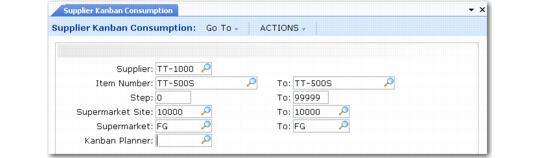
Use Supplier Kanban Consumption (17.6.21) to select a batch of cards to be recorded as consumed. The selection logic is based on loop data rather than specific kanban card IDs. You can limit the number of loops selected by using more specific selection criteria.
Note: This program records consumption events only for cards in loops with Source Type set to Supplier in Kanban Master Maintenance.
Supplier Kanban Consumption (17.6.21)
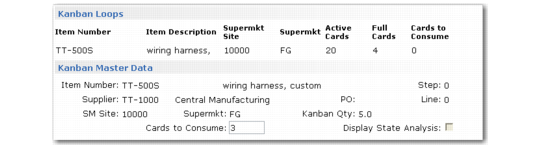
In the Kanban Loops frame, the system displays a list of loops that meet the selection criteria. It includes the total number of active cards and the number of cards currently with a Full status.
To specify the number of cards to consume for each loop, select a record from the Kanban Loops frame. The system displays the Kanban Master Data frame for the loop. Enter the number of cards to consume and click Next. The system updates the Consume Cards column in the Kanban Loops frame.
Supplier Kanban Consumption, Kanban Loops and Master Data
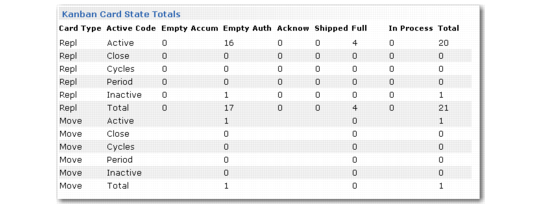
Optionally, set Display State Analysis to Yes to display an additional frame summarizing the number of cards in each transaction state.
Supplier Kanban Consumption, State Analysis
When you have completed entering values and click Next from the Kanban Loops frame, the system displays a summary frame showing the total number of cards that will be updated, as well as the total quantity they represent. Optionally, you can include a list of the IDs of consumed cards on the output report. When you click Next from this frame with Update set to Yes, the system updates the number of cards specified for each loop.