Defining Groups, Routing Slips, and Change Types
Three kinds of data are defined in the PCC setup menu: groups, routing slips, and document change types. These three data structures work together to form a model of your company’s product change and approval process.
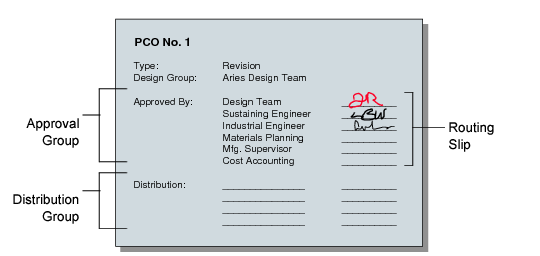
PCC Setup Functions shows how PCC groups, routing slips, and change types are used.
PCC Setup Functions
Creating Groups
In PCC, groups represent users with different functional responsibilities. Groups are used in three ways:
• Design. Groups designate which users have authority to create and maintain PCRs and PCOs. For example, members of an engineering team might make up one design group. PCRs and PCOs are organized by type and design group, since the design group is the driving force behind change development.
• Distribution. Groups designate which users are notified automatically when a PCO has been released.
• Approval. Groups designate which users have authority to approve PCRs and PCOs.
Use Group Maintenance (1.9.1.1) to define PCC groups.
Group Maintenance (1.9.1.1)
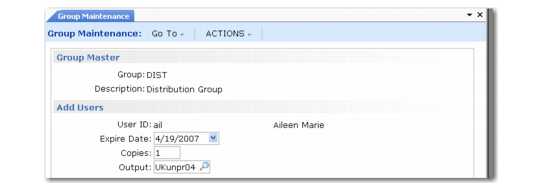
In the first frame, enter a unique group name and a brief description. Use the second frame to add users to the group, and specify group attributes.
Important: Users added to groups must be previously defined with User Maintenance (36.3.1).
Group Maintenance (1.9.1.1), Add Users
User ID
Enter the user ID to add.
Expire Date
Optionally, enter a date when the user is no longer considered an active member of the group.
Copies
Enter the number of printed copies to be printed on the printer specified in Output. Enter zero to have the user notified by e‑mail. Specify the e-mail address in User Maintenance (36.3.1).
Output
Typically, the printer on which PCC-related notices are printed.
Changing Group Memberships
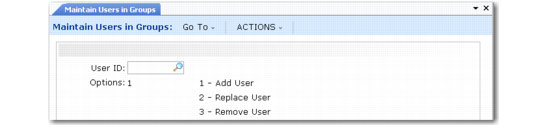
Use Maintain Users in Group (1.9.1.3) to change group memberships. You can add, replace, or remove a user from one or more groups. Changes can be made to more than one group at a time, as when a user in several design groups transfers to another department or leaves the company.
Maintain Users in Groups (1.9.1.3)
After you select the option you want, one of the following frames displays.
Adding Users to Groups
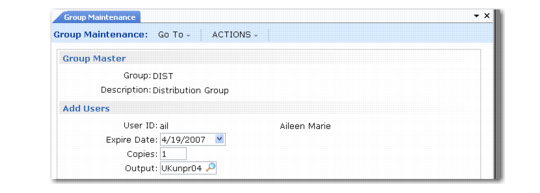
Choose option 1 to add users to groups. The Add User frame displays.
Maintain Users in Groups (1.9.1.3), Add User
Expire Date, Copies, Output
To modify these user attributes, enter new values.
List Groups for User ID
Optionally specify the ID of a user to display only groups to which this user belongs or leave blank to display all defined PCC groups to which the user being added does not currently belong. Specifying groups can be useful when defining one user’s membership so that it resembles that of another user.
Available Groups
Select a group to add the user to, and choose Add. Select multiple groups by holding down Shift during selection.
Selected Groups
To deselect a group, highlight it and choose Remove.
Click Done when you are finished adding this user to groups.
Replacing Users in Groups
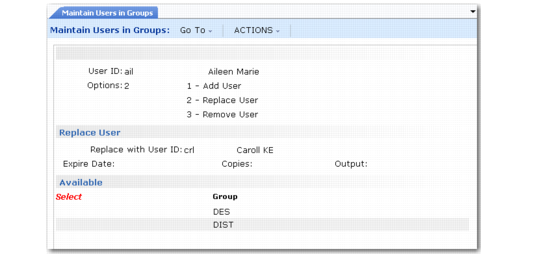
Choose option 2 to replace users in groups. The Replace User frame displays.
Maintain Users in Groups, Replace User
User ID
Enter the user ID of the old user.
Replace with User ID
Enter the user ID of the new user.
Note: You can modify a user’s attributes by specifying the same user in both User ID fields.
Expire Date, Copies, Output
Modify these user attributes as needed.
Group
The list includes all groups to which the old user belongs. Select a group and choose Add to move it to the Selected Groups list. Select multiple groups by holding down Shift during selection. To deselect a group, select it a second time.
Removing Users from Groups
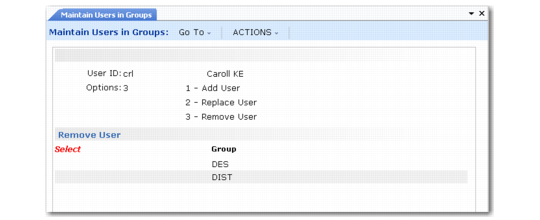
Select option 3 to remove users from groups. The Remove User frame displays.
Maintain Users in Groups, Remove User
User ID
Enter the user ID of the user being removed.
Group
The list box includes all groups to which the user being removed belongs.
Defining Approval Routings
Approval routings specify who needs to approve a change, and in what order approvals are required. Approval routings are represented by routing slips, which can be created manually or copied from routing templates and modified. Routing slips also indicate who is to be notified when documents are approved. Every PCR and PCO requiring approval must have a routing slip.
Create original routing slips in Routing Slip Maintenance (1.9.1.5), or copy existing routing slip templates and make required modifications. If you modify a routing template, the changes only affect new PCRs and PCOs.
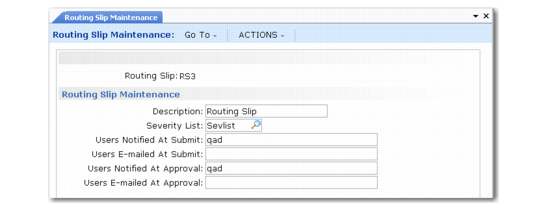
Routing Slip Maintenance (1.9.1.5)
Routing Slip
Enter a unique code identifying the routing.
Description
Enter a description of the routing.
Severity List
Enter a code indicating the severity list to be used for this routing. Severity lists are predefined lists of defects, ranked according to how severe each defect is considered. For example, a severity list of hardware defects might appear as follows, with higher numbers being more severe.
5 | Cosmetic/typographical correction |
10 | Minor drawing/layout change |
20 | Major drawing/layout change |
30 | Wrong dimensions |
40 | Missing part |
Create severity lists in Reason Codes Maintenance (36.2.17) by defining typical defects and assigning them severity rankings. Group reason codes by a type such as PCC.
When a member of a group with authority to reroute an approval rejects a change in PCR/PCO Approval, a prompt for severity level displays.
Users Notified at Submit or Approval
A routing slip can include a list of users to be notified at the beginning and end of the approval cycle. Users notified must be defined as users in the system, but do not have to be members of PCC groups. The system determines the appropriate e‑mail address from data specified in User Maintenance. Separate multiple user IDs with commas.
Users E-mailed at Submit or Approval
Enter e-mail addresses of persons outside your organization, such as key suppliers, who are to be notified at the beginning and end of an approval cycle. Enter full e‑mail addresses, maximum 240 characters. Leave blank to notify only internal personnel. Check e-mail addresses carefully to avoid errors. This field cannot be validated.
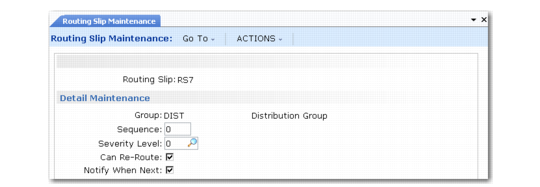
Enter approval routing details in the Detail Maintenance frame.
Routing Slip Maintenance, Detail Maintenance
Sequence
Enter a number from 0 to 999 specifying the group’s sign-off position relative to other groups in the routing. If zero, groups can review the document in any order.
Sample Approval Sequences illustrates three types of approval sequences.
Sample Approval Sequences
Hierarchical | | Semi-Hierarchical | | Non-Hierarchical |
Engineering | 0 | | Engineering | 0 | | Engineering | 0 |
Production | 10 | | Production | 0 | | Production | 0 |
QA | 20 | | QA | 0 | | QA | 0 |
Finance | 30 | | Finance | 10 | | Finance | 0 |
When a non-hierarchical order is used, groups can review the document in any order. Skip some sequence numbers to facilitate addition of groups in the future.
When a hierarchical or semi-hierarchical order is used, you can use the Notify When Next field in combination with the Next Only field in PCR/PCO Approval to display only those PCOs approved by all subordinate groups.
Set Enforce PCO Approval Group Sequencing to Yes in PCC Control to ensure that users follow the correct sequence during approval.
Severity Level
Enter a number indicating what severity of defect results in PCRs and PCOs being rerouted to this group. Lower numbers mean that minor defects are rerouted to this group. If you are not using severity levels, enter zero.
The severity level acts as a filter to prevent needless review and streamline the PCO approval process.
The system reroutes a PCO to a group whenever the group in question has approved the change document and:
• The change document is rejected by another group on the routing slip that has reroute authority (Can Re-Route is Yes), and
• The rejecting group sets the reroute level to a number greater than or equal to the severity level in this field.
Can Re-Route
Enter Yes to indicate that this group has the authority to reroute a PCO when they reject it. To effectively disable rerouting, enter No for all routing slips.
Important: Disabling rerouting means that every group on a routing must reapprove a corrected document.
Notify When Next
Check this box to have the system notify each group when it is next, based on sequence number, in an approval routing. Users to notify should have valid e-mail addresses.
Routing Slip Copy
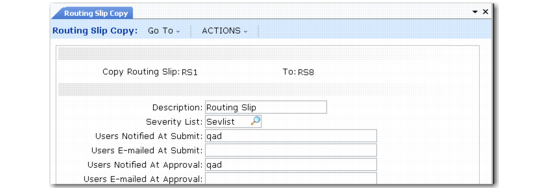
Create new routing slips based on existing routing slip templates in Routing Slip Copy (1.9.1.7).
Routing Slip Copy (1.9.1.7)
The list of users to notify at submission and approval defaults from the source routing and can be modified. When you click Next, you are prompted to copy the routing detail. Respond Yes to have the system copy approval routing details for each group from the source routing to the new routing. If you respond No, groups can still be added later using Routing Maintenance.
Defining Document Change Types
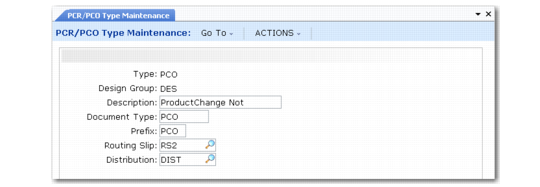
Use PCR/PCO Type Maintenance (1.9.1.9) to set up codes for PCR and PCO types. The type code determines whether the change document is a PCR or a PCO, and determines the routing slip, distribution group, prefix, and number.
Defining document change types requires careful planning. Some criteria to consider are:
• Purposes of the PCO, such as to enhance safety, upgrade functionality, reduce cost
• Product lines affected by the PCO
• Design areas affected by the PCO, such as electrical, mechanical, or pneumatic
• Approvals required for the PCO
PCR/PCO Type Maintenance (1.9.1.9)
Type
Enter a code identifying this type of change document.
Design Group
Enter a group defined in Group Maintenance that has design responsibility for this type of change document.
Description
Enter up to 24 characters describing this document type.
Document Type
Indicate whether this type is used for PCRs or PCOs.
Prefix
An optional, three-character prefix for document numbers, used to distinguish different kinds of changes. Prefixes and number sequences are defined in PCC Control and used when Auto Number is Yes to determine the number for a new PCO or PCR. If you enter a prefix that is not set up in the control program, a warning displays.
Routing Slip
Enter the routing slip associated with documents of this type. The routing slip determines which groups must approve the document and in what order.
Distribution
Enter the group to be notified when documents of this type are released and distributed with Release and Distribution (1.9.7.1).