QAD 2017 Enterprise Edition
>
User Guides
>
Master Data
>
Items/Sites
>
Items
>
Item Replacements
Item Replacements
When taking a customer order, requested items may not be available for customer delivery. To complete the customer order, you can substitute the requested item with one of the following:
• Replacement items replace the internally discontinued requested item with an equivalent item under a different number. Define these in Item Replacement Maintenance (1.23.1).
• Up-sell items have a higher assembly level in the bill of materials (BOM) than the requested item. Define these in Item Up-Sell Maintenance (1.23.5).
• In some instances, you may use the order-entry process as an opportunity to cross-sell complementary products. Cross-sell items are not replacement items for the requested items. They are sold in addition to the requested item to increase revenue or as a promotion for an item. Define this type of relationship in Item Cross-Sell Maintenance (1.23.7).
When these relationships have been defined, users are prompted in order-entry functions to select an appropriate replacement.
Setting Up Replacement Items
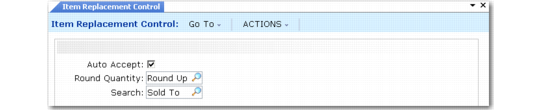
Use Item Replacement Control (1.23.24) to set system defaults for item replacement, up-sell, or cross-sell functions.
Note: Before you specify the item replacement, you must define both the original item and the item that replaces it in Item Master Maintenance (1.4.1). If you delete an item defined in Item Master Maintenance, the system automatically deletes it in item replacement functions.
Item Replacement Control (1.23.24)
Auto Accept
Indicate whether the replacement items, up-sell items, or cross-sell items should be added to an order without prompting for confirmation.
No (the default): When you enter an order or quote for the original item, you are prompted to confirm that the system replace the requested item with a replacement or up-sell item or that the system add cross-sell items to the order in addition to the requested item.
For item replacements, the system prompts you to confirm replacement after you enter the original item quantity at the line entry level. If you enter Yes at the prompt, a message displays indicating that the item is being replaced, and the order process continues.
For up-sell items, the system prompts for confirmation after you select an item from the Up-Sell Item frame.
For cross-sell items, the system prompts for confirmation to add the cross-sell item to the order after you select one or more cross-sell items from the Cross-Sell Item frame. You are prompted to confirm once, even though you may have selected multiple cross-sell items.
Yes: You can replace the item with a replacement item or up-sell item or add one or more cross-sell items without confirmation.
• For replacement items, the system replaces automatically.
• For up-sell items, automatic replacement occurs after you select an up-sell item from the Up-Sell Item frame.
• For cross-sell items, automatic replacement occurs after you select one or more items from the Cross-Sell Item frame.
This value defaults to the Auto Accept field in Item Replacement Maintenance, Item Up-Sell Maintenance, and Item Cross-Sell Maintenance.
Round Quantity
Indicate the rounding method to use when non-whole number replacement item, up-sell item, or cross-sell item quantities are encountered.
Round Up (the default): The system rounds the item quantity up to the next whole number. For example, 3.3 is rounded up to 4.
Round Dn: The system rounds the item quantity down to the whole number. For example, 3.7 rounds down to 3. Any quantity less than 1 is rounded down to 0; however, this causes the system to report an error, and you must reenter the order or quote quantity.
None: The decimal quantity calculated by the system is the quantity of the new item used on the order or quote.
Mnemonics for this field are defined in Language Detail Maintenance (36.4.2).
This value defaults to the Round Quantity field in Item Replacement Maintenance, Item Up-Sell Maintenance, and Item Cross-Sell Maintenance.
Search By
Enter either Sold To or Ship To as the search method to use when searching for replacement item records during order entry.
Sold To (the default): The system searches for an item replacement record that matches the order based on the following order:
1. Site, customer (sold-to), item, and effective date
2. Customer (sold-to), item, and effective date
3. Item and effective date
Ship To: Use this setting when you predefine ship-to addresses as customers. The system searches for an item replacement record that matches the order or quote based on the following search order:
1. Site, customer (ship-to), item, and effective date
2. Customer (ship-to), item, and effective date
3. Item
Defining Replacement Items
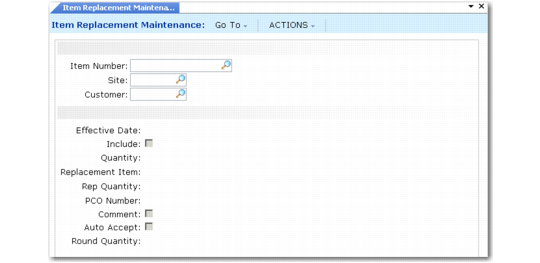
Use Item Replacement Maintenance (1.23.1) to define replacement items for items currently being used in the system. Replacement items are defined by site, customer, and effective date, or any combination of these.
The most efficient way to create generic replacement records for an item is to leave the Customer and Site fields blank in the header. Leave the Include field set at Yes (the default) for generic item replacement for all customers and sites.
If you have one or more customers or sites that still want the original item, you can easily create an exception record for them. Specify the Site or Customer in the header, but set Include to No. This tells the system to exclude this record from the generic replacement you already defined.
You can define other specific item replacement records by specifying any combination of site, customer, and effective date. Include should always be Yes, unless you specify an exception to these specific replacements. In this case, set Include to No.
Item Replacement Maintenance (1.23.1)
Item Number
Enter the item number for which you are defining a replacement item. Items must be predefined in Item Master Maintenance (1.4.1). You cannot specify:
• An item as its own replacement
• A customer item
Site.
Optionally, enter the site where this item replacement record should be active. Leave blank to indicate the item should be replaced at all sites.
Customer
Optionally, enter the customer for whom this item should be replaced. Leave blank to indicate the system should replace on orders created for any customer. Customers can be ship-to or sold-to addresses. Customers must be predefined in Customer Create (27.20.1.1).
Effective Date
Enter the date this record should be activated. This determines when the system automatically begins to replace the associated item. Effective Date cannot be blank.
Include
Use this field to make a record active.
This field is useful when you have a generic item replacement for all customers or all sites, but you want to exclude a particular customer or site. You can specify the unique customer or site in the header then set this field to No to exclude this record from item replacement that occurs for all other customers or sites.
No: This record is not active.
Yes (the default): This record is active and should be used for replacement.
Quantity
Enter the quantity of the item being replaced.
Replacement Item
Enter a valid item number defined in Item Master Maintenance to use as the replacement item.
Rep Quantity
Enter the quantity of the replacement item. The replacement quantity cannot be 0.
PCO Number
Optionally, enter the number of the product change order (PCO) associated with the change that requires this item to be replaced. This field is reference only if you are using the Product Change Control (PCC) module. If you are not using the PCC module, enter any tracking number that is meaningful in your system. See
Product Change Control.
Comments
Specify Yes to enter comments and have the system copy and display those comments when you enter an order or quote for the replaced item; otherwise, enter No.
Auto Accept
This value defaults from the corresponding field in Item Replacement Control (1.23.24). See
here.
Round Quantity
This value defaults from the corresponding field in Item Replacement Control. See
here.
Defining Up-Sell Items
Use Item Up-Sell Maintenance (1.23.5) to define replacement items or assemblies that are an upgrade or a level above the requested item in the item’s product structure.
Up-sell items are used only when the requested item is not available during order entry. If the original item is available to meet the order requirement, the system will not replace the original item even if you define an up-sell item for it.
Up-sell items are defined by site, customer, and effective date, or any combination of these. You can define multiple up-sell items for a single item; however, only one up-sell item can be the default replacement for the requested item.
Header fields are similar to those described for Item Replacement Maintenance; however, for up-sell item records, the original item cannot be previously defined as an up-sell item replacement.
Defining Cross-Sell Items
Use Item Cross-Sell Maintenance (1.23.7) to define items you offer to the customer in addition to the item being ordered. Cross-sell items are typically complementary products to the item requested; however, they do not replace the item being ordered. Cross-sell items are defined by site, customer, and effective date, or any combination of these.
Example: A customer orders 1000 batteries for the cameras his company manufactures. The camera batteries have a cross-sell battery charger defined for them. During order creation, the order entry clerk enters the batteries, then views battery charger data that displays after the battery line is entered. The order entry clerk suggests to the customer that he may want to offer his customers the battery charger along with the batteries.
You can define multiple cross-sell items for a single item as well as multiple default cross-sell items for an item.
Header fields are similar to those described for Item Replacement Maintenance; see
here.