Modify Browse Filters
By modifying the ConfigControl.xml file, you can modify the filters that the supporting browses use when they display records. You can modify to filter by dates, or by other specific values, such as an order status, or a specific numeric value that has meaning in your company within item numbers. For example, you can view all transactions for the last two years, only records with dates of today plus all future dates, or specify a specific date upon which to view records.
To modify filters for the browses, you set two variables in ConfigControl.xml for the browses:
<relativeConstant>
True: Set to true when you set <
Constantvalue> to a relative value, such as a relative date value of TODAY, YESTERDAY, FIRST PERIOD, and so on. See
Date Value Formats for a list of valid relative date values to enter.
False: Set to false when you set <Constantvalue> to an absolute date, such 2013-01-01, C, or 2010.
<ConstantValue>
Set this to a relative value, such as TODAY, YESTERDAY, FIRST PERIOD, or to an absolute value, such as 2013-01-01 for a date, or 15 for an item number.
Note: For a constant date value, the format is YYYY-MM-DD. So for April 15, 2013, the value would be 2013-04-15.
For example, when you set <relativeConstant> to true and <ConstantValue> to TODAY, the browse displays all records set to today’s date. Or, when you set <relativeConstant> to true and <ConstantValue> to YESTERDAY, the browse displays all records relative to yesterday’s date in the browse.
Date Value Formats provides a list of date-related values in the correct format to enter in the
ConfigControl.xml file when filtering by dates.
Date Value Formats
|
Today
|
XML Code to Enter
|
|
Yesterday
|
YESTERDAY
|
|
Tomorrow
|
TOMORROW
|
|
Current year
|
CURRENT_YEAR
|
|
Current Quarter
|
CURRENT_QUARTER
|
|
Current Month
|
CURRENT_MONTH
|
|
Current Week
|
CURRENT_WEEK
|
|
Last Week
|
LAST_WEEK
|
|
Last Year
|
LAST_YEAR
|
|
Next Year
|
NEXT_YEAR
|
|
Two Years Ago
|
TWO_YEARS_AGO
|
|
Last Two Years
|
LAST_TWO_YEARS
|
|
Last Quarter
|
LAST_QUARTER
|
|
Next Quarter
|
NEXT_QUARTER
|
|
Last Month
|
LAST_MONTH
|
|
Next Month
|
NEXT_MONTH
|
|
Last Week
|
LAST_WEEK
|
|
Next Week
|
NEXT_WEEK
|
|
Last 7 Days
|
LAST_7_DAYS
Note: You can change 7 to 30, 60, 90, or 120.
|
|
Next 7 Days
|
NEXT_7_DAYS
Note: You can change 7 to 30, 60, 90, or 120.
|
Additional Examples
The following includes additional examples that you can set:
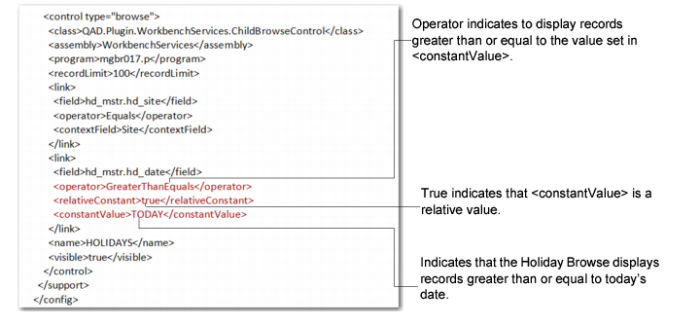
To see whether today or future days are holidays in the Holiday Browse, set:
<relativeConstant>true</relativeConstant>
<constantValue>TODAY</constantValue>
The following depicts the code for the Holiday Browse filter example within ControlConfig.XML.
Code to Filter Holiday Browse
As another Holiday Browse filter example, to see New Year’s Day on 2011 in the Holiday Browse, set:
<relativeConstant>false</relativeConstant>
<constantValue>2011-01-01</constantValue>
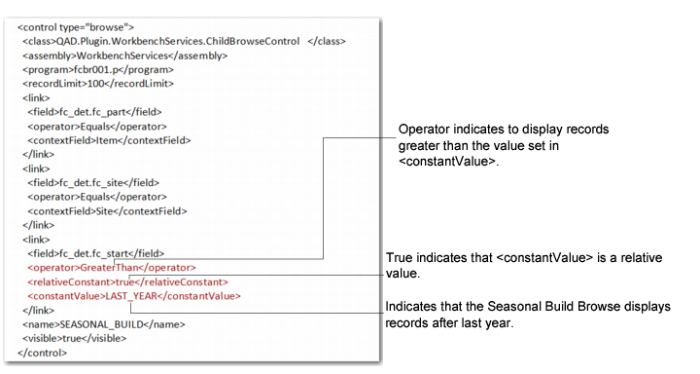
In the Seasonal Build Browse, to see this year’s records, set:
<relativeConstant>true</relativeConstant>
<constantValue>LAST_YEAR</constantValue>
The following depicts the code for the Seasonal Build Browse filter example within ControlConfig.XML.
Code to Filter Seasonal Build Browse Records
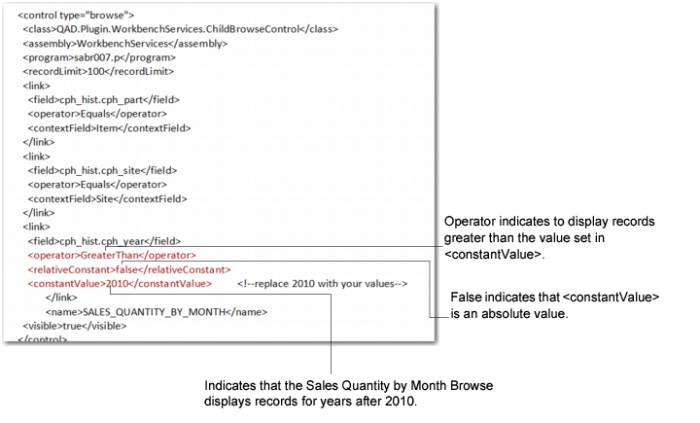
In the Sales Quantity By Month Browse, to see only records after the year 2010, set:
<relativeConstant>false</relativeConstant>
<constantValue>2010</constantValue>
The following depicts the code for the Sales Quantity by Month filter example within ControlConfig.XML.
Code to Filter Sales Quantity By Month
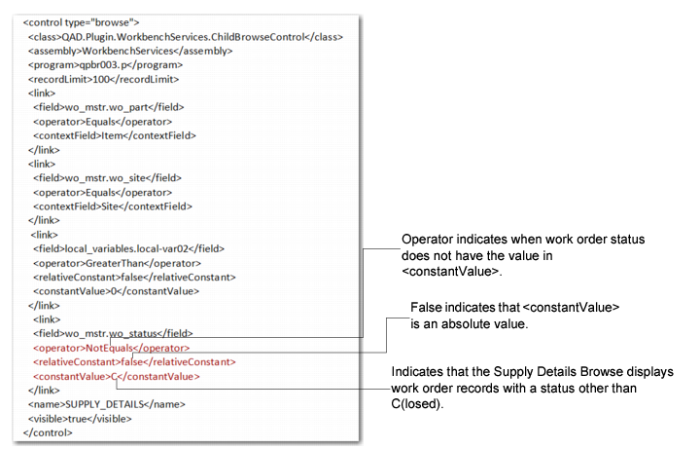
To see work orders with a status other than C(losed), set:
<relativeConstant>false</relativeConstant>
<constantValue>C</constantValue>
The following depicts the code for this example within ControlConfig.XML.
Code to Filter Work Order Records By Status
Procedure
To do this, you start by accessing and editing the ControlConfig.XML file within the /plugins directory; then, use the following procedure:
2 Locate the <Link> element for the filter you want to change. The following example depicts the <link> element for the work order status:
<link>
<field>wo_mstr.wo_status</field>
<operator>NotEquals</operator>
<relativeConstant>false</relativeConstant>
<constantValue>C</constantValue>
</link>
3 Modify the <relativeConstant> value to true for a relative <constantValue> or false for an absolute <constantValue>.
4 Modify the <constantValue> by changing the value to either an absolute value or a relative value.
Note: You can also copy <link> elements by copying all content between <link> and </link>, then pasting the copied content to another browse section within the file. Or, you can make <link> filter elements comments by inserting the link between the <!--> and --> markers.