QAD EE Programs to Use When Dispatching and Printing
You can use two QAD EE browse collections to help you release production to the shop floor:
• Release Production Orders by Production Line
• Release Production Orders by Work Center
You also use the QAD EE Print Orders Selected for Print function when dispatching to the shop floor.
Production Orders by Production Line
Production schedulers can use Release Production Orders by Production Line to quickly determine if the production schedule is viable for the day, week, month, or any specified time period. Release Production Orders by Production Line provides quick answers for production schedulers when they need to know the following:
• Before releasing a work order to the floor, are all components available?
• For production orders scheduled over the next one+ days, are there component shortages?
Release Production Orders by Work Center
Production schedulers can use Release Production Orders by Work Center to quickly determine component availability for discrete work orders for a particular work center. Checking components by work center lets production schedulers know if the production schedule is viable for the week. Release Production Orders by Work Center provides quick answers for production schedulers when they need to know the following:
• Before releasing a work order to the floor, are all components available?
• For production orders scheduled over the next one+ days, are there component shortages?
Select Orders to Release and Print
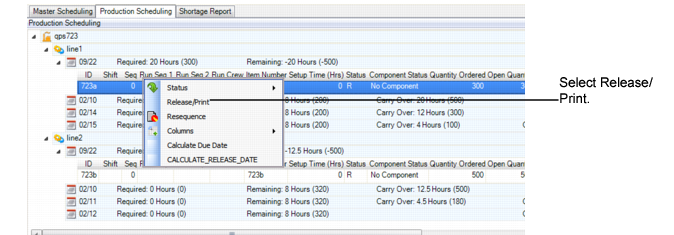
You use the PSW to select orders to release/print and then use the QAD EE Print Selected Orders for Print function to print the orders.
1 In the PSW Sequence Grid, select the production orders to print.
2 Right-click, then select Release/Print.
The system changes the order status to R(elease) and release/print is selected on the production order.
3 Save your changes.
4 In the .NET Menu Search Panel, type Print Orders Selected for Print; then, open the Print Orders Selected For Print program.
5 In Print Orders Selected For Print, select the production line that has the orders you want to print, then set the output to page.
The system prints the orders, picklist, routing, and so on.
Note: The Print Orders Select For Print program was specifically designed to simplify the print process, letting you print orders that you selected for print from the workbenches.
Y
Print Function