Converting Transaction Records
Once you finish converting master records, you can convert the following transaction records:
• Purchase orders and receipts
• Accounts payable vouchers and payments
• Service contracts, calls, and return material authorizations
• Sales quotes and orders
• Accounts receivable memos, invoices, and payments
In GTM, every transaction subject to tax has a transaction tax detail record. This record stores the information used to calculate tax. It also separates the tax into component elements such as recoverable and non-recoverable amounts.
Note: If you already have GTM transaction records in the database when you perform transaction conversion, the conversion process updates them using the current default tax values. Values replaced in these records include tax environment, class, usage, and so on.
VAT to GTM–Transactions
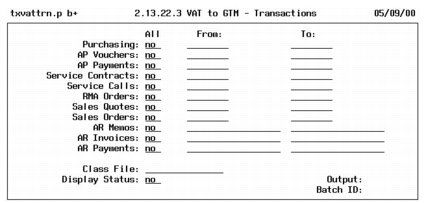
To convert existing transaction records so they are accessible in GTM, run VAT to GTM–Transactions (2.13.22.3).
VAT to GTM– Transactions (2.13.22.3)
In addition to updating transactions, this program generates an audit trail for verification of changes.
You can convert all records, a range of records, or individual records. The program converts records in the same order they display on the screen.
Note: In some cases, the record sequence is important. Purchasing transactions are converted before accounts payable vouchers and vouchers before payments. Accounts receivable memos and invoices are converted before payments.
If you created a class file during the setup step, specify its name in the Class File field. Display status, output, and Batch ID are the same as in the setup program.
Transaction Audit Trail
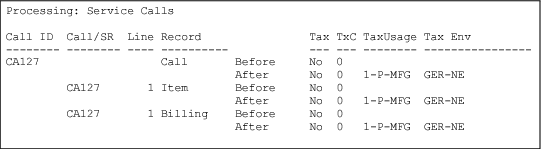
The transaction conversion prints a report of changed records. The format varies depending on the records included in the conversion. For each group of converted records, the report shows the transaction number and name and the before and after tax information for each line item. This tax information includes taxable status, tax environment, tax class, and tax usage. Groups of converted records print in the same order as the screen selection criteria with a page break separating each group.
Warning and error messages identify potential conversion issues. Messages that appear at the end of a transaction apply to the entire transaction; messages that appear between the Before and After line apply only to that line. If you specified a class file, the report prints the VAT class and the corresponding GTM tax class and tax usage, if any.
Purchasing Audit Trail
Service Calls Audit Trail
Troubleshooting Transaction Conversion
The warning and error messages in the audit trail identify conditions you analyze and address before resuming live GTM processing.
Troubleshooting the Transaction Conversion lists a common error along with an explanation. Before you make corrections, restore the database from backup.
Warning Do not resume live processing until the transaction conversion audit trail is free of errors.
In addition to examining the audit trail, review the Tax Detail by Transaction Report (2.13.15.3). This report shows the tax environments, tax types, and tax amounts for the converted records. Verify that the tax calculations produced the expected results.
Note: Converted transactions could have minor differences in before/after tax amounts. The differences can occur because GTM uses a different calculation algorithm or rounding method than your current system. To synchronize the general ledger with the converted transactions, record adjusting entries.
Troubleshooting the Transaction Conversion
Error | Explanation |
Detail tax environment must match header. | In accounts payable vouchers and accounts receivable debit/credit memos, the tax environment are the same in both the header and detail lines. |
Warning Do not correct transaction records programmatically because doing so can cause additional problems.
To eliminate ambiguity, the audit trail shows before and after values for purchasing, accounts payable, and accounts receivable records by their Progress database field name, not their screen label. For example, the audit trail displays voucher line types in the vod_type column.
Use
VAT to GTM, Purchasing Transactions to
VAT to GTM, AR DR/CR Memos to interpret audit trails for the transaction conversion. These tables summarize before and after tax values.
Note: In the following tables, quotation marks indicate a value that cannot be translated.
VAT to GTM, Purchasing Transactions
Status | Tax System | pod_taxable | prh_tax_at |
Taxable | VAT | Yes | VAT class |
| GTM | Yes | “Yes” |
Nontaxable | VAT | No | “0” |
| GTM | No | Blank |
VAT to GTM, AP Voucher Receiver Lines
Status | Amt | Tax System | Tax | TxC | vod_type | vod_tax | vod_tax_at |
Taxable | Item | VAT | No | VAT class | “R” | Blank | VAT class |
| | GTM | Yes | Tax class | “R” | Blank | “Yes” |
| Tax | VAT | No | Blank | Blank | VAT class | Blank |
| | GTM | No | Blank | “T” | “t” | “No” |
Nontaxable | Item | VAT | No | VAT class | “R” | Blank | VAT class |
| | GTM | No | Tax class | “R” | Blank | Blank |
| Tax | VAT | No | Blank | Blank | VAT class | Blank |
| | GTM | – | – | – | – | – |
VAT to GTM, AP Voucher Memo Lines
Status | Amt | Tax System | Tax | TxC | vod_type | vod_tax | vod_tax_at |
Taxable | Item | VAT | No | Blank | Blank | Blank | VAT class |
| | GTM | Yes | Tax class | Blank | Blank | “Yes” |
| Tax | VAT | No | Blank | Blank | VAT class | Blank |
| | GTM | No | Blank | “T” | “t” | “No” |
Nontaxable | Item | VAT | No | Blank | Blank | Blank | “0” |
| | GTM | No | Tax class | Blank | Blank | “No” |
| Tax | VAT | No | Blank | Blank | VAT class | Blank |
| | GTM | – | – | – | – | – |
VAT to GTM, AR Invoices
Status | Amt | Tax System | TxC | ard_tax | ard_tax_at |
Taxable | Item | VAT | Blank | VAT class | Blank |
| | GTM | Tax class | Blank | Tax class |
| Tax | VAT | Blank | Blank | VAT class |
| | GTM | Blank | “t” | “No” |
Nontaxable | Item | VAT | Blank | Blank | “0” |
| | GTM | Tax class | Blank | Tax class |
| Tax | VAT | Blank | “0” | Blank |
| | GTM | – | – | – |
VAT to GTM, AR DR/CR Memos
Status | Amt | Tax System | TxC | ard_tax | ard_tax_at |
Taxable | Item | VAT | Blank | Blank | VAT class |
| | GTM | Tax class | Blank | “Yes” |
| Tax | VAT | Blank | VAT class | Blank |
| | GTM | Blank | “t” | “No” |
Nontaxable | Item | VAT | Blank | Blank | “0” |
| | GTM | Tax class | Blank | “No” |
| Tax | VAT | Blank | “0” | Blank |
| | GTM | – | – | – |
How the Conversion Changes Transaction Records
The following is a technical description of how the transaction conversion updates the database.
The menu-level program for VAT to GTM–Transactions is txvattrn.p. This program calls subprograms that set the GTM tax values in the individual database records. For all transactions, the conversion also generates corresponding tax detail records in the Tax Detail (tx2d_det) database table.
When setting the GTM tax class value, these programs can set the existing VAT class value or retrieve an alternate value from a class file.
Changes to Transaction Records lists the affected database tables and summarizes the changes.
Changes to Transaction Records
Tables | Summary of Changes |
Accounts Receivable Detail (ard_det) | For debit/credit memos, txvatarm.p sets ard_tax, ard_tax_at, ard_taxc, and ard_tax_usage from the class file with AR usage, if any. For invoices, txvatari.p sets ard_taxc and ard_tax_usage from the class file with AR tax usage, if any, and ard_tax and ard_tax_at. Duplicate records for unique keys are merged into one record. |
Accounts Receivable Master (ar_mstr) | For debit/credit memos, txvatarm.p sets ar_tax_env. |
Service/Support Call Master (ca_mstr) | txvatca.p sets ca_taxc and ca_tax_usage from ca_taxc or from the class file with AR tax usage, if any. It also sets ca_tax_env using txtxeget.p. |
Invoice History Detail (idh_hist) | txvatari.p sets idh_taxc and idh_tax_usage from idh_taxc or from the class file with AR tax usage, if any. It also sets idh_tax_env using txtxeget.p. |
Invoice History Master (ih_hist) | txvatari.p sets ih_taxc and ih_tax_usage from ih_taxc or from the class file, with AR tax usage, if any. It also sets ih_tax_env using txtxeget.p. |
Service/Support Call Item Detail (itm_det) | If itm_prefix is CA and itm_type is any value except INV, txvatca.p sets itm_taxc and itm_tax_usage from itm_taxc or from the class file with AR usage, if any. It also sets itm_tax_env using txtxeget.p. |
Purchase Order Detail (pod_det) | For inventory items, txvatpo.p sets pod_taxc and pod_tax_usage from pod_taxc or from the class file, with AP tax usage, if any. For memo items, txvatpo.p sets pod_taxc from po_taxc and pod_tax_usage from po_tax_usage. |
Purchase Order Master (po_mstr) | txvatpo.p sets po_tax_pct[1], po_tax_pct[2], and po_tax_pct[3] to 0. It sets po_tax_usage from ad_tax_usage and po_taxc from ad_taxc. It also sets po_tax_env using txtxeget.p. |
Purchase Order Receipt History (prh_hist) | For inventory items, txvatpo.p sets prh_taxc and prh_tax_usage from prh_taxc or from the class file, with AP tax usage, if any. For memo items, txvatpo.p sets prh_taxc from pod_taxc and prh_tax_usage from pod_tax_usage. For all items, txvatpo.p also sets prh_tax_at from pod_taxable. |
Sales Quotation Detail (qod_det) | txvatqo.p sets qod_taxc and qod_tax_usage from qod_taxc or from the class file with AR usage, if any. If qo_taxable and qod_taxable are No and the quote is for an inventory item, txvatqo.p sets qod_taxc from pt_taxc. It also sets qod_tax_env. |
Sales Quotation Master (qo_mstr) | txvatqo.p sets qo_tax_pct[1], qo_tax_pct[2], and qo_tax_pct[3] to 0. txvatqo.p also sets qo_taxc and qo_tax_usage from qo_taxc or from the class file with AR usage, if any. It also sets qo_tax_env. |
Return Material Authorization Master (rma_mstr) | txvatrma.p sets rma_taxc from rma_taxc or from the class file with AR usage, if any. |
Service Contract Detail (sad_det) | txvatsc.p sets sad_taxc and sad_tax_usage from sad_taxc or from the class file with AR usage, if any. txvatsc.p sets sad_tax_env from sa_site and sa_taxc using txtxeget.p. |