Reviewing and Approving a Requisition Using .NET UI Requisition Queue Browse
As an alternative to Requisition Approval Maintenance, QAD .NET UI users can use a special browse, Requisition Queue Browse.
The following topics describe highlights of this function in these areas:
Record Filtering
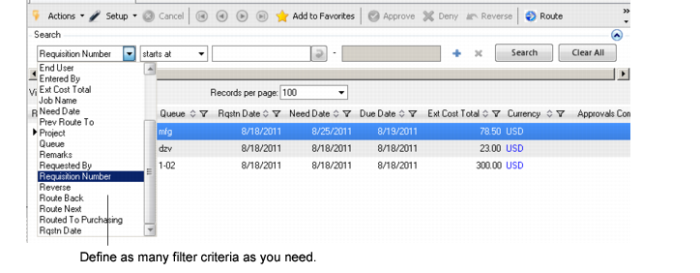
In the initial browse view, use .NET UI filtering tools to select the requisitions you are interested in. For example, you can limit the display to only those requisitions that are currently in your queue. This is a standard .NET UI browse filter; click the Add icon (+) to create more filter criteria that reduce the list of requisitions.
Note: Requisition Queue Browse also includes the ability to filter based on whether the logged-in user is defined as an alternate or administrative approver. See
Alternate Approvers for information.
Requisition Queue Browse, Browse Screen
Browse Information Grid
The system displays information about selected requisitions in the browse view. Without using an additional program, you can determine the following requisition details by scrolling horizontally:
• Requisition Number | • Queue | • Requisition Date |
• Need Date | • Due Date | • Extended Cost Total |
• Currency | • Approvals Completed | • Routed to Purchasing |
• Previous Route To | • Requested By | • Entered By |
• End User | • Remarks | • Category |
• Project | • Job Name | • Days in Queue |
Note: You can use standard .NET UI browse functionality to customize the display. For example, drag and drop a column heading to resequence columns, or right-click on the heading row to select other options.
Context-Sensitive Tool Bar Buttons
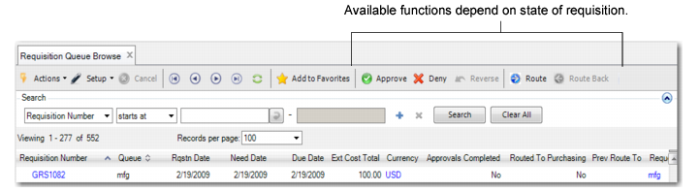
Context-sensitive tool bar buttons indicate which actions are available for the requisition in focus.
Requisition Queue Browse, Buttons
Buttons display in color when they represent available actions. For example, if you highlight a requisition and click the green Approve button, the button turns gray, since approval is no longer an appropriate action. However, the Reverse button, which was previously gray, changes to green to show that reversal is now a potential part of the work flow.
Right-Click Access to Related Functions
In some cases, you might want to view the approval history of a requisition, or modify it before approving.
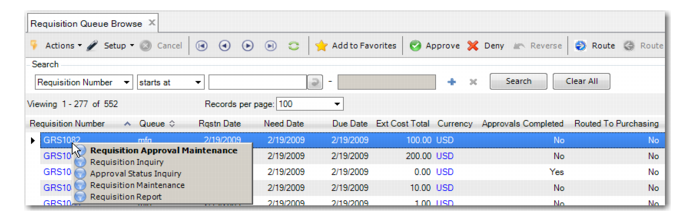
You can access such functions directly from Requisition Queue Browse by right-clicking on a requisition in the browse view.
Requisition Queue Browse, Right-Click Menu
The selected function displays at the bottom of the screen. The key field is already populated with the selected requisition number. Click Next to launch the program.
Enhanced Commenting Functionality
When you approve, deny, reverse, or route a requisition, you are prompted to enter optional comments.
Requisition Queue Browse offers enhanced commenting capabilities compared with the standard approval and routing programs:
• You can enter comments of unlimited length.
• You can cut and paste text into the comments field. For example, after denying a requisition, you might paste in the manufacturer’s description of an item that you feel is a better alternative before routing the requisition back to the originator.
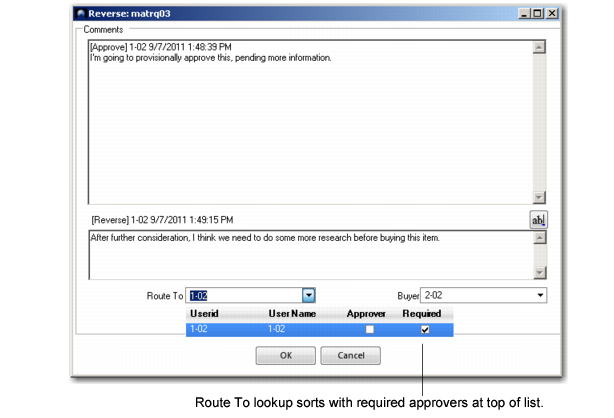
• The look-up on the Route To field sorts with required approvers at the top of the list.
Note: The comments history for the requisition displays in the top field of the comments window.
Requisition Queue Browse, Comments Window
Alternate Approvers
An additional form of filtering is available that is related to alternate and administrative approvers, who can optionally be associated with primary approvers in the following programs:
• Horizontal Approver Maintenance
• Job Approver Maintenance
• Product Line Approver Maint
• Vertical Approver Maintenance
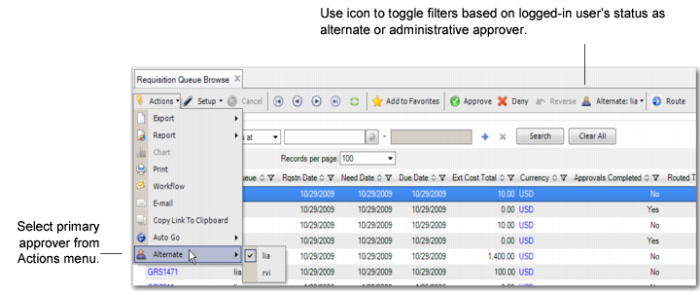
If you are the logged-in user and are defined as an alternate or admin, click on Alternate on the Actions menu. The system displays a list of approvers for whom you are an alternate or admin. When you select one, the browse lists only requisitions for those approvers.
Note: If your user ID is not associated as an alternate or admin with any approvers that match the requisitions shown in the browse, the Alternate item does not display on the Actions menu.
After you have selected an ID from Actions|Alternate, an additional button displays on the tool bar. Use it to toggle between the full list of requisitions (subject to other filter criteria) and the list based on your status as alternate or admin for the selected primary approver.
Requisition Queue Browse, Alternate Approver Navigation Tools