Setting Up Temporary PO Pricing
The following tasks are required to use temporary prices on purchase orders and supplier schedules:
• Enable the functionality
• Determine whether invoicing functions consider orders with temporary prices
• Define temporary price lists
Enabling Temporary Pricing
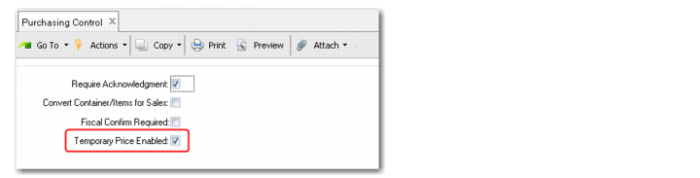
Use the Temporary Price Enabled field in Purchasing Control (5.24) to enable the functionality.
Purchasing Control
Temporary Price Enabled
Specify whether temporary purchase price functionality is enabled.
The default to No. When the field is Yes, you can set up supplier price list to be temporary to indicate that the price has not been agreed to by the supplier.
If you reset the field from Yes to No, the system looks for supplier price lists with Temporary Price set to Yes. If any are found, the system displays the message All Supplier Price lists will be updated to use an agreed price, continue? If you choose Yes, the system sets Temporary Price to No on all supplier price lists.
Important: If you inadvertently set the Purchasing Control field back to No, you cannot undo the changes to individual prices list. You would be required to set the Temporary Price field to Yes on each individual record.
Note: Temporary PO Pricing features are not available if you use Legal Documents functionality. Both Temporary Price Enabled and Fiscal Confirm Required cannot be Yes.
Controlling Invoicing with Temporary Prices
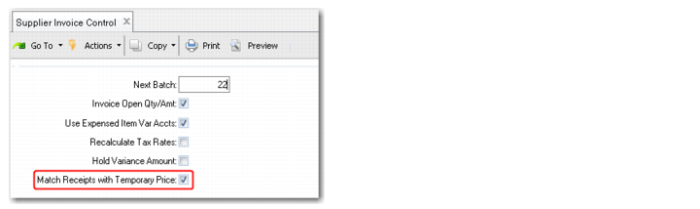
Use the Match Receipts with Temporary Price field in Supplier Invoice Control (1.10.2.1) to indicate whether purchase receipts with temporary prices are selected for receiver matching during supplier invoice processing.
Supplier Invoice Control
Match Receipts with Temporary Price
Specify whether the system should allow receiver matching for receipts with prices that are based on temporary price lists.
Defining Temporary Price Lists
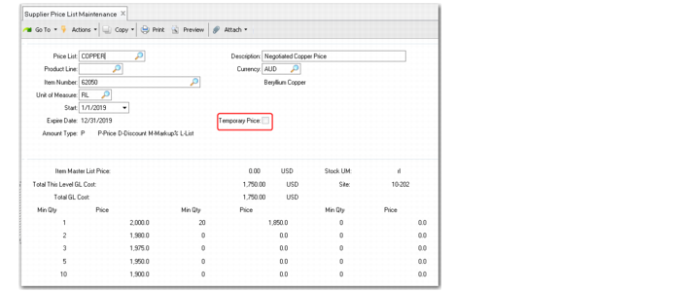
Use the Temporary Price field in Supplier Price List Maintenance (1.10.2.1) to define prices that are still being negotiated.
Supplier Price List Maintenance
Temporary Price
Use this field to control whether purchase order and supplier schedule lines that reference this price list can be selected for system-generated updates after the price list is modified. For example, your company might set this field to Yes when the prices on the list are still being negotiated with the supplier. After the terms are agreed to, you can update the prices on the list, then use Purchase Order Cost Update to update the order lines. If there are invoiced receipts that use temporary prices, use Retroactive Purchase Price Adj to create price adjustments.
If you change this field on an existing price list record, the system displays a warning message.
Note: Changing this setting from No to Yes does not update order line prices until you run Purchase Order Cost Update.