PO Fiscal Receiving
PO Fiscal Receiving (5.13.16) lets you:
• Record item numbers, quantities, costs, and taxes from shipping documents.
• Update inventory and GL accounts.
• Process multiple POs per receipt.
• Calculate and register applicable taxes.
Fiscal receiving supports companies where:
• PO receipts are registered for fiscal and/or tax purposes.
• PO receipts are tracked and audited by fiscal shipping documents.
• Multiple POs are frequently consolidated by the supplier into one fiscal shipment for the same ship-to address.
• It is necessary to update purchase costs at PO receipt.
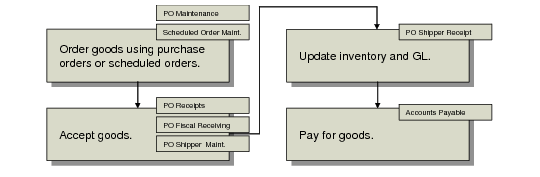
Fiscal Receiving Processing Flow
If the fiscal total does not match the PO total, a warning displays. However, PO Fiscal Receiving does not change the purchase order. This leaves a basis for comparison. PO Fiscal Receiving updates purchasing and tax records but does not affect physical inventory or GL balances.
Important: PO Fiscal Receiving cannot be used to access or update shippers combined with invoices created in PO Shipper/Invoice Maintenance.
After verifying received items and financial information, use PO Shipper Receipt (5.5.5.11 or 5.13.20) to finalize receipt and create inventory and GL transactions.
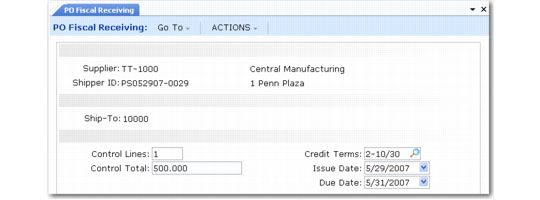
Header, PO Fiscal Receiving (5.13.16)
Supplier
Specify the code identifying an active, valid supplier who sent you the goods.
Shipper ID
This field is mandatory, and is usually used to record the fiscal document number, Nota Fiscal, or other shipping document number. It can also be used to record the bill of lading number.
Ship-To
Specify the site code or address code of the company address accepting the goods.
Control Lines
Specify the total number of lines on the fiscal document.
Control Total
Specify the total monetary amount shown on the shipping document, including tax amounts. Used as a control total for the fiscal receipt. If the sum of all lines received does not equal this total, a warning displays.
Credit Terms
Enter the credit terms listed on the shipping document. These should be the same terms as on the purchase order. Credit terms are especially important in hyperinflationary environments or if a credit terms interest percentage is specified on the purchase order.
Issue Date
Specify the date the supplier generated the shipment document. Becomes the start date for credit terms calculations.
Payment Due Date
Specify the date the supplier is expecting payment for the shipment. Leave blank to have the system calculate the date based on credit terms and issue date. If you enter the due date printed on the supplier document, a warning displays if this due date is inconsistent with the credit terms and issue date.
For example, if the credit terms are 2% Net 30 Days and the Issue Date is April 1, and you enter a Due Date of April 15, a warning displays because the credit terms specify a due date of May 1.
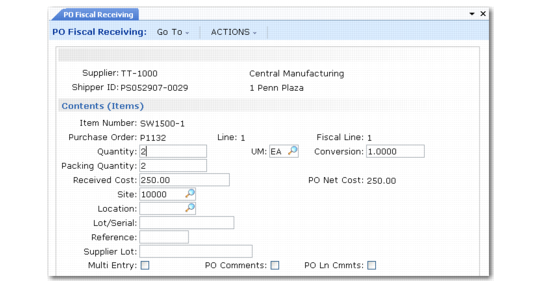
Line Item Screen, PO Fiscal Receiving (5.13.16)
After the first screen, you see a frame for recording the PO, quantity, cost, and receiving information for each line item.
Item
Enter the item number as specified in the purchase order. This can be a memo item.
Purchase Order
Enter a valid purchase order number for the received line. You can reference multiple purchase order numbers on the same receipt, but only one per line item.
Line
Enter the purchase order line number. An error displays if you reference a line number that is not on the original purchase order or that corresponds to an item different from the item entered previously.
Fiscal Line
Enter the line item number from the shipping document. If only one purchase order is involved, this is normally the same as the PO line. If you are referencing an existing fiscal receipt, you can retrieve the remaining item information in this screen by using Next/Previous in either of the line fields.
After entering the item, PO, PO line, and fiscal line, you are prompted to review and optionally edit the default Tax Usage, Tax Environment, and Tax In settings from the PO for the fiscal receipt. These settings determine how taxes are calculated for the fiscal receipt.
Most fields in this screen function the same way as their counterparts in Purchase Order Receipts (5.13.1) and PO Shipper Maintenance (5.13.14). If you receive items into a different site or location than specified on the PO, update them here. You can always go back to PO Fiscal Receiving and update this information before processing the receipt using PO Shipper Receipt.
Note: Changing the site can cause the taxes to be recalculated, if the new site is in a different tax zone.
Quantity
The actual received item quantity for this line.
UM
The unit of measure for the shipped items.
Conversion
The conversion factor to use if the shipping unit of measure is not the same as the inventory stocking unit of measure. For example, if the shipping UM is cases, the stocking UM is pallets, and there are 10 cases per pallet, the conversion factor is .1.
Packing Quantity
The packing list quantity printed on the supplier’s packing list, or the official fiscal quantity printed on the supplier’s fiscal document.
Received Cost
The line item cost from the fiscal document for the received quantity. This cost includes any taxes included in the line cost. The value entered is the amount used for the received PO cost calculation, which overrides the cost entered in the PO line. For average cost users, this is the beginning basis for the average cost calculation.
PO Net Cost
Output only. Net line item cost from the purchase order. When you exit the screen, a warning displays if the received cost does not equal the PO cost. The system does not maintain an audit trail of variances, but variances are marked with an asterisk (*) in PO Fiscal Receipt Inquiry (5.13.17).
Site
The company site that receives the items.
Location
The company location that receives the items.
Lot/Serial
Optional. Used only if items are tracked by lot or serial number.
Reference
An optional lot reference number for the received items.
Supplier Lot
Enter an optional supplier lot number for reference.
Multi Entry
Indicates whether the item was received into multiple sites and locations, or whether multiple lot/serial numbers or lot reference numbers were received. Enter Yes to display the multiple-entry screen.
PO Comments
Enter Yes to enter transaction comments for the fiscal receipt. The reference code for PO comments defaults to RCPT: followed by the purchase order number; for example, RCPT: PO1000.
PO Ln Cmmts
Enter Yes to enter comments for individual line items. The reference code for line-item comments defaults to RCPT: followed by the purchase order number, a slash (/), and the line-item number; for example, RCPT: PO1000/1.
The trailer screen displays line item and tax totals. Use the View/Edit Tax Detail option to review and change tax amounts.
Use PO Fiscal Receipt Inquiry (5.13.17) to review fiscal receipts. Supplier code and shipper ID are mandatory. You can display either quantity or cost information. Variances for calculated due date, quantities, and costs are marked with an asterisk (*). Where possible, investigate and resolve any discrepancies before processing the actual receipt using PO Shipper Receipt (5.5.5.11 or 5.13.20).