User-Assisted Data Collection
User-assisted data collection can happen in five areas:
• Inventory Transfers (3.4 menu)
• Purchase Order Returns (5.13.7)
• Performance Data Maintenance (5.15.13)
• Missed Shipment Event Generator (5.15.17)
• RTS Shipments (11.7.3.16)
Purchase Order Returns and RTS Shipments
When material is returned, a pop-up window lets you enter a performance event. This pop-up appears only if Supplier Performance is activated in Supplier Performance Control (5.15.24) and Enable PO Returns is Yes.
Note: RTS shipments are handled in the same way as PO Returns. The same control program field controls both the PO Returns and RTS pop-up windows.
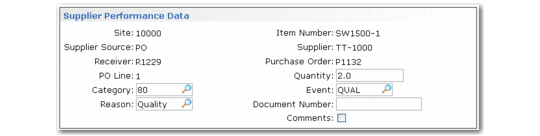
The vendor and order information defaults to the pop-up but cannot be changed. The Category, Event, Quantity, and Reason fields can be updated. Recording of the event is optional. The pop-up is intended to capture information regarding material quality. To continue without entering an event, click Next.
Supplier Performance Data in PO Returns
To correct an incorrectly entered receipt that creates a performance event, reverse the entire receipt. Reversing the entire receipt also removes all other performance events associated with that receipt. If you do not reverse the entire receipt, then you must remove any performance events manually. To remove a performance event manually, use Performance Data Maintenance (5.15.13).
Inventory Transfer
The Supplier Performance Data pop-up lets you capture data when using any of the three inventory transfer programs:
• Transfer–Single Item (3.4.1)
• Transfer–Multi Item (3.4.2)
• Transfer with Lot/Serial Change (3.4.3)
This pop-up appears only if Supplier Performance is activated in Supplier Performance Control, Enable Inv Transfer is Yes, and the inventory is being moved from the inspection location:
• Defined for the site and item in Item-Site Planning Maintenance
• Defined for the site in Site Maintenance (1.1.13)
• Defined in Purchasing Control (5.24)
You can use the pop-up to create a performance event. The pop-up screen works similarly in the three inventory transactions. Because the inventory transactions are generic and not PO/DO related, you must enter the supplier, order, and receiver numbers manually.
Creating and Modifying Performance Data
When performance data is generated for any registration, that data is saved for future reporting. The data is identified by a system-generated transaction ID.
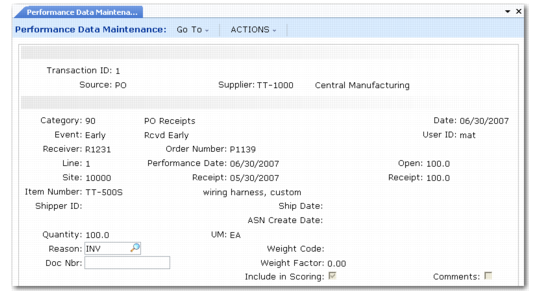
Use Performance Data Maintenance (5.15.13) to access, add, and modify details of the captured performance data. Use this program to manually create performance data.
Performance Data Maintenance (5.15.13)
The system-generated transaction ID identifies specific events associated with the corresponding registrations and the particular performance details.You can use this program to search for specific performance records. Each time this program is accessed, the first screen appears without data. Enter the transaction ID, or browse existing IDs using the up and down arrows. Pertinent performance data is also displayed.
Modify captured performance data by adding performance weight factors or updating other fields.
1 Identify and select the corresponding transaction ID.
2 Navigate to the fields you need to edit.
3 Enter any new information or comments, or add the appropriate performance weight factor codes.
You can manually create new performance data—for example, add a note about performance that is not captured by the system, such as bad telephone service or lack of professionalism.
1 Leave Transaction ID blank.
2 Enter the new data in the appropriate fields.
3 Save the new record.
A new transaction ID is generated and assigned to the new data.
Missed Shipment Event Generator
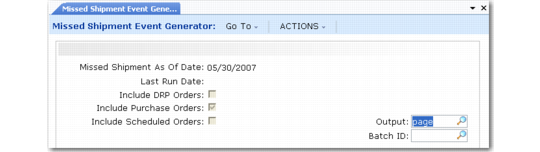
Use Missed Shipment Event Generator (5.15.17) prior to generating performance reports. This program updates performance data with the most current results. It evaluates open POs, DOs, and scheduled orders, then creates missed shipment events for any orders not fully reconciled by the missed shipment as of date indicated.
Indicate the type of orders evaluated by specifying defaults in the control program or making changes in this program. Missed shipment events are created for valid registrations only.
Note: Missed shipment events do not remain in the system. They are removed upon receipt of the associated late shipment.
Missed Shipment Event Generator (5.15.17)