Conduct Receiving Transactions
After the control settings are configured, the next step is to conduct the receiving transactions. You must process both the physical receiving and the fiscal receiving.
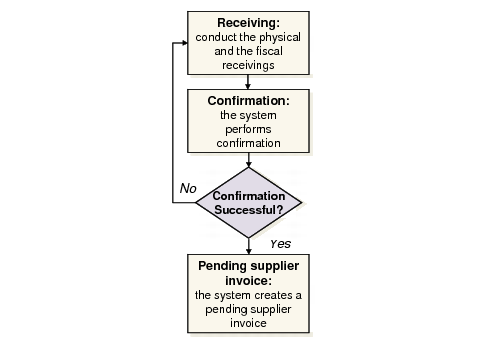
Receiving Transactions Process
Physical Receiving
You can use one of the following programs to perform physical receiving.
Programs for Physical Receiving
Menu | Label | Program |
5.13.1 | Purchase Order Receipts | poporc.p |
5.13.14 | PO Shipper Maintenance | rsshmt.p |
5.13.16 | PO Fiscal Receiving | posmrc.p |
5.13.18 | PO Shipper Invoice Maint | poshivmt.p |
5.13.20 | PO Shipper Receipt | rsporc.p |
3.9 | Receipt - Unplanned | icunrc.p |
12.15.20 | Distributed Order Receipt | dsdorc.p |
12.17.21 | Distribution Order Processing | dsdomt02.p |
12.17.22 | Distribution Order Shipment | dsdois.p |
3.4.1 | Transfer - Single Item | iclotr02.p |
3.4.2 | Transfer - Multi Item | iclotr01.p |
3.4.3 | Transfer With Lot/Serial Change | iclotr03.p |
3.4.4 | Batchload Transfer with Lot/Seri | iclotr04.p |
Note: PO Fiscal Receiving (5.13.16) and PO Shipper Invoice Maint (5.13.18) cannot be used together with Fiscal Receiving.
Use the Issuing Legal Document field to select the process type, either issuing or receiving. Effective Issue Date and Legal Document Number are enabled when Issuing Legal Document is set to No.
You can set up a linkage between the physical receiving and the fiscal receiving by entering the received legal document number in the Legal Document Number field .
Pop-up Frame in the Physical Receiving Process
Issuing Legal Document
Specify the type of the current transaction.
For inventory transfers:
• Yes: Issuing (ISS-TR) operation
• No: Receiving (RCT-TR) operation
For purchase order (PO) receipts:
• Yes: PO return
• No: Normal PO receiving process
This option does not apply to distributed order (DO) transactions, since DO transactions for issuing and receiving are separately handled by different menus.
Effective Issue Date
Enter the date on which the legal document is issued by the supplier.
This date is displayed on the received legal document. Ship-from, legal document number, and effective date combined uniquely identify a received legal document. The date must not be later than today.
The Effective Issue Date cannot be:
• Later than today
• Later than the Effective Date of the receiver
Legal Document Number
Enter the legal document number issued by the supplier. You can use an open legal document, but you cannot use a confirmed/cancelled legal document.
Note: For DO and inventory transfers, the issuing legal document for ISS-DO and ISS-TR transactions can be used as a received one during RCT-DO and RCT-TR. After entering the legal document number, you can use the automatic legal document copy function to copy the related issuing legal document as a received legal document. In other words, you do not need to enter the received legal document manually during fiscal receiving.
Fiscal Receiving
Use Fiscal Receiving (5.20.1) to process the fiscal receiving. You can use this program to record fiscal information. After you complete recording the information, the system automatically confirms the fiscal information according to the settings you have configured in Received Legal Document Control (5.20.24).
If the confirmation is:
• Unsuccessful: You must go back to either the physical receiving or the fiscal receiving process to correct the data.
• Successful: The system creates a pending supplier invoice, which you can later use to create confirmed or non-confirmed supplier invoices by using the ERS processor.
Use the following steps to complete the fiscal receiving process:
1 Enter the legal document number.
2 Enter the legal document header total and line details.
3 View/Edit Tax Detail.
4 Confirm the legal document.
Fiscal Receiving (5.20.1), Enter Legal Document Number
Legal Document Number
Enter the legal document number issued by the supplier.
You can use an open legal document, but you cannot use a confirmed/cancelled legal document.
Note: For DO and inventory transfers, the issuing legal document for ISS-DO and ISS-TR transactions can be used as a received one during RCT-DO and RCT-TR. After entering the legal document number, you can use the automatic legal document copy function to copy the related issuing legal document as a received legal document. In other words, you do not need to enter the received legal document manually during fiscal receiving.
Effective Issue Date
Enter the date on which the legal document is issued by the supplier.
This date is displayed on the received legal document. Ship-from, legal document number, and effective date combined uniquely identify a received legal document.
The date must not be later than today.
Ship-From
Enter the site from which the inventory is shipped.
Ship-To
Enter the site to which this inventory is to be delivered.
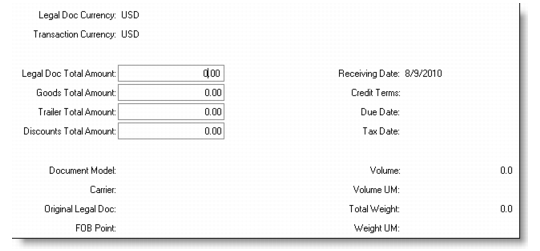
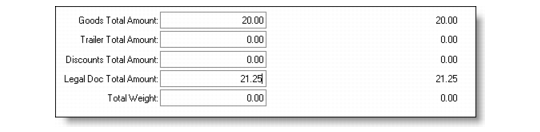
You can optionally enter the legal document header totals. You can get the values for these fields on the legal document. Later there is a verification process between these header values and the calculated line totals.
Fiscal Receiving, Header Information
Legal Doc Currency
Display only. This is the base currency. All the total amounts on the fiscal document header and lines must be in base currency (legal document currency).
Transaction Currency
User input field. It must be the same as the PO Currencies on the fiscal lines.
Exchange Rate
This value defaults from system settings and can be updated. It is used to convert the PO price from transaction currency to base currency, to compare the PO price with the fiscal price to get the rate variance. It is also used for the ERS processor.
Legal Doc Total Amount
This is the total invoice amount from the received legal document.
Goods Total Amount
This is the goods total amount from the received legal document. Goods amount means the extended price of the lines shipped in this legal document.
Trailer Total Amount
This is the trailer total amount from the received legal document.
Discounts Total Amount
This is the discount total amount from the received legal document.
Receiving Date
This is the date on which the physical goods are received by the company. The receiving date cannot be earlier than the effective issue date and must be exactly the same as the Effective date of the receiver.
Note: When receiving a memo item as a result of an unplanned transaction, you do not have to run Receipts - Unplanned (3.9) to physically receive the items. The items are received on the date in the additional Receiving Date field in the trailer section frame.
Credit Terms
Enter the appropriate credit terms for this receipt. Credit terms initially default from the specified project or subproject.
Credit terms codes identify specific types of payment terms. They print on project invoices and credit notes and determine the payment due date and any discount allowed for early payment.
The system checks the PO related credit terms entered in the fiscal line level and compare it with the header level credit terms entered here. If they are different, an error occurs.
Due Date
This is the first due date of the payment. It is calculated according to the credit terms and must not be earlier than the receiving date. ERS will use this due date to create a supplier invoice.
Tax Date
Enter the tax date.
The system calculates taxes using the tax rate in effect on the transaction tax date. This date is normally the date the transaction is effective in company financial records.
Document Model
Specify the kind of legal document as defined by the tax authority. The value is set up in Generalized Codes Maintenance. This field is fiscal information and does not affect fiscal receiving.
Carrier
Enter the carrier address.
Original Legal Doc
This field is currently not implemented.
FOB Point
Enter the free on board (FOB) point for the shipment. The FOB point identifies when title transfers from the seller to the buyer. This field is for reference only.
Volume
Enter a code indicating the amount of space the inventory occupies.
Volume UM
Enter a unit of measure in which the net weight is expressed, such as CF, SF, CM. This field is validated against predefined values entered in Generalized Codes Maintenance for field pt_size_um, if any.
Weight UM
Enter the unit of measurement for the item’s weight.
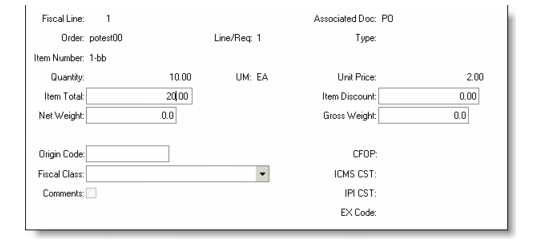
After entering the header information, you enter the line details. Enter an order number for which you want to process the quantity of goods.
Fiscal Receiving, Fiscal Line
Fiscal Line
Enter the legal document line number.
Order
Enter a purchase order number (including supplier scheduled order) or a distribution order number. You cannot enter a cancelled order.
Line/Req
Enter the line number for an open PO or DO requisition number.
Associated Doc
Enter a value identifying the type of this process.
You can enter the following values:
• 1: PO (Purchase Order)
• 2: DO (Distribution Order)
• 3: TRANSFER
• 4: UNP (Unplanned)
Type
This field is not currently implemented.
Item Number
This code identifies the end-item number associated with the quantity to be processed.
The system can use the data you load for this item to calculate the family plan, operations plan, and performance measurement reports. Before you include this data in subsequent planning calculations, you must run Item-Site Data Consolidation.
Quantity
The total quantity required of this item at this site, expressed in terms of the item unit of measure.
The order quantity is the total number of units of the item that the receiving site has requested from its sources of supply, to be delivered as of the specified due date. This quantity can be supplied from more than one site.
Unit Price
The price displayed on the legal document line for the current item.
The system compares the fiscal line price with the PO price. If any variance is found, it displays a configured message “Price variance found: PO price #, legal doc price #.” This validation is also done during Fiscal Confirm. For more details, see
Fiscal Confirm Validation RulesItem Total
Enter the total price of the items. The default value for this field is calculated by multiplying the invoiced quantity of the item by the unit price of the item.
Net Weight
Enter the net weight per unit for this item. Net weight represents the item weight without packaging.
When you use containers and shippers to ship items on sales orders, the shipping programs calculate tare weight as the difference between the item ship weight and net weight.
If net weight and ship weight are expressed in different units of measure, be sure to set up unit of measure conversions.
Item Discount
Enter the amount of discount price for this line. This amount will be deducted from the item total/goods total amount.
Gross Weight
Enter the total weight of the item; the sum of the net weight and the package weight.
Origin Code
This field indicates the origin of the goods.
You can enter the following values:
• 0: National
• 1: Direct importation
• 2: Imported acquired from the domestic market
Fiscal Class
This field is specific to legal documents implementation for Brazil.
Enter a mandatory tax code defined by the Brazilian government to help identify materials and determine their corresponding tax rates. Currently, this Brazil-specific field is used as supplementary information of an item for reference only and does not affect tax calculation in GTM.
Fiscal classes are defined in Generalized Codes Maintenance.
Comments
Specify if you want to enter or update comments.
• Yes: You can review and enter comment information in the comment transaction screen.
• No: The comment screen does not display.
Comments are useful for describing additional information related to the record you are processing, such as special restrictions or requirements.
CFOP
Enter a fiscal code identifying the operation.
The code denotes the type of business transaction and contains information on the origin of the goods as well as the type of the operation.
ICMS CST
Enter a tax status code for ICMS to identify the operation. The code contains information on the origin of the goods and tax policy for the goods. It consists of three digits. The first digit denotes the origin of the goods and the last two digits denote the ICMS taxation.
IPI CST
Enter a tax status code for IPI to identify the origin of the goods and the tax policy for the goods.
EX Code
Enter an exception code for IPI taxation table. The code is maintained in Generalized Codes Maintenance.
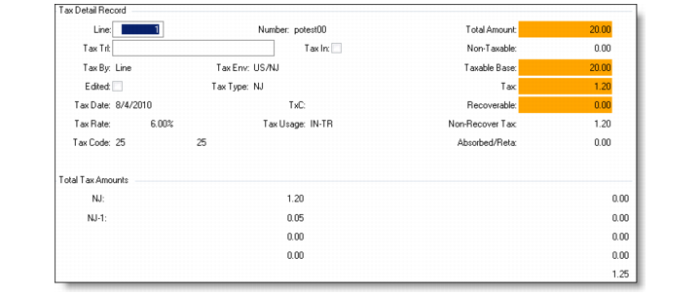
Note: After this frame, the system once again displays a pop-up frame for the line tax information input. The field values default from the header tax information.
Set the View/Edit Tax Detail to Yes to view details of taxes.
Fiscal Receiving, Tax Detail Record
Fiscal Receiving, Verification illustrates a verification that compares the values between the header total values and the calculated line totals. The Tolerance value specified in Received Legal Document Control is used for this comparison. If the variance exceeds the Tolerance value, the system displays an error message: “Variance between declared and counted quantity exceeds #.”
Fiscal Receiving, Verification
The system displays the physical and fiscal details. This frame is for reference only.
Fiscal Receiving, Physical/Fiscal Details
Fiscal Confirm
During or after recording the fiscal information, the system performs validation checks to confirm the information. There are two main validations performed by the system, Fiscal Confirm Validation and Overship Validation.
Fiscal Confirm Validation takes place after you complete the recording of the received legal document. The system confirms whether the records you entered are valid. The configured settings in Received Legal Document Control (5.20.24) form the basis for this confirmation.
Overship Validation takes place during the recording process. When you enter a value in the Quantity field, the system instantly performs the validation.
When both of the validations are successful, the confirmation is successful.
Fiscal Confirm Validation Rules
The system checks the value of the Fiscal Confirm with Discrepancies field in Received Legal Document Control.
• Yes: The system does not perform the quantity and the price variance checks.
• No: The system performs the quantity and the price variance checks.
• Quantity variance check: The system compares the declared (fiscal) quantity and the counted (physical) quantity. If the variance exceeds the value you entered in the Percent on Quantity Counted field, the confirmation fails and the system displays an error message.
• Price variance check: The system compares the fiscal unit price with the PO price. If any variance is found, the system displays a warning or error message. (You can configure this event to be a warning or an error.)
Fiscal Confirm Validation Rules
Number | Message | Description | Setup |
11130 | Pending physical receiving | When physical receiving has not been done | |
11126 | Pending fiscal receiving | When fiscal receiving has not been done | |
11133 | Variance between declared and counted quantity exceeds #% | Compare actual received qty and fiscal receiving qty (received legal document qty), if variance has exceeded the “Percent on Qty counted” | “Fiscal Confirm with Discrepancies” in 5.20.24. If Yes, confirms without considering Percent on Qty Counted. If No, check the field. |
3128 | Invalid Project | Check if project code in fiscal receiving line is valid | |
11132 | Different currency | Compare PO currency with Transaction Currency in Fiscal Receiving | |
11131 | Different credit terms | Compare PO Credit Terms with Fiscal Receiving Credit Terms | |
| Purchase Order cancelled | PO cannot be cancelled before fiscal confirm | |
11134 | Price variance found: PO price #, legal doc price # | The difference between PO line price and Fiscal line price | A configured message “Fiscal Confirm with Discrepancies” in 5.20.24. If Yes, no need to check. If No, need to check. No tolerance needed. |
6790 | Requisition Closed. Cannot process Distribution Order # | When DO Requisition status = "C", fiscal confirm is not allowed. | |
11145 | Discount Tax at Payment for all taxes must be the same | | Tax Rate Maintenance |
11146 | Discount Tax at Invoice for all taxes must be the same | | Tax Rate Maintenance |
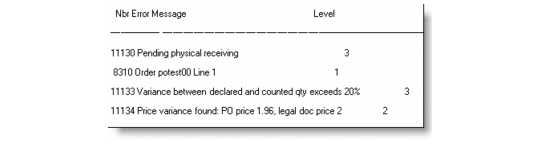
Here is an example of warning/error messages:
Error Messages
Overship Validation
The system performs Overship Validation when you enter a value in the Quantity field during fiscal receiving.
The key point of the overship validation is that the system displays a warning/error message during the receiving process when the record of received quantity exceeds the PO quantity.
In the fiscal receiving, if a fiscal clerk records the received legal document with a quantity exceeding the PO quantity, the validation fails and the system displays a warning/error. Use Tolerance Percent and Tolerance Cost fields in Purchasing Control (5.24) to configure the overship controls. For more details, see the following field help descriptions.
Tolerance Percent
Enter the tolerance percentage allowed for overshipments.
Tolerance Cost and Tolerance Percent, in conjunction with Purchase Order Receipts, determine whether an overshipment is accepted. For example, on an order for 100 units of an item having a standard cost of 5 USD, if your supplier sends you 150 units, do you want to accept the extra 50 units? (Extra cost is 250 USD and percent over is 50%.) This overshipment amount is compared with the tolerances to determine if you will accept it.
If the overshipment is over the defined cost or percentage allowed, an error displays and the receipt cannot be processed. To receive the additional quantity, go back and increase the quantity on the purchase order or temporarily change the tolerance.
PO Shipper Maintenance and PO Container Maintenance check these fields to determine if a shipper receipt quantity or cost is out of tolerance. Warning messages are displayed both at the item level and for the cumulative item quantity on the shipper/container. This is true for both discrete and scheduled POs, with scheduled POs calculating the cumulative qty received for the order plus the quantity being received against the Max Order Qty for the PO line. If the shipper is being imported as an advance ship notice (ASN) using EDI eCommerce, the messages are printed on the report for that line.
When setting the overshipment tolerance fields, determine a value and quantity that stop overshipments that effect your cash flow and planning, but do not require daily attention from supervision to override the tolerance quantity.
Tolerance Cost
Enter the tolerance cost amount allowed for overshipments.
Tolerance Cost and Tolerance Percent, in conjunction with Purchase Order Receipts, determine whether an overshipment is accepted. For example, on an order for 100 units of an item having a standard cost of 5 USD, if your supplier sends you 150 units, do you want to accept the extra 50 units? (Extra cost is 250 USD and percent over is 50%.) This overshipment amount is compared with the tolerances to determine if you will accept it.
If the overshipment is over the defined cost or percentage allowed, an error displays and the receipt cannot be processed. To receive the additional quantity, go back and increase the quantity on the purchase order or temporarily change the tolerance.
PO Shipper Maintenance and PO Container Maintenance checks these fields to determine if a shipper receipt quantity or cost is out of tolerance. Warning messages are issued both at the item level and for the cumulative item quantity on the shipper/container. This is true for both discrete and scheduled POs, with scheduled POs calculating the cumulative qty received for the order plus the quantity being received against the Max Order Qty for the PO line. If the shipper is being imported as an advance ship notice (ASN) using EDI eCommerce, the messages are printed on the report for that line.
When setting the overshipment tolerance fields, determine a value and quantity that stop overshipments that effect your cash flow and planning, but do not require daily attention from supervision to override the tolerance quantity.
Important: If the validation is successful in the physical receiving, the system does not perform the overship validation in the fiscal receiving.
Fiscal Receiving, Quantity