Creating ISB Records During Invoice Post
You can let the system add items to the installed base as you sell them. Creating records this way minimizes the data entry required to update the installed base.
Invoice Post and Print creates installed base records for parent and component items from sales orders when these settings are in place:
• Ship to Installed Base is Yes in Service Management Control (11.24).
• For components to be added, Load Available Structure must be Yes in Service Management Control and the conditions required for it to be in effect must be true. See
Load Available Structure for details.
• Installed Base must be Yes in Service Item Maintenance (11.3.7) for the parent item and for each component item to be added.
The system creates the actual ISB record when you post the invoice for the sales order, minimizing the cleanup required if you find mistakes on the pending invoice. If sales shipment created the ISB record and you change the invoice later, the ISB record may be wrong.
When the system creates an ISB record during invoice post, it includes the sales order number, line item number, and invoice number. You can use these fields later as search criteria. Invoices created for both standard sales orders and RMAs create or update installed base records.
ISB Records from Sales Orders
If Installed Base is Yes in Service Item Maintenance (11.3.7) for a sales order line item and the other settings are correct in the control programs, the sales order program uses default values to create ISB records. The system bases these values on data for the item in Service Item Maintenance. The end user is the ship-to address on the sales order.
Note: You cannot add memo items to the installed base from Sales Order Maintenance, since the system creates the ISB record only if the item is predefined in Service Item Maintenance.
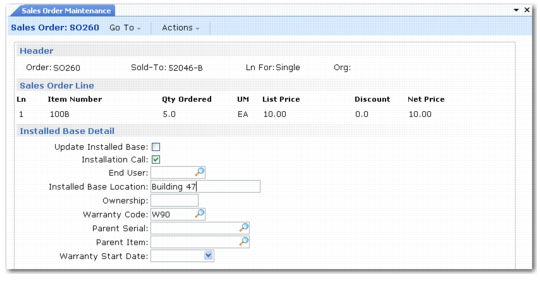
Set SO Edit ISB Defaults to Yes in Sales Order Control to override default values during Sales Order Maintenance. The Installed Base Detail frame displays.
Installed Base Detail in Sales Order Maintenance (7.1.1)
Some of the fields on this pop-up correspond to fields in Service Item Maintenance. The values there default into the corresponding fields in the pop-up: Update Installed Base, Installation Call, and Warranty Code. Edit the default values to control whether to include items in the installed base on a line-by-line basis.
The end user defaults from the ship-to address on the sales order. You can use Installed Base Location and Ownership to add information for the installed base record.
Use Parent Serial and Parent Item only if you want the item being sold added to the installed base as a component of another installed base item. If the item being sold is part of a configured item, you can specify a parent item and serial already in the installed base for the current end user, and the system adds the new item as part of that configuration.
The warranty start date defaults to blank. If you do not specify a date, the system uses the sales order ship date as the warranty start date when Invoice Post and Print creates the installed base record.
The system calculates the warranty end date by adding the warranty duration to the warranty start date. If you specify a warranty start date, the system uses it to calculate the warranty end date when it creates the installed base record. If the field is blank, the system bases the warranty start date on the sales order ship date during invoice post. If Invoice Post and Print creates an installation call, the system bases the warranty start and end dates on the call closure date.
The system updates the warranty start and end dates only if you have not specified a date. For the system to manage this date, leave the field blank.
Note: If this item requires an installation call and you do not specify a warranty start date, the system recalculates the warranty start and end dates when you close the install call. The system never overrides dates you specify.
The system obtains other information that is part of the installed base record from the sales order: item number, quantity, serial number, lot/reference number.
Removing ISB Records for Sales Order Returns
If you update the installed base from sales order shipments, you need to delete installed base records when a customer returns items. A negative order quantity on the sales order line indicates a sales order return. When you ship this line and post the invoice, the system can remove the installed base record.
For this to occur, the setting of SO Returns Update ISB in Sales Order Control must be Yes. The other conditions that update the installed base must also be true. For example, Ship to Installed Base must be Yes in Service Management Control.
Also, some quantity of this item must be in the installed base. To uniquely identify the item you want to remove, enter the installed base reference, which appears on the Installed Base Detail pop-up when you have satisfied the above conditions.
Sales Order Maintenance (7.1.1) or Pending Invoice Maintenance (7.13.1) are the only places you can specify the ISB reference, and you can specify only one reference per sales order line. This has two implications:
• If you want to return more than one item, you must create a separate line item for each.
• You must enter the line in Sales Order Maintenance before you use Sales Order Shipments (7.9.15) to specify a negative quantity.
Note: The installed base pop-up displays in Sales Order Maintenance for a return even if SO Edit ISB Defaults is No in Sales Order Control. Unlike other installed base parameters, the system cannot create a default for the ISB reference—you supply it. The same is true of Pending Invoice Maintenance when Pending Invoice Update ISB is No in the control program.
If the system cannot find the item, serial, and reference in the installed base for the end user on the sales order, a warning displays. A warning also displays when the installed base quantity does not match the line item quantity.
Posting the sales order invoice deletes the installed base record. When the system updates the installed base, it writes a message to the ISBPST.prn file confirming deletion or describing any error that prevented it.
ISB Records from RMA Maintenance
RMA receipts and issues create a special form of sales order. Like any other sales order, invoices for RMAs update the installed base. Items on an RMA can also generate installation calls.
You can change default installed base information in an RMA, just like a sales order by setting Edit Installed Base to Yes in RMA/RTS Control. For instance, if you need to define an end user on a line item that is different from that specified on the header, you can change the end user line-by-line.
RMA Maintenance adds records to the installed base and removes them. If you issue an item in place of a returned item, RMA Maintenance removes the old record and replaces it with the new.
Installed Base Invoice Post Report
When Invoice Post and Print updates the installed base, the system puts messages in your local directory about ISB records it created and errors it encountered. This file is ISBPST.prn.
The file lists items by customer and sales order (or RMA). This file is re-created each time you run Invoice Post, but the system adds data only when you update the installed base.
Messages in ISBPST.prn depend on the kind of update. The following messages may occur during delete from RMA and sales order returns.
• Configuration deleted. This indicates the system deleted the parent item’s lower‑level configuration.
• ISB quantity reduced. This indicates the system reduced the installed base quantity for the parent item and its structure. This occurs when items in the installed base have a quantity greater than one, and a quantity less than that is returned.
• ISB structure deleted. This message prints when you attempt to delete a corrupted installed base structure.
• Item deleted. Indicates the system has deleted the top-level parent item.
• Item quantity reduced. Indicates a return has reduced the installed base quantity of a level 1 item without components.
• WARNING: Part received not in ISB. The item being returned is not in the installed base.
• WARNING: Greater than ISB quantity returned. The ISB quantity of an item is less than the number of items returned.
ISB updates, such as sales orders and RMA issues, generate the following messages:
• Item master record is missing. If Items must Exist is Yes in Service Management Control and you ship a memo item on a sales order with Update ISB set to Yes, this message displays. This event should not normally occur.
• End user record created. The system creates an end user if the end user on the sales order does not exist yet.
• Warranty code record is missing. If the warranty code specified for the item during sales order shipment or associated with the item in Service Item Maintenance does not exist, this message prints.
• Check for deletion. This message should not occur during normal operation. It indicates that the routine attempting to update the installed base has detected a record indicating this item should be removed from the installed base.
• Part already in ISB. This message only occurs for lot- and serial- controlled items. A record already exists for this item number and serial number.
• Part created. Indicates the system has created an installed base record for the item shipped.
• Missing warranty code. This message displays when the sales order or RMA warranty code is not valid for a new installed base record.
ISB updates generate the following messages when Load Available Structure is Yes:
• Part serial already exists. This message occurs only if one of the lower-level items in the configuration is serialized and already exists under a different end user. The system adds the component under the current end user with the next reference number.
• Configuration created. Indicates the system is adding this item as a component of the parent.
• Remote DB –Parent level parts only. This message displays in a multiple-database environment when an attempt is made to add a configuration structure to a remote database. Only parent items are added in this situation.