Multiple Time Zones Startup Utility
Use Multiple Time Zones Startup Utility (11.21.22.24) to activate MTZ in a new or existing database. The first time you activate MTZ, the startup utility can load your own set of time zone data.
After you load this data, verify that the time zones are valid and appropriate for your business practices. Use Multiple Time Zones Report or Inquiry to review definitions and ensure they conform to your requirements. Each organization is responsible for maintaining and updating time zone data to correspond to changing realities and business requirements.
QAD’s default time zone data is loaded automatically during the installation process. QAD’s default time zone data is located in the $QAD_EE_INST_DIR/db/mfg directory.
If needed, you can delete existing time zone data and reload the sample data.
Once MTZ is activated, you can no longer change the Use User’s Time Zone for Default Domain field in Database Control (36.24.1).
The startup utility makes the following changes when you initially activate MTZ:
• Optionally deletes existing time zone data and loads a set of default time zones.
• Sets Multiple Time Zones in Service Management Control.
• Initializes all customer, end user, and engineer address records so their associated time zones are assigned the time zone of the current session, which is normally the time zone of the current domain.
For more information on defining the domain time zone, see
QAD System Administration User Guide.
The utility performs all necessary database conversions, then sets the MTZ field to Yes. If the utility aborts for some reason, MTZ is still No. Re‑execute the utility to complete the conversion.
Screen Reference
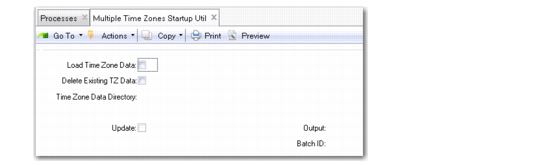
Multiple Time Zones Startup Utility (11.21.22.24) illustrates Multiple Time Zones Startup Utility.
Multiple Time Zones Startup Utility (11.21.22.24)
Load Time Zone Data
Yes indicates you want the system to load your own time zone data. You can use this data as the basis for your own time zone maintenance.
After loading, verify that the time zones are valid and appropriate for your business. Use Multiple Time Zone Report or Inquiry to ensure the definitions conform to your requirements.
Delete Existing TZ Data
The system checks this field only when Load Time Zone Data is Yes. If you are loading time zone data, you can also delete current time zone definitions. Use this feature if you rerun the startup utility and want to reinitialize the loaded data.
Time Zone Data Directory
Specify the directory from which to load the time zone data.
If you select the Load Time Zone Data field, this field is mandatory and cannot be blank.
Update
Indicate whether you want the startup utility to be report‑only or change the database:
No: Execute the utility without changing database records. A report lists the records affected.
Note: Always execute the program with update set to No before actually making changes.
Yes: Complete the setup required to support and optionally activate Multiple Time Zones.