Multiple Time Zones Maintenance
Use Multiple Time Zones Maintenance (11.21.22.1) to define and modify time zones.
Note: Multiple Time Zones Startup Utility creates sample data upon which you can base your own time zones.
This program supports two ways of setting up a time zone:
• In the simplest format, you can base a time zone on an offset from GMT.
• The system can also track daylight savings time adjustments from a baseline you set.
If you choose the second approach, you must specify when the change in time occurs. You can also use effective dates with time zone information, if the start and end points for daylight savings time only apply for a range of years.
After you define the time zones, you can generate reports with Multiple Time Zones Inquiry (11.21.22.2) and Multiple Time Zones Report (11.21.22.3). A time zone lookup displays on the time zone field throughout service functions. Because of size restrictions, this lookup displays only the standard GMT offset for the time zone, even if you defined it with adjusted periods.
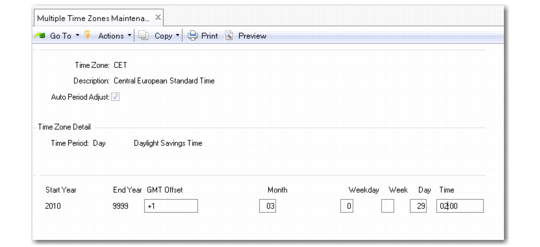
Multiple Time Zones Maintenance (11.21.22.1) illustrates Multiple Time Zones Maintenance.
Multiple Time Zones Maintenance (11.21.22.1)
Time Zone
Enter an eight-character label identifying a time zone.
Description
Enter a brief (maximum 40 character) of this time zone. The description appears on the time zone pop-up in various service functions.
Auto Period Adjust
This field indicates whether the system should adjust the time zone you are defining for a given period—usually daylight savings time or its equivalent.
Yes: Define the period to be adjusted in the subsequent detail frame.
No: Time Period defaults to STD (standard). You cannot change it.
Time Period
This field is editable if Auto Period Adjust is Yes. Valid choices are STD for standard time, Day for daylight-saving time, and Sum for summer time. You can define details for two periods: a standard period, and a special adjusted period for daylight savings or its equivalent. This field determines which of the detail fields are required. Set up values for time period as language details to reflect the terms you use.
Start Year
The beginning year of a range, to which this time zone definition applies. In some countries, the implementation of time zones varies from year to year. Using start and end dates, you can set up multiple records effective at different periods of time.
End Year
The ending year of a range, to which this time zone definition applies. If you do not know when the current definition ceases to be effective, use an end year such as 9999.
GMT Offset
Enter the actual offset in hours and minutes from Greenwich mean time (GMT) for this time zone. Enter this number with either a plus sign (+) or minus sign (–) indicating the direction of the offset.
GMT is the base for establishing the relationships among time zones and is never affected by daylight-saving time adjustments.
Start Period
Only required if Auto Period Adjust is Yes. The first day of the week when the change of time occurs, entered in MM/DD format. For the United States, daylight-saving time normally begins on the first Sunday in April—identified by a start date of 04/01—and ends on the last Sunday in October—identified by a start date of 10/25.
This field, in conjunction with the Weekday and Time fields, identifies precisely when the time change occurs.
Month
Specify the month in which daylight savings starts or ends. The month is expressed as a numerical value between 1 and 12. For January, enter 1; for February, enter 2, and so on.
This field is mandatory.
Weekday
Only required if Auto Period Adjust is Yes. A number from 0 to 7 indicating the day of the week—identified by the Start Period field—when the time change occurs.
• Enter 0 if the change occurs on the date in the Start Date field, regardless of the day of the week on which it falls.
• Enter a number in the range 1-7 corresponding to Sunday through Saturday if the change occurs on a certain day of the week.
Note: In the U.S., time changes always occur on Sunday (1).
Week
Specify the week in the month in which daylight savings starts or ends. The week is expressed numerically and must be a value between 1 and 5, where 5 indicates the last week in the month. You can only use this field if you also specify a value in the Weekday field.
Note: The Week field only takes effect if the Weekday field contains a non-zero value.
You can use this field and the Month and Weekday fields to define cases where daylight savings time begins on a particular weekday in a month, rather than on a set date every year. For example, in the US, daylight savings time begins on the second Sunday of March and ends on the first Sunday of November.
Day
Specify the particular day in a month on which daylight savings starts or ends. The day is expressed numerically and must be a value between 1 and 31. You can only specify a value in this field if the Weekday field is set to 0.
You can use this field and the Month field to define situations where daylight savings time begins on a particular date in the year. For example, in Honduras, daylight savings time began on 7 May, 2010.
Time
Only required if Auto Period Adjust is Yes. The exact time of day—identified by the Start Period and Weekday fields—using a 24‑hour clock, when the time change occurs. Enter this time in standard time.
In the United States, enter 02:00 when switching from standard time to daylight-saving time, but 01:00 when switching from daylight savings time back to standard.