Correcting a Posted Invoice
If you billed a contract in error and have posted the invoice, you can use Billing Date Correction (11.5.18.19) to reset the billing dates on the contract header and contract line items.
Important: The financial impacts of service functions are managed outside the SSM module. You must correct the billing itself by issuing a credit invoice or memo to negate the incorrect invoice amount.
Billing Date Correction works on one contract at a time. You must manually correct each contract posted incorrectly. To prevent lengthy corrections, establish procedures and verify contract invoices before you post them. Do this by executing the release function with Update set to No and Print Report set to Yes before creating the service sales orders.
To correct a posted invoice, follow these steps:
1 Create a manual credit invoice using Pending Invoice Maintenance (7.13.1). Then use Invoice Post ant Print (7.13.4) to credit the mistakenly billed amount.
2 Use Billing Date Correction to reset billing dates that were updated by Billing Release to Invoice. You must reset the dates on each affected contract line.
3 Use Contract Maintenance to make the necessary changes to the contract data, such as changes to price or quantity.
4 Use Billing Release to Invoice to re-release the contract to billing.
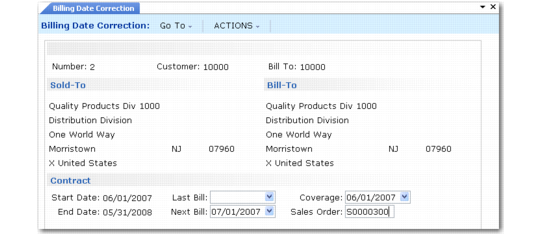
Billing Date Correction (11.5.18.19) illustrates Billing Date Correction (11.5.18.19).
Billing Date Correction (11.5.18.19)
Once you select a contract to modify, the system fills in the other fields with current data from the contract record. You can modify billing dates for the header, line items, and additional charges on this contract. Lines and additional charges display in additional frames.
By default, the sales order number and line fields in the Contract Detail frame display the pending invoice of the last contract line billed. You can update these fields.
Note: The contract start and end dates can only be changed in Contract Maintenance.